A Windows Filter Keys slow typing problem can make a working keyboard feel as though it is missing presses. Before buying a replacement, look at the setting that changes how Windows accepts brief and repeated input. The goal is to restore useful typing while preserving any accessibility behaviour the person using the PC needs.
Quick Answer
Windows Filter Keys slow typing can come from filtering that ignores brief or repeated keystrokes. Inspect Settings, Accessibility, Keyboard and Filter Keys in Windows 11, then compare text entry after one deliberate change. The setting check costs R0; a MARVO WS005 keyboard-and-mouse combo was R179 on 8 October as a separate replacement reference.
⌨️ Describe the missing input first
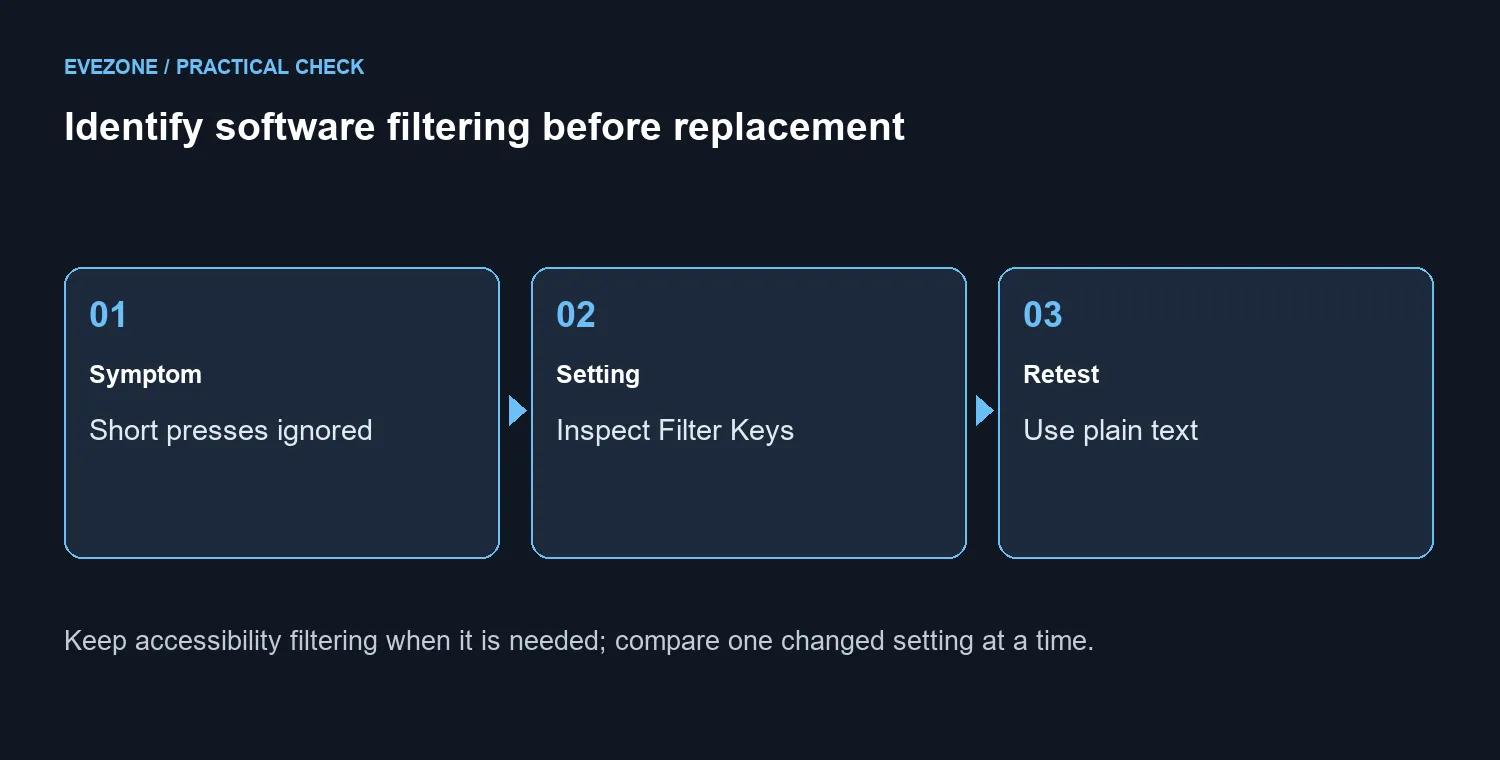
Open a plain text editor and type a short sentence at your normal pace. Then hold one letter briefly and observe the repeated input. Note whether single presses are missed, repetition is delayed or the problem only appears in one application. These are different symptoms, and keeping them separate helps the next test mean something.
Ask whether the user deliberately enabled input filtering. If it helps them type, leave that need at the centre of the decision. A feature that feels slow to one person may be what makes the keyboard usable for another. Record the starting setting so you can return to it after a comparison.
⚙️ Compare one setting at a time
Inspect Filter Keys in Keyboard accessibility. Its behaviour concerns brief and repeated input, including acceptance and repeat timing. Change only the option you intend to test, then repeat the same short text in the same editor. Keep the pace and task reasonably consistent.
If the comparison explains the symptom, choose the setting that supports the user's needs. If it does not, restore the baseline and continue with a separate test. Do not combine a setting change, driver change and new keyboard into one experiment: even an improved result would be difficult to explain.
🛒 Buy hardware after the comparison
If the fault remains, compare the keyboard in another appropriate application and, when available, compare a known-working keyboard on the same PC. A consistent physical-key problem deserves a different investigation from system-wide filtering.
Browse keyboards once replacement is a supported next step. For an inexpensive everyday set, keyboard and mouse combos provide a complete alternative; the dated R179 MARVO listing is a budget reference rather than a reason to skip diagnosis. Keep the old board until you have established what actually caused the missed input.
Frequently Asked Questions
What does Filter Keys change?
It can ignore brief or repeated keystrokes. That can feel like missing input or a delayed repeat when the feature was not intended.
Where should I look first?
In Windows 11, inspect Settings, Accessibility, Keyboard and Filter Keys. Note the starting setting before changing it.
Does it prove the keyboard is broken?
No. A system input setting can change how a working keyboard feels. Retest plain text before buying another board.
Should every user switch it off?
No. Filtering can make typing usable for someone who needs it. Adjust the behaviour together with the person using the PC.
How should I compare repeat behaviour?
Use the same short text and a held key in a plain editor. Change one setting, then compare the result with the baseline.
What replacement cost was checked?
MARVO WS005 mouse and keyboard combos were R179 and in stock on 8 October. The setting check itself costs R0.
Test the input preference, then replace only what needs replacing.