


Using GitHub Copilot: Complete Beginner's Guide for SA Developers
Using GitHub Copilot: Complete Beginner's Guide for SA Developers. Everything you need to know with SA-specific pricing and recommendations.
Read moreThermal throttling vs CPU bottleneck? ❄️ Uncover how to spot signs, use diagnostic tools, and fix overheating or performance limits. Optimize your PC now! 💻 Read the full breakdown →
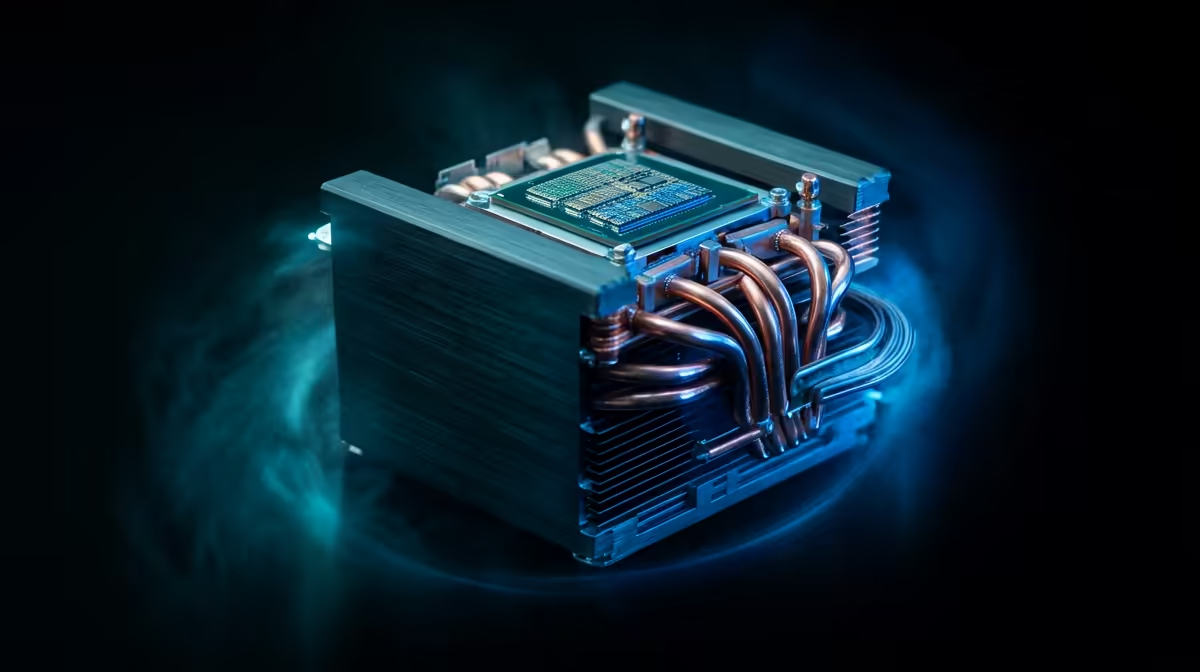
Is your gaming rig suddenly stuttering during a tense firefight in Soweto Towers? You've optimised your settings, but the frame drops persist. It's a frustrating problem many South African gamers face, and the culprit is often one of two sneaky performance thieves: thermal throttling or a CPU bottleneck. Understanding the difference is the first step to reclaiming your smooth, high-FPS glory. Let's dive in and diagnose the issue for good. 🔧
Ever feel like slowing down on a scorching hot day in Durban? Your CPU does the exact same thing. Thermal throttling is a built-in safety feature. When your processor gets too hot (typically pushing 95-100°C), it automatically reduces its clock speed to cool down and prevent permanent damage. It’s not a fault… it’s a defence mechanism. But for gamers, this sudden drop in performance feels like hitting a wall, causing massive lag spikes and stuttering.
The evidence for thermal throttling is found in the numbers.
Common fixes include cleaning dust from your PC case and fans, reapplying thermal paste, or upgrading your CPU cooler for better heat dissipation.
Use a tool like MSI Afterburner with its on-screen display to watch your CPU GPU usage and temps in real-time. It’s the fastest way to diagnose whether you're dealing with a CPU bottleneck vs thermal throttling mid-game. No guesswork needed!
A CPU bottleneck is a different beast entirely. It’s not about heat; it's about balance. This happens when your graphics card (GPU) is significantly more powerful than your processor. Your GPU is ready to render beautiful, high-refresh-rate frames, but it’s stuck waiting for your CPU to process the game logic and send instructions. The CPU simply can't keep up, creating a traffic jam that limits your GPU's potential and caps your framerate.
Spotting a CPU bottleneck also involves monitoring your hardware, but you'll be looking at different metrics.
While closing background applications can help, the most effective solution is often an upgrade. Choosing between the latest Intel CPUs and a powerful AMD Ryzen processor can feel daunting, but it's the surest way to unlock your GPU's full power.
Let's break down the thermal throttling vs CPU bottleneck confusion one last time:
Knowing which problem you have is crucial. Wasting money on a new AIO cooler won't fix a bottleneck, and a new CPU won't help much if your current one is just overheating. Diagnose correctly, and you'll be on the fast track to a smoother gaming experience. 🚀
Ready to Eliminate Performance Issues? Whether it's a cooling upgrade or a brand new processor, Evetech has the gear to get your rig running flawlessly. Explore our complete range of CPU processors and leave lag in the dust.
Use tools like HWMonitor to spot temperature spikes—thermal throttling occurs when CPUs/GPUs overheat.
No, bottlenecks stem from component limits—thermal throttling is temperature-related, unlike CPU bottlenecks.
Use Task Manager, MSI Afterburner, or Core Temp to identify CPU or thermal limits in your system.
Yes—bad thermal paste causes poor cooling, triggering thermal throttling even with a powerful CPU.
Short-term throttling protects hardware, but persistent overheating risks long-term damage—optimize cooling to prevent it.
Upgrade your CPU or adjust workloads—bottlenecks occur when the processor lags behind components.
Absolutely—dust buildup blocks airflow, raising temperatures and causing throttling. Clean fans regularly.
Yes—laptops often throttle due to compact cooling; use cooling pads and clean vents to avoid it.
Using GitHub Copilot: Complete Beginner's Guide for SA Developers. Everything you need to know with SA-specific pricing and recommendations.
Read more
Back-to-School Headset Buying Guide for SA 2026. Everything you need to know with SA-specific pricing and recommendations.
Read more
Mesh Front Panel Setup and Configuration: Complete Tutorial. Comprehensive coverage with SA insights, Rand pricing, and practical recommendations.
Read more
Black Screen: Troubleshooting Guide #1. Everything you need to know with SA-specific pricing and recommendations.
Read more
The Complete 2026 Guide to Storage in South Africa. Everything you need to know with SA-specific pricing and recommendations.
Read more
1000W PSU Not Working After Load Shedding: Recovery Guide. Everything you need to know with SA-specific pricing and recommendations.
Read more
AMD RX 9050 XT: Rumoured Specs, Price & Release. SA-focused analysis with local pricing data, real-world insights & actionable buying advice.

Can RTX 4080 Super Run AI Workloads for SA Developers Detailed answer with SA data, expert analysis & practical recommendations for local buyers.

Can RTX 4090 Run AI Workloads for SA Developers Detailed answer with SA data, expert analysis & practical recommendations for local buyers.

Top Settings for Intel Arc B580 at Ultrawide 1440p picks evaluated on performance, value & SA availability with current Rand pricing from Evetech.

RTX 4060 CS2 Low Settings at 1080p: FPS Results. Real-world benchmark data, FPS numbers & performance analysis. What SA gamers can actually expect.

Visual Artifacts: Possible GPU Issue Issue #1. Diagnosis steps, proven fixes & when to seek professional help. SA-specific support info included.

Can the RTX 4090 Handle 1440p 144Hz Gaming. Performance testing verdict with real data & practical recommendations for SA buyers.

Top ASUS GPU Under R15000 picks evaluated on performance, value & SA availability with current Rand pricing from Evetech.

GTA 6 Max Settings on RTX 5070. Tested & verified settings for best FPS and visual quality on SA hardware budgets.

Cyberpunk 2077 Max Settings on RTX 5080. Tested & verified settings for best FPS and visual quality on SA hardware budgets.

Starfield Max Settings on RTX 5070 Ti. Tested & verified settings for best FPS and visual quality on SA hardware budgets.

Top RTX 5090 Under R5000 picks evaluated on performance, value & SA availability with current Rand pricing from Evetech.