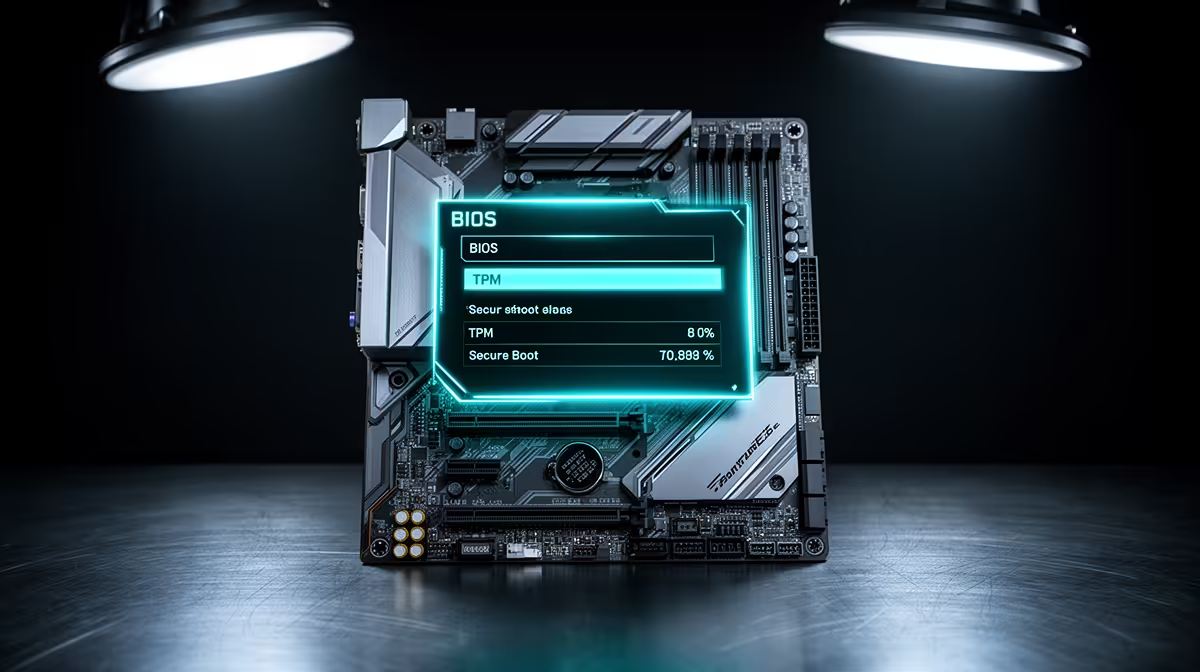
A surprising number of South Africans price up a whole new PC because a Windows 11 readiness check flagged TPM and Secure Boot as missing. In most cases those features are already built into the machine and simply switched off in firmware. Fixing TPM and Secure Boot is usually a five-minute trip into the BIOS that costs nothing, and it can keep a perfectly capable PC running the latest Windows for years longer.
Quick Answer
On almost any PC built in the last several years, TPM 2.0 and Secure Boot are present but disabled by default in the BIOS. Enable Intel Platform Trust Technology (PTT) on Intel boards, or AMD fTPM on AMD boards, switch Secure Boot on, save and reboot. That makes the machine Windows 11 eligible at zero cost. Check this before spending a cent on a replacement.
Why The Readiness Check Lies By Omission
Microsoft's PC Health Check and the Windows 11 setup both report whether TPM 2.0 and Secure Boot are active, not whether the hardware exists. Modern Intel and AMD platforms implement the TPM in firmware rather than as a separate chip, and that firmware TPM ships switched off on a lot of consumer boards. So the readiness tool sees "not present" and you assume you need new hardware, when the silicon to satisfy the requirement is already sitting in your machine.
The same applies to Secure Boot, which is a UEFI feature that verifies the boot chain. It is frequently disabled out of the box, or gets turned off when someone installs an older operating system or boots from external media. Both are settings, not purchases.
Step One: Get Into The BIOS Safely
You can reach firmware settings two ways. The classic route is tapping Delete, F2 or F10 during the first second of boot, depending on your board. The cleaner route from inside Windows is Settings, then System, then Recovery, choose Restart now under Advanced startup, then Troubleshoot, Advanced options, UEFI Firmware Settings, and Restart.
Step Two: Enable The TPM
Inside the BIOS, the TPM setting hides under a menu usually labelled Advanced, Security or Trusted Computing. The exact wording depends on the manufacturer.
On Intel Systems
Look for Intel Platform Trust Technology, often shortened to Intel PTT or PTT. On many ASUS boards it lives under Advanced, then the PCH-FW Configuration page. Set it to Enabled. This is Intel's firmware implementation of the TPM and it satisfies the Windows 11 requirement without any add-in module.
On AMD Systems
Look for AMD fTPM, sometimes shown as AMD PSP fTPM or a TPM Device Selection option. On ASUS AMD boards it sits under the AMD fTPM configuration page, where you switch TPM Device Selection to Firmware TPM. Other brands may label it AMD CPU fTPM. Set it to enabled or firmware.
If you genuinely cannot find a TPM option, it may appear as a generic Security Device or Security Device Support entry; enabling that achieves the same result.
Step Three: Turn On Secure Boot
Secure Boot usually lives under a Boot or Security menu. It often requires your firmware to be in UEFI mode rather than Legacy or CSM mode, so disable Compatibility Support Module first if Secure Boot is greyed out. Then set Secure Boot to Enabled. On some boards you may need to choose a Windows or "Other OS" Secure Boot mode and clear or install platform keys, which the board does automatically.
Step Four: Save, Reboot And Verify
Save changes and exit, usually F10. Back in Windows, open the Run dialogue with Win+R, enter tpm.msc, and hit Enter to open the TPM management console. The console should report a TPM that is ready for use with specification version 2.0. To confirm Secure Boot, run msinfo32 and check that Secure Boot State reads On. With both confirmed, re-run the readiness check and the machine should pass.
When upgrading really is the answer, for example on an older system that lacks a firmware TPM entirely, a compact and power-efficient option is worth weighing. Evetech's mini PC range covers small-form-factor machines that already ship Windows 11 ready, and the PC best sellers list shows what local buyers are choosing when a genuine replacement makes sense.
When Enabling Will Not Work
A small group of older machines, typically pre-2016 platforms, have no firmware TPM and no header for an add-in module, so no BIOS toggle exists. Some very entry-level boards also omit fTPM. In those cases the readiness check is telling the truth and a hardware upgrade is the path. The point is to confirm that for yourself in the BIOS first, because for the majority of machines the fix is free.
Frequently Asked Questions
Does enabling TPM or fTPM erase my data?
Enabling the firmware TPM itself does not wipe your drive. However, if you later use the TPM for drive encryption such as BitLocker, you should back up your recovery key, and clearing an already-provisioned TPM can lock encrypted data. For a plain enable-and-verify, your files are not touched.
What is the difference between Intel PTT and AMD fTPM?
They are the same idea from two vendors. Both implement a TPM 2.0 in platform firmware rather than as a discrete chip. Intel calls it Platform Trust Technology and AMD calls it firmware TPM. Either one satisfies the Windows 11 TPM 2.0 requirement once enabled.
Why is Secure Boot greyed out in my BIOS?
Almost always because the firmware is running in Legacy or CSM mode. Secure Boot needs UEFI mode. Disable Compatibility Support Module, set the boot mode to UEFI, save and reboot, and the Secure Boot option should become selectable.
How do I confirm TPM is actually working after I enable it?
Run tpm.msc in Windows. A working module reports that the TPM is ready for use and lists specification version 2.0. For Secure Boot, run msinfo32 and look for Secure Boot State set to On. Both green means the readiness check will pass.
My PC is quite old. Is it even worth trying?
Yes, because the check is free and quick. Platforms from roughly 2016 onward very often have a firmware TPM waiting to be switched on. Only the oldest machines lack the feature entirely, and a two-minute look in the BIOS tells you which group yours is in before you spend anything.
Check your BIOS before you check your wallet. If enabling TPM and Secure Boot keeps your current PC on Windows 11, you have saved real money; if it genuinely cannot, browse the PC best sellers at Evetech to find a machine that ships ready to go.