

Using GitHub Copilot: Complete Beginner's Guide for SA Developers
Using GitHub Copilot: Complete Beginner's Guide for SA Developers. Everything you need to know with SA-specific pricing and recommendations.
Read moreLearn how to turn off adaptive contrast energy mode in office settings 🚫💡 Boost comfort and reduce eye strain effectively.
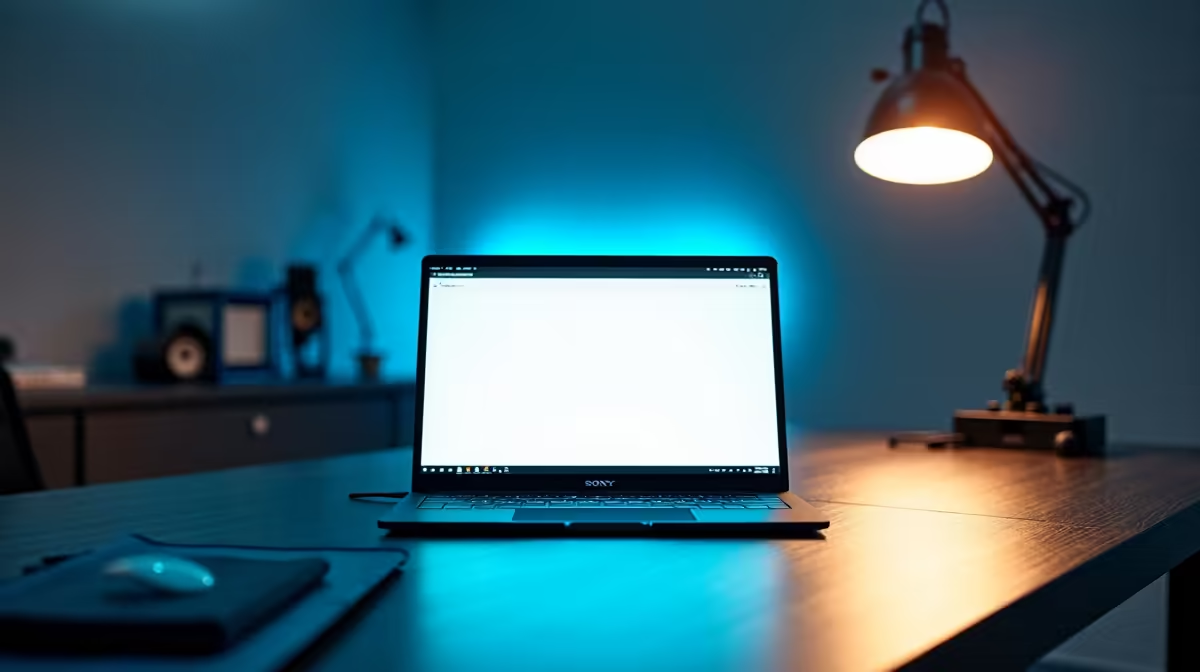
Is there anything more frustrating than your screen dimming on its own while you’re deep in a spreadsheet or typing up a report? You’re in the zone, and suddenly, the brightness dips for no reason. This isn't just annoying; it breaks your focus. For many South Africans using their powerful PCs for both work and play, this "feature," known as Adaptive Contrast, is a real pain.
Luckily, there’s a quick fix. Let's get this sorted. 🔧
Before we dive into the fix, what exactly is this feature? Adaptive Contrast is a power-saving setting, usually controlled by your graphics drivers (like Intel Graphics), designed to save battery life on laptops by adjusting the screen's contrast and brightness based on the content displayed. Darker images use less power.
While it’s a noble idea for laptops, it often causes more trouble than it's worth on a desktop PC, leading to that distracting, automatic dimming in apps like Microsoft Office. A quality display shouldn't need aggressive software tricks to look good; it should just deliver a stable, crisp image right out of the box. That's why investing in one of the many top-tier PC monitors available in South Africa is always a good long-term strategy for visual consistency.
Ready to take back control of your screen's brightness? The steps to turn off Adaptive Contrast Energy Mode are usually found in your graphics card's control panel. The most common culprit is Intel Graphics, which is integrated into many CPUs.
Here’s the typical process for Intel Graphics Command Center:
And that's it! ✨ The change should be immediate. Your screen will no longer betray you with random dimming while you’re trying to work. This setting is separate from the high-performance modes you’d use on proper gaming monitors, which prioritise refresh rates and response times over aggressive power saving.
Sometimes, monitors have their own built-in 'Eco Mode' or 'Dynamic Contrast' setting. Use the buttons on your monitor to navigate its on-screen display (OSD) menu and make sure any similar features are disabled there as well for a truly consistent picture.
Disabling the setting solves the problem for most people. But what if your screen still looks washed out, or the colours just don't feel right? Sometimes, you're just hitting the limits of your hardware. An older or entry-level monitor might struggle with colour accuracy and consistent brightness, no matter what settings you tweak.
Upgrading your display can make a massive difference, not just for productivity in Office but for everything else you do.
Don't forget that the right monitor accessories, like a good monitor arm, can also improve ergonomics and help you create the perfect setup. 🚀
Ready for a Visual Upgrade? If you're tired of fighting with settings and just want a brilliant, reliable display, check out the best monitor deals in South Africa. Explore the latest specials at Evetech and find a screen that works for you, not against you.
Go to File > Options > General and uncheck 'Use system theme for adaptive contrast'.
Office may use system theme settings. Check your Windows display preferences for adaptive contrast.
Yes, disable adaptive contrast through Word's Options menu under General settings.
No, disabling adaptive contrast only affects visual appearance, not app performance.
Adjust adaptive contrast settings via Excel's Options > General section to control brightness effects.
Office 2019 supports basic theme settings but has limited adaptive contrast features compared to Office 365.
Using GitHub Copilot: Complete Beginner's Guide for SA Developers. Everything you need to know with SA-specific pricing and recommendations.
Read more
Back-to-School Headset Buying Guide for SA 2026. Everything you need to know with SA-specific pricing and recommendations.
Read more
Mesh Front Panel Setup and Configuration: Complete Tutorial. Comprehensive coverage with SA insights, Rand pricing, and practical recommendations.
Read more
Black Screen: Troubleshooting Guide #1. Everything you need to know with SA-specific pricing and recommendations.
Read more
The Complete 2026 Guide to Storage in South Africa. Everything you need to know with SA-specific pricing and recommendations.
Read more
1000W PSU Not Working After Load Shedding: Recovery Guide. Everything you need to know with SA-specific pricing and recommendations.
Read more
AMD RX 9050 XT: Rumoured Specs, Price & Release. SA-focused analysis with local pricing data, real-world insights & actionable buying advice.

Can RTX 4080 Super Run AI Workloads for SA Developers Detailed answer with SA data, expert analysis & practical recommendations for local buyers.

Can RTX 4090 Run AI Workloads for SA Developers Detailed answer with SA data, expert analysis & practical recommendations for local buyers.

Top Settings for Intel Arc B580 at Ultrawide 1440p picks evaluated on performance, value & SA availability with current Rand pricing from Evetech.

RTX 4060 CS2 Low Settings at 1080p: FPS Results. Real-world benchmark data, FPS numbers & performance analysis. What SA gamers can actually expect.

Visual Artifacts: Possible GPU Issue Issue #1. Diagnosis steps, proven fixes & when to seek professional help. SA-specific support info included.

Can the RTX 4090 Handle 1440p 144Hz Gaming. Performance testing verdict with real data & practical recommendations for SA buyers.

Top ASUS GPU Under R15000 picks evaluated on performance, value & SA availability with current Rand pricing from Evetech.

GTA 6 Max Settings on RTX 5070. Tested & verified settings for best FPS and visual quality on SA hardware budgets.

Cyberpunk 2077 Max Settings on RTX 5080. Tested & verified settings for best FPS and visual quality on SA hardware budgets.

Starfield Max Settings on RTX 5070 Ti. Tested & verified settings for best FPS and visual quality on SA hardware budgets.

Top RTX 5090 Under R5000 picks evaluated on performance, value & SA availability with current Rand pricing from Evetech.