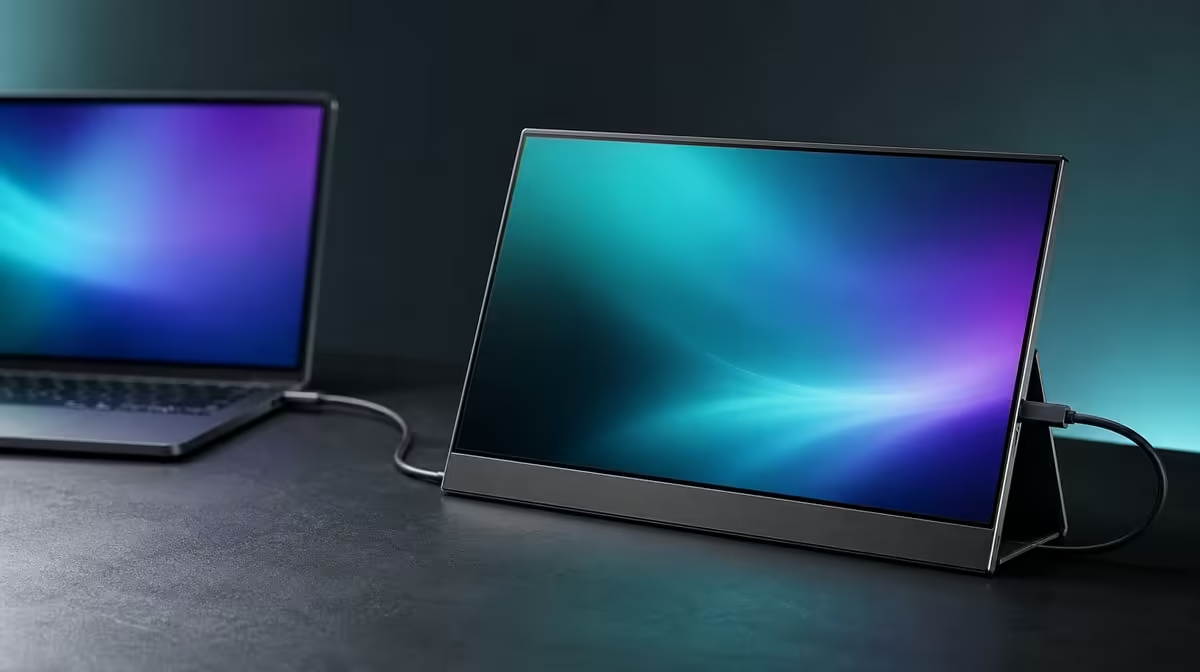
USB-C is a connector, while video and power are capabilities that must be confirmed. A proper USB-C portable monitor video and power plan checks the source port, cable, display input, and power route separately before expecting the UPERFECT UColor J5 to operate through one lead.
Quick Answer
USB-C can carry video to the R5,999 UColor J5 only when the source port and cable support display output, and a one-cable power arrangement should not be assumed without matching capabilities. The monitor also accepts HDMI, providing a separate video route while buyers plan the required power and native 3840 x 2160 output.
🔌 Connector shape does not prove video
Two USB-C sockets can look identical and perform different roles. Check the exact source documentation or capabilities for display output. Then confirm that the cable carries video, because a charging cable may share the plug without supporting a monitor signal.
Select USB-C on the display and connect directly during the first test. If the panel has power but no picture, work on the video path rather than treating the lit screen as proof that the source is sending an image.
Evetech's portable monitor category helps buyers compare current input combinations before planning a simplified cable arrangement.
🔋 Treat power as its own agreement
Video-capable USB-C does not automatically prove that the complete setup can power the display through the same cable. Source, lead, and monitor must agree on the required capabilities.
Prepare a separate power plan unless the one-cable route is confirmed for the exact devices. This avoids diagnosing a missing picture while the monitor is not operating as expected.
Do not infer power consumption or included accessories beyond the facts in the queue. Build the plan around the actual screen, source, and available connections. Evetech's PC monitor selection provides context for displays with different source arrangements.
🖥️ Confirm 4K only after detection
Once the host sees the J5, set 3840 x 2160 and choose readable scaling for the 17.3-inch panel. A connection can be working while the source applies a lower resolution or awkward interface size.
Test a familiar document, image, and video. The 400cd/m2 brightness, 1000:1 contrast, IPS technology, Low Blue Light, FreeSync, and 10ms response remain separate display characteristics. USB-C does not change their meaning.
If the source struggles with native 4K in a game, adjust output or workload deliberately. Connection success and application performance are different checks.
🧪 Use HDMI to isolate a blank path
The J5's HDMI input gives another video route. Connect a source with known HDMI output, include the required monitor power, select HDMI, and check for an image. A working result narrows the USB-C investigation to the source port, cable, or active settings.
Follow the same order every time: monitor power, input selection, source output support, cable function, host detection, resolution, and scaling. This prevents several simultaneous swaps from hiding the cause.
Evetech's monitor best sellers give a live comparison point. Recheck the R5,999 amount and current availability when the purchase is being made.
Save a connection card for each source. One device may have a clean USB-C route while another uses HDMI and a different power arrangement. Flexibility comes from keeping those proven plans distinct.
Add a status column for each checkpoint: powers on, correct input, video-capable port, suitable cable, host detection, native output, and readable scale. When a setup fails, begin at the first incomplete box.
Test the same USB-C cable on the known source after any failed experiment. This protects a proven component from being discarded because another host port lacks display output.
When HDMI works, preserve that result. It does not prove why USB-C failed, but it confirms a video route to the panel and gives the user a stable screen while the other path is investigated.
After native 4K is established, use a normal application for twenty minutes. Stable connection, correct scaling, and comfortable brightness are part of successful operation, not optional checks after the cable test.
Revisit the card when the J5 moves. The monitor's panel specifications remain the same, while source output, cable, power, and settings can change. Device-specific notes keep one host's limitations from becoming a false rule for all USB-C equipment.
Diagnose USB-C in layers. First confirm that the exact source port can output video; another USB-C socket on the same device may have a different role. Next confirm that the cable supports the required display signal. Then provide the monitor's required power and select the correct input. Changing one layer at a time preserves evidence about which part of the path failed.
If the panel remains blank, check whether the operating system detects another display before altering resolution or picture settings. No detection points attention towards the source output, cable, power, or input selection. Detection without a usable picture creates a different branch, where the chosen display mode and reconnection sequence become relevant. This separation is more informative than replacing every component at once.
HDMI is valuable as an independent comparison. When the source has a working HDMI output, it can establish whether the monitor displays video while USB-C questions are isolated. It still does not eliminate the power plan, and a successful HDMI test does not prove that the original USB-C port or cable can carry video. The two routes answer different diagnostic questions.
After the connection works, confirm 3840 x 2160 and set readable scaling for the 17.3-inch panel. Disconnect and rebuild the arrangement once, then record the source port, cable, input, and power combination. That turns a successful experiment into a repeatable everyday setup and prevents the J5's USB-C shape from being mistaken for a universal promise.
Power behaviour should be confirmed with the entire real combination, not inferred from a successful video test. Use the intended source, exact USB-C port, chosen cable, and the monitor's required power arrangement, then run the setup through sleep, wake, restart, and reconnection. A path that works only after an unusual sequence needs that sequence documented or a different arrangement.
Cable substitution should be controlled as well. Label the known display cable or keep it with the monitor, since another lead with the same connectors may be intended for a different job. When testing a replacement, change only the cable and leave the port, power, and input stable. This makes success or failure meaningful.
For travel, photograph the working ports and pack the video and power leads together. At the destination, rebuild from the record before trying alternatives. The routine reduces uncertainty and makes it much easier to identify whether the changed element is the source device, cable, power, or selected input.
Frequently Asked Questions
Does every USB-C port output video?
No. Confirm display-output support for the exact source socket.
Can any USB-C cable carry the picture?
No. The cable needs the capability required for display video.
Will video-capable USB-C always power the monitor?
Do not assume it. The source, cable, and monitor must support the complete arrangement.
Why does the J5 include HDMI?
It provides another video path for compatible sources and can help isolate USB-C problems.
Can USB-C carry 4K to this panel?
The J5 is a 3840 x 2160 display, but the exact source port, cable, and route must support the intended output.
Ready to make one-cable simplicity something you can prove?
Compare Evetech's portable monitors and match USB-C video, HDMI, cables, and power to the exact sources you own.