

Complete Gaming Setup Guide for the SA Esports Athlete in SA 2026
Complete Gaming Setup Guide for the Esports. Clear setup instructions with SA-specific considerations, troubleshooting tips & recommended components.
Read moreUSB microphone sounds quiet? Diagnose gain, placement, monitoring, and room setup to boost clarity and volume. Try these fixes and sound confident in minutes 🎙️🔧
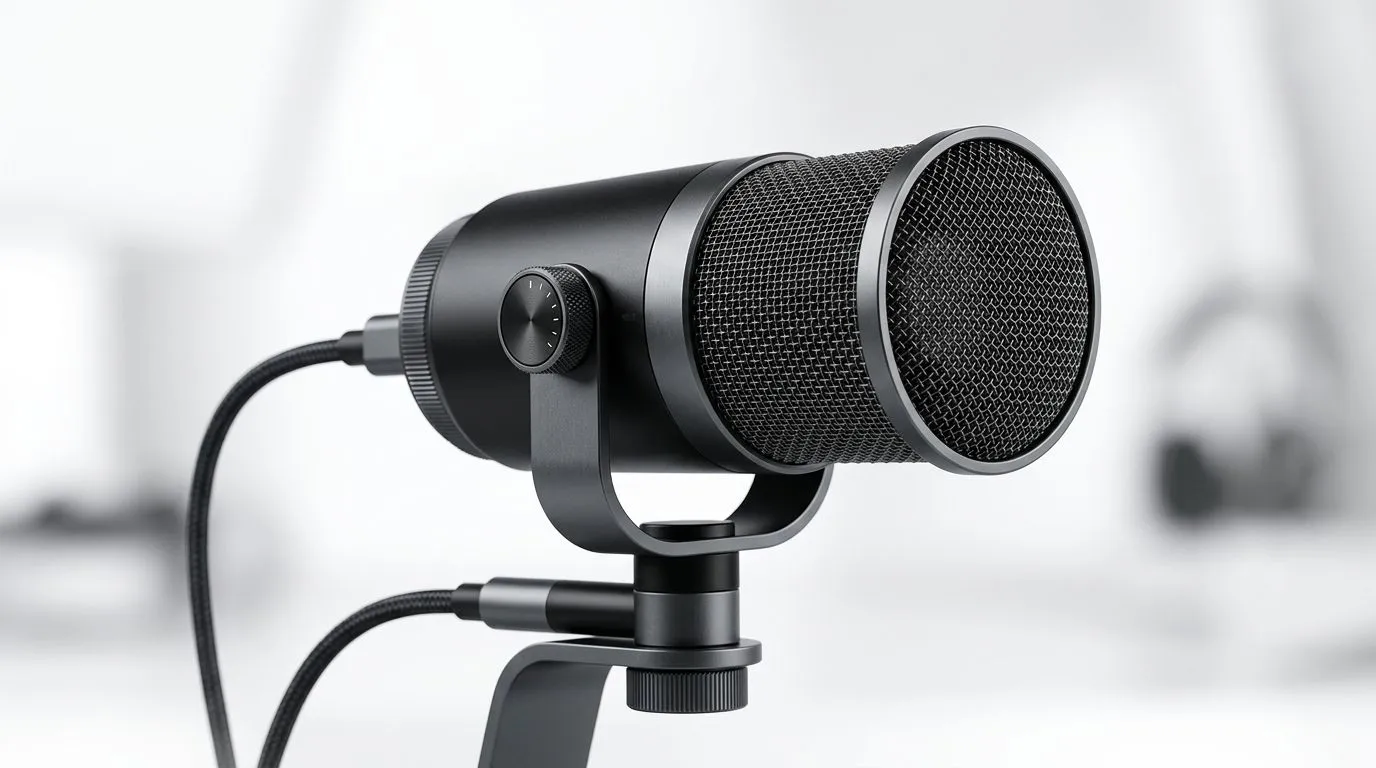
Your USB mic should not sound like it was recorded from the next room. If your voice comes through weak, thin, or buried under keyboard clicks, the fix is usually simpler than people think 🔧. Most quiet-mic problems come down to three things: input gain, mic placement, and monitoring setup. Sort those out first, and you can often avoid buying new gear altogether.
Before changing software settings, check the physical gain on the microphone itself. Many USB mics have a small dial, touch control, or software slider that affects input level. If it is too low, your voice will sit far below the noise floor.
Start with this basic approach:
Open Sound settings and confirm the correct USB mic is selected as the input device. Then raise the input level gradually. If the mic clips, back it off a little. The goal is a strong, clean signal... not maxed-out distortion.
If you speak too far from the mic, your voice drops fast. A close, steady position works better than leaning in and out. For most USB mics, 10 to 15 cm is a sensible starting point. Keep your mouth slightly off-axis to reduce plosives.
Noise suppression, automatic gain control, and aggressive voice filters can make your mic sound dull or quiet. If you are streaming or recording, test with those effects off first. Then add only what you actually need.
Placement matters more than many first-time streamers expect. A good mic in a bad position will still sound weak. A modest mic placed well can sound surprisingly solid ⚡.
If your mic is on a desk stand, try moving it closer and off the desk surface. That helps reduce vibration and reflection. If you are using a boom arm, angle it toward the side of your mouth rather than directly in front of your nose.
Room noise also plays a part. Fans, open windows, and hard walls can make your voice feel less present because the mic picks up everything else. Soft furnishings help. Even a curtain or carpet can reduce harsh reflections.
Place your USB microphone closer, turn down background noise, and test again before buying replacements. A small adjustment in mic position often fixes “quiet” audio faster than new software.
}
Monitoring is where many people get confused. If you listen through low system volume, you may think the mic is the problem when it is not. Always test with both direct monitoring and playback monitoring if your mic supports it.
This lets you hear your own voice through the mic or headset with very little delay. It is useful for checking tone and volume in real time.
This runs through your PC and can introduce latency. It is fine for checking levels, but it can make live speech feel odd. If the monitored sound is quiet, confirm your app is using the same input device as Windows.
Record 10 seconds of speech, then play it back at a normal volume. That gives you a clean baseline. If the recording is quiet, the problem is in gain or placement. If playback is fine but live monitoring is poor, the issue is likely software.
If you have tried the basics and the mic still underperforms, it may be time to look at better streaming accessories. A sturdier arm, pop filter, or camera setup can improve the overall stream quality and make your audio feel more professional. For South African buyers building a creator desk, it makes sense to browse dedicated streaming gear rather than patching together random bits.
You can explore Evetech’s streaming essentials for creators and gamers if you want to tighten up the rest of your setup. If you prefer a specific aesthetic or ecosystem, have a look at CORSAIR streaming essentials too.
For creators who stream with a little RGB flair, Cololight streaming accessories can add some polish without overcomplicating the desk. And if your audience sees you on camera, a decent webcam matters as much as your mic... so it is worth checking webcams for streaming and calls as well.
Use this quick order of attack:
Make sure Windows and your app are using the right microphone.
Increase mic gain slowly until voice levels are clear.
Stay consistent and keep the mic in a fixed position.
Switch off fans where possible and soften the room.
Record a short sample and compare it with live monitoring.
Disable heavy filters before blaming the hardware.
If you still cannot get a clean signal, the mic may simply not suit your room or use case. That happens. A well-matched setup always beats a trendy one.
Ready to Find Your Perfect Match? The Mac vs Windows debate is complex, but for maximum power, choice, and value in South Africa, Windows is hard to beat. Explore our massive range of laptop specials and find the perfect machine to conquer your world.
Most often the input gain is too low or the mic is muted. Check your OS input level and boost gain before changing placement.
Go to Sound settings and confirm the correct USB microphone is selected, then raise input level/gain and test recording with monitoring.
Select the USB mic in macOS Sound settings, raise input volume, and verify the app uses the correct input device for recording.
Aim for consistent peaks without constant clipping. Start with moderate gain, then adjust while watching meters during speech.
Yes. Keep the mic close to your mouth, slightly off-axis, and avoid pointing it directly at your breath to reduce quiet, thin audio.
Enable direct monitoring or app monitoring if available, and confirm monitoring volume does not differ from the recorded input level.
Hard, echoing rooms can make speech feel quieter. Add soft materials and reduce reflections to improve perceived loudness and clarity.
Use gentle compression to smooth peaks and a limiter to prevent clipping. Avoid heavy processing that can reduce perceived quality.
Complete Gaming Setup Guide for the Esports. Clear setup instructions with SA-specific considerations, troubleshooting tips & recommended components.
Read more
AIO Liquid 360mm Installation Guide for Your PC. Clear setup instructions with SA-specific considerations, troubleshooting tips & recommended components.
Read more
MacBook Display Colour Looks Wrong? Calibration. Everything you need to know with SA pricing, step-by-step instructions & expert recommendations.
Read more
Printer Terminology Guide. Everything you need to know with SA pricing, step-by-step instructions & expert recommendations.
Read more
Git on Mac: Complete Setup Guide for Beginners. Clear setup instructions with SA-specific considerations, troubleshooting tips & recommended components.
Read more
Ryzen 9 9900X Thermal Paste Dry: Reapplication. Everything you need to know with SA pricing, step-by-step instructions & expert recommendations.
Read more
AMD RX 9050 XT: Rumoured Specs, Price & Release. SA-focused analysis with local pricing data, real-world insights & actionable buying advice.

Can RTX 4080 Super Run AI Workloads for SA Developers Detailed answer with SA data, expert analysis & practical recommendations for local buyers.

Can RTX 4090 Run AI Workloads for SA Developers Detailed answer with SA data, expert analysis & practical recommendations for local buyers.

Top Settings for Intel Arc B580 at Ultrawide 1440p picks evaluated on performance, value & SA availability with current Rand pricing from Evetech.

RTX 4060 CS2 Low Settings at 1080p: FPS Results. Real-world benchmark data, FPS numbers & performance analysis. What SA gamers can actually expect.

Visual Artifacts: Possible GPU Issue Issue #1. Diagnosis steps, proven fixes & when to seek professional help. SA-specific support info included.

Can the RTX 4090 Handle 1440p 144Hz Gaming. Performance testing verdict with real data & practical recommendations for SA buyers.

Top ASUS GPU Under R15000 picks evaluated on performance, value & SA availability with current Rand pricing from Evetech.

GTA 6 Max Settings on RTX 5070. Tested & verified settings for best FPS and visual quality on SA hardware budgets.

Cyberpunk 2077 Max Settings on RTX 5080. Tested & verified settings for best FPS and visual quality on SA hardware budgets.

Starfield Max Settings on RTX 5070 Ti. Tested & verified settings for best FPS and visual quality on SA hardware budgets.

Top RTX 5090 Under R5000 picks evaluated on performance, value & SA availability with current Rand pricing from Evetech.