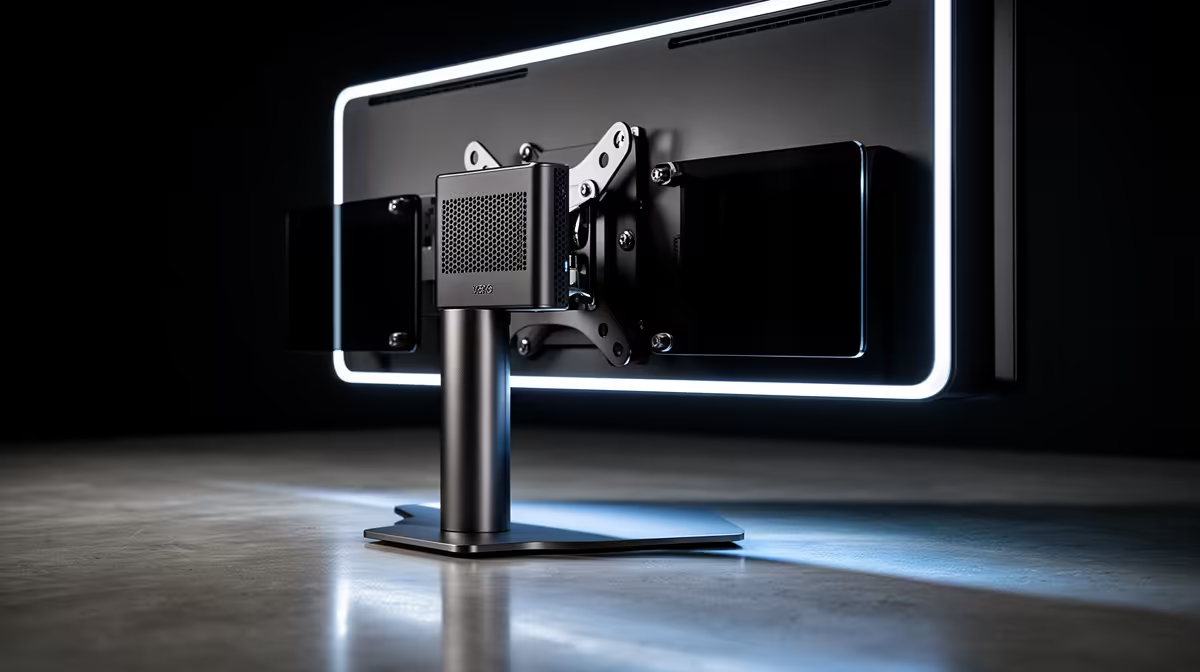
A clean desk is mostly about what you cannot see, and a mini PC bolted to the back of your monitor is one of the tidiest tricks in the book. A VESA mount for a mini PC lifts the box off your desk entirely, hides it behind the screen, and frees up the space it used to occupy. Most mini PCs are built for exactly this, shipping with a bracket or the mounting holes to add one, so the job is usually a ten-minute affair with a screwdriver.
Quick Answer
Most mini PCs either include a VESA bracket or have mounting holes in the 75x75mm or 100x100mm pattern, which lets the unit bolt straight to the back of a compatible monitor or onto a desk arm. Check that your monitor has matching VESA holes, confirm your mini PC's bracket pattern, and the installation takes 10 to 15 minutes with basic tools.
What VESA Actually Means
VESA is a standard for the spacing of the four mounting holes on the back of monitors and TVs. The two patterns that matter for desktop setups are VESA 75 and VESA 100, named for the distance in millimetres between the holes.
VESA 75 vs VESA 100
VESA 75 places the four holes in a 75mm square and turns up on smaller monitors, typically those under about 24 inches. VESA 100 uses a 100mm square and is the more common standard on 24 to 27 inch displays and larger. The good news is that most mini PC mounting brackets support both patterns out of the box, often alongside a 50x50 option, so you rarely have to match them exactly. You bolt the bracket to whichever pattern your monitor uses and attach the mini PC to the other side.
How the Mini PC Attaches
Mini PCs connect to the bracket in one of a few ways depending on the model. Some have their own VESA holes on the underside or back and screw directly to a plate. Others sit in a cradle held by screws, straps or clips, which is how universal brackets accommodate boxes of different sizes. Either way, a typical bracket handles the weight of a small-form-factor PC comfortably, with many rated to around 5kg or more.
Mounting Directly to the Monitor
The most common approach bolts the mini PC straight to the monitor's own VESA holes. This is the cleanest result because the PC and screen become a single unit, and nothing extra sits on the desk.
There is one trade-off to weigh first. If your monitor is currently on its factory stand, that stand uses the same VESA holes you now want for the mini PC. You have two options: use a sandwich-style bracket that mounts between the stand and the monitor so both share the holes, or move the monitor onto a desk arm and free those holes entirely. For setups where the monitor stays on its original stand, the sandwich bracket is the simpler path. If you are reconsidering the whole arrangement, the mini PC range at Evetech lists which models ship with a VESA bracket, which saves you buying one separately.
Mounting to a Desk Arm Instead
If your monitor already lives on a desk arm, you have the cleanest option of all available to you. Many monitor arms include a VESA pass-through or a secondary plate, and several universal mini PC brackets are designed to attach to a pole or arm rather than the monitor itself. This keeps the PC near the screen without adding its weight to the monitor's mounting holes, and it leaves the back of the display free.
This route also gives you more placement freedom. You can angle the box for better airflow or position it where the ports are easiest to reach, rather than being locked to wherever the monitor's holes sit.
Cooling, Cables and the Details That Matter
Hiding the box is the goal, but a mini PC tucked behind a screen still has to breathe and stay connected. Get these details right and the setup is flawless rather than frustrating.
Keep the Air Moving
A mini PC mounted flush against a monitor can run warmer than one sitting in open air. Choose a bracket that holds the unit slightly proud of the surface so the vents are not blocked, and orient the box so its intake and exhaust are not pressed against the monitor's back panel. Many universal brackets are designed with airflow gaps for exactly this reason.
Plan the Cable Run
The ports you reach for daily, power, a USB port, the network cable, all end up behind the screen once the PC is mounted. Before you tighten the final screws, route those cables cleanly and leave a little slack so the monitor can still tilt and swivel without tugging anything loose. A short USB extension brought round to the side of the monitor or down to the desk solves the problem of a port you need to reach often, such as one for a flash drive or a dongle.
Check Clearance and Depth
Measure the depth of your mini PC and confirm the bracket suits it, since universal cradles list a supported depth range. Also check there is room behind the monitor for the combined depth of the bracket and the box, particularly if the screen sits close to a wall. Most desk setups have plenty of clearance, but a wall-mounted monitor is tighter.
Who This Setup Is For
This approach suits anyone running a mini PC as a primary or secondary desktop who values a clean workspace. Home office users reclaim desk space, content setups hide a media box behind the TV, and dual-screen workers keep the machine out of the way entirely. It is less ideal if you swap drives or plug and unplug peripherals constantly, since the ports are no longer at your fingertips. For most people, though, the visual payoff and the reclaimed desk space are well worth the ten minutes of setup. When you are choosing the machine itself, the best-selling desktops at Evetech are a useful reference for sizing performance to your work before you mount anything.
Frequently Asked Questions
How do I know if my mini PC supports VESA mounting?
Check the box's specifications or the underside for mounting holes, and see whether a VESA bracket is listed in the contents. Many mini PCs include the bracket, and those that do not can use a universal cradle that holds the unit with screws or straps.
What if my monitor is already on its stand?
Use a sandwich-style bracket that fits between the monitor and its existing stand, sharing the same VESA holes. Alternatively, move the monitor onto a desk arm to free those holes and mount the mini PC there instead.
Will mounting the PC behind the monitor make it overheat?
Not if you allow for airflow. Pick a bracket that holds the unit off the surface and orient the vents away from the monitor's back panel. Mini PCs run fine mounted this way as long as the intake and exhaust are not blocked.
Can I still reach the USB ports after mounting?
The ports end up behind the screen, so reach for a short USB extension or hub brought round to the side or down to the desk for anything you plug in often. For ports you rarely touch, having them hidden is no inconvenience.
What VESA pattern do most monitors use?
24 to 27 inch monitors are usually VESA 100, with a 100mm hole spacing, while smaller monitors often use VESA 75. Most mini PC brackets support both patterns, so you are covered either way.
Want a desk with nothing on it but a screen and a keyboard? Explore VESA-ready machines in the mini PC range at Evetech and tuck your whole computer neatly behind the monitor.