Building your first PC in South Africa can feel like learning a new language. You're staring at a motherboard manual, and acronyms like SATA, M.2, and especially PCIe are everywhere. What is PCIe, anyway? Is it important? Absolutely. Think of it as the superhighway inside your computer, connecting the most powerful components to your processor. Understanding it is key to unlocking your PC's true potential and avoiding frustrating bottlenecks. Let's demystify it. 🚀
So, What is PCIe Exactly?
PCIe stands for Peripheral Component Interconnect Express. It’s a high-speed standard used to connect components directly to your motherboard. Imagine your PC is a bustling city. The CPU is the city centre, and components like your graphics card and SSD are important districts. PCIe is the multi-lane highway system connecting them all.
The more "lanes" a PCIe connection has (written as x1, x4, x8, x16), the more data can travel at once, just like a 16-lane highway can handle more traffic than a single-lane road. This is why your powerful graphics card needs a full x16 slot—it's constantly sending huge amounts of visual data!
PCIe Generations: Why Newer is Faster ⚡
You’ll see PCIe described with version numbers like 3.0, 4.0, and 5.0. Each new generation roughly doubles the speed per lane compared to the previous one.
- PCIe 3.0: The old reliable. Still fine for many budget builds and older graphics cards.
- PCIe 4.0: The modern standard. Essential for getting the most out of current-gen NVMe SSDs and graphics cards. Most new AMD motherboards come equipped with plenty of PCIe 4.0 support.
- PCIe 5.0: The cutting edge. Found on the latest high-end platforms, offering staggering speeds for next-generation components.
The good news? PCIe is backwards compatible. You can plug a PCIe 3.0 device into a 4.0 slot, and it will work just fine (at 3.0 speeds, of course).
Check Your Lanes! 🔧
Just because a slot is physically long (like an x16 slot), it doesn't guarantee it has all 16 electrical lanes connected. Some motherboards have x16-sized slots that only run at x8 or x4 speeds. Always check your motherboard's manual to confirm which slots deliver full speed, especially if you're planning to install more than one major component.
What Plugs into PCIe Slots?
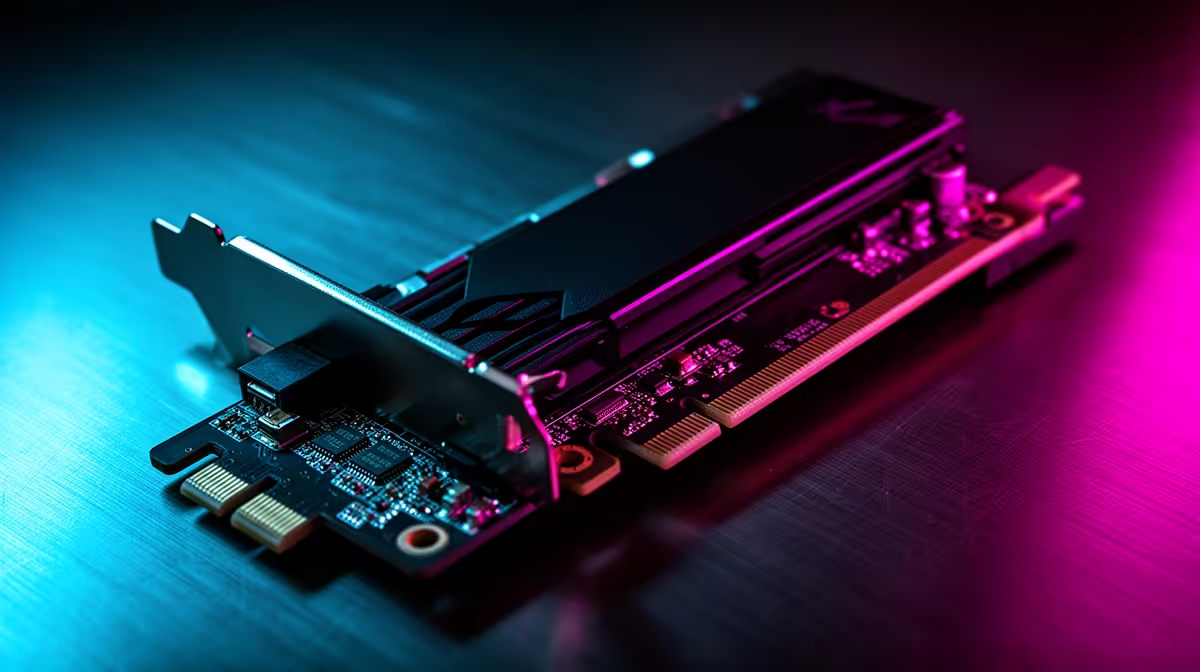
While the long x16 slot is famously for your graphics card, the smaller slots are incredibly useful for expanding your PC's capabilities.
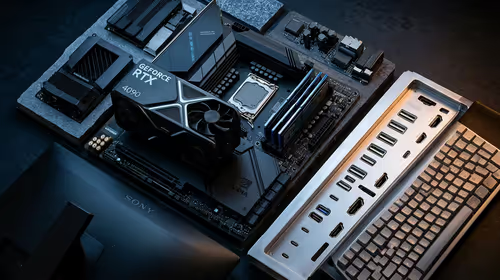
- Graphics Cards (GPUs): These are the most demanding and always go in the fastest available PCIe x16 slot, which is usually the one closest to the CPU.
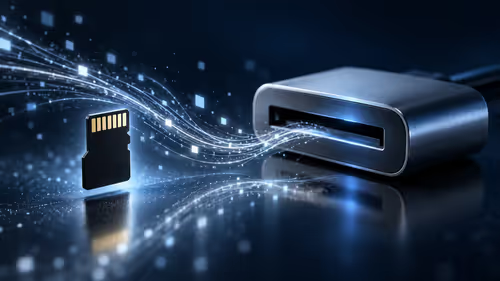
- NVMe SSDs: Many ultra-fast M.2 NVMe SSDs also use PCIe lanes (typically x4) for speeds that leave traditional SATA SSDs in the dust. You'll see this support listed on the spec sheets for most modern Intel motherboards.
- Expansion Cards: Need Wi-Fi, extra USB ports, or a high-end sound card? These typically use the smallest x1 slots.
Choosing the Right Motherboard for Your Needs
Now you know what PCIe is, you can see why the motherboard is so important—it's the foundation that determines your PC's connectivity and expansion potential. The CPU and motherboard chipset together dictate how many PCIe lanes are available and what generation they support.
When building, don't just focus on the CPU and GPU. A great processor paired with a budget motherboard might leave you with slow storage speeds or not enough slots for future upgrades. Even when you're looking for value, browsing the specs on cheap Intel & AMD based motherboards will show you huge differences in their PCIe layouts. Taking a moment to plan for the components you have now, and the ones you might want later, is the smartest move you can make. ✨
Ready to Build Your Foundation?
Understanding PCIe is the first step to building a balanced, high-performance PC. The next is choosing the right motherboard. Explore our massive range of motherboards and find the perfect board to power your dream build in South Africa.