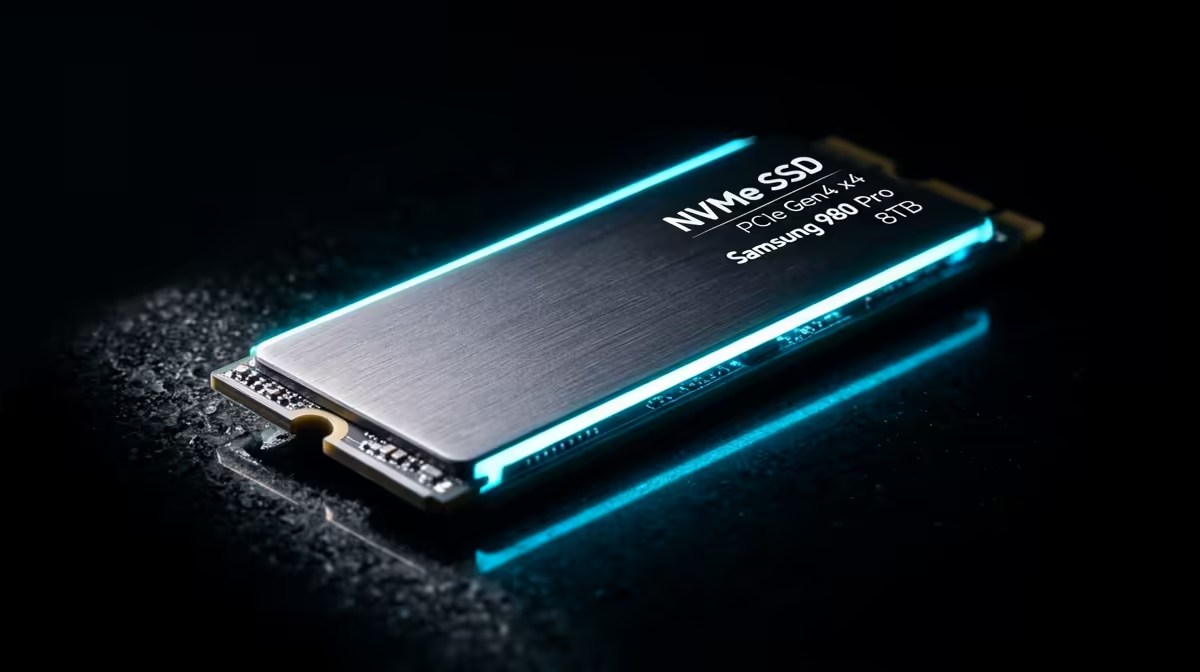
Editors who have lived through a stuttering 8K timeline already know the answer, but the reasoning is worth spelling out. A dedicated scratch and cache disk is not a relic of the spinning-rust era. It is the simplest way to keep heavy preview, cache and render traffic from fighting your operating system and project files for the same drive, and in 2026 that fight still drops frames during real-time grades.
Quick Answer
A dedicated scratch and cache disk keeps cache writes, preview generation and render-in-place output off your OS and project drives. That isolation sustains peak sequential throughput during demanding work like real-time 8K colour grading, where competing writes on a single drive would otherwise cause dropped frames and stutter.
Why one fast drive is not enough
A single NVMe drive, even a quick one, has finite throughput and a finite queue. During a grade your system is reading the OS, reading source footage, writing render cache and generating previews all at once. Pile every stream onto one disk and they compete: the drive juggles requests, latency climbs, and the playhead stutters at the worst moment. Splitting the workload across drives means each one services a narrower job, so none of them saturates. That is the whole principle behind a scratch disk, and it has not changed even as drives have got faster.
What actually lands on the scratch disk
Different applications use slightly different language, but the heavy traffic falls into a few buckets.
Cache and preview files
Editors like Premiere Pro write media cache, peak files and rendered previews constantly. These are large, frequently rewritten, and best kept off the OS drive so they never collide with system activity.
Render and conform output
Colour tools such as DaVinci Resolve generate optimised media, gallery stills and render-in-place output. Pointing these at a dedicated drive keeps the read of your source footage separate from the write of new media, which is exactly the separation that prevents frame drops.
Project and source separation
Ideally your source footage lives on its own fast drive too, so reads of original media and writes of cache never share a lane. At minimum, keep cache off both the OS and the project drive.
The three-drive layout that works
A clean professional setup splits the work across three roles: the OS and applications on one drive, source footage on a second, and cache plus render output on the dedicated scratch disk. Each drive then services one kind of traffic, and the playhead never waits on a queue clogged by an unrelated operation. You do not need three physically separate machines, just three NVMe drives, and on a desktop that is an affordable, transformative change to a busy timeline.
How fast does the scratch disk need to be?
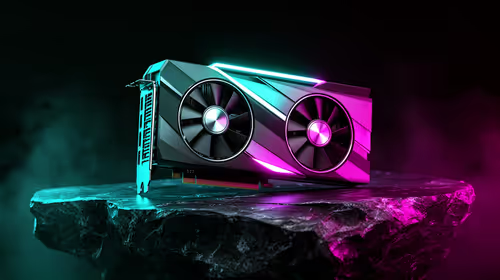
For 8K and high-bitrate grades, a Gen4 or Gen5 NVMe drive is the sensible target because sustained sequential throughput is what you are buying, not peak burst numbers. Pay attention to sustained write performance and thermals: a drive that throttles after a few seconds under load will undo the benefit during a long render. Capacity matters too, because cache files balloon fast on a busy timeline, so size the drive for your largest projects rather than your average ones. A scratch disk that fills mid-render is as disruptive as one that throttles, so treat headroom as part of the spec. For the workstation graphics power that pairs with this storage strategy, the workstation GPU range at Evetech covers the cards that drive 8K grading, and a quick scan of the most popular PCs and components at Evetech shows what current editing builds are using.
Endurance and the rewrite problem
Cache drives take a beating because the same files are written, deleted and rewritten constantly. That makes drive endurance, often quoted as terabytes written, a real consideration rather than a footnote. A drive rated for heavy write cycles will outlast a cheap one used the same way, and because the scratch disk holds nothing irreplaceable, you can run it harder than your project storage. The data on it is disposable by design: clear the cache and your editor simply rebuilds it.
Spinning disks versus NVMe in 2026
There is still a narrow case for a large hard drive as archive or overflow storage, but not as an active scratch disk for modern footage. The sequential and random throughput a real-time 8K grade demands is far beyond what a spinning drive can sustain, so the scratch role belongs firmly to NVMe now. Where a mechanical drive still earns its keep is cold storage of finished projects, freeing your fast drives for live work. Keeping that distinction clear stops you from spending NVMe money on data you rarely touch.
Who genuinely needs this
If you cut social clips at 1080p, a single fast NVMe is plenty and a separate scratch disk is overkill. The dedicated drive earns its place when you work at 4K and above, run colour grades in real time, or push long-form projects with heavy effects. For those workloads it is not a luxury, it is the difference between a timeline that plays back cleanly and one that hitches. Buy the dedicated drive once and you stop fighting your own storage.
Setting it up so it actually helps
Buying the drive is half the job; pointing your software at it is the other half. In Premiere Pro, set the media cache and preview locations to the scratch disk in preferences; in DaVinci Resolve, set the cache and gallery paths in project settings. Once configured, verify it is working by watching the scratch drive's activity during playback rather than your OS drive's, which confirms the heavy traffic has moved where you intended. It is also worth clearing stale cache periodically, because old preview files accumulate and consume the headroom you paid for. A scratch disk left unmanaged slowly fills until it stops helping, so a quick clear-out between projects keeps it doing its job.
Frequently Asked Questions
Do I still need a scratch disk if my main drive is a fast NVMe?
For 8K and real-time grading, yes. Even a fast single drive has finite throughput, and combining OS, source, cache and render traffic on it causes contention and dropped frames. A separate disk isolates the heavy I/O.
What speed should a scratch disk be for 8K editing?
Aim for a Gen4 or Gen5 NVMe with strong sustained sequential write performance and good thermals. Burst speeds matter less than the throughput it can hold during a long render without throttling.
Can I use an external SSD as a scratch disk?
A fast external drive over USB4 or Thunderbolt can work for lighter projects, but internal NVMe usually gives more consistent sustained throughput for 8K grading. Check the external drive does not throttle under sustained load.
Where do I point cache files in my editor?
In your application's media or scratch settings, set the cache, preview and render paths to the dedicated drive. Keep them off both the OS drive and the drive holding your source footage.