A 4K TV stuck at 60Hz almost never has just one single cause, which is exactly why chasing the first thing you suspect rarely fixes it. Five separate points in the chain can each independently cap the refresh rate, and the cable is usually the last of them rather than the first, so working through the list in order saves you from replacing the wrong part.
Quick Answer
Five things cause it, and the cable is the last of them rather than the first. Check the input socket you are actually using, the enhanced-mode toggle for that specific input, the panel's own refresh limit, and whether the game itself offers a 120Hz preset. A R299 48Gbps lead then closes out the list once everything ahead of it checks out.
🔌 Start with the socket, not the cable
Plenty of mid-range televisions sold here carry full 48Gbps bandwidth on only one or two of their HDMI inputs, even though every socket looks identical from the front. If the console or PC is plugged into the wrong one, no setting anywhere else in this list will fix it. Check the manual or the small label often printed beside the socket itself for which input is rated for the higher bandwidth, and move the cable there before touching anything else.
📺 The toggle that is off by default
Even the correct socket often ships with its high-bandwidth mode switched off, hidden under a name that gives no hint it is related to refresh rate at all: Enhanced Format, HDMI UHD Colour, or Input Signal Plus are common labels, and the exact wording differs by manufacturer. Find it in that input's own picture menu, switch it on, then unplug and reseat the cable so the handshake runs fresh rather than holding onto whatever mode it agreed on earlier.
🖥️ Some panels simply do not go past 60Hz
Not every 4K panel is built for a higher refresh rate at all, and no menu setting changes that. Budget and mid-range 4K televisions in particular are frequently fixed at 60Hz regardless of what a source device can output, since the panel's own driving electronics were never designed to refresh faster. Check the specific model's spec sheet, or compare it against our gaming monitor range, where refresh rate is listed per panel rather than assumed from the resolution alone.
🎨 Colour settings can quietly take the mode away
Even once the socket, the toggle and the panel are all confirmed capable, a display running full 10-bit HDR at 4:4:4 chroma alongside 4K120 is asking for close to the maximum a 48Gbps link can carry. Some sets handle this without complaint; others quietly step down to a lower chroma format or the refresh rate itself rather than show a message explaining why. Switch HDR off as a single test, and if 120Hz snaps back the moment you do, colour depth was the actual limit rather than any of the other four causes on this list.
🎮 The source and the game both have to ask for it
A console has to be told to output 120Hz in its own video settings, and separately, the game running on it has to include a mode that actually uses the higher rate. A title without one falls back to its standard frame rate regardless of the socket, the toggle or the panel behind it, which is easy to mistake for a hardware fault when it is simply a game that never had the option.
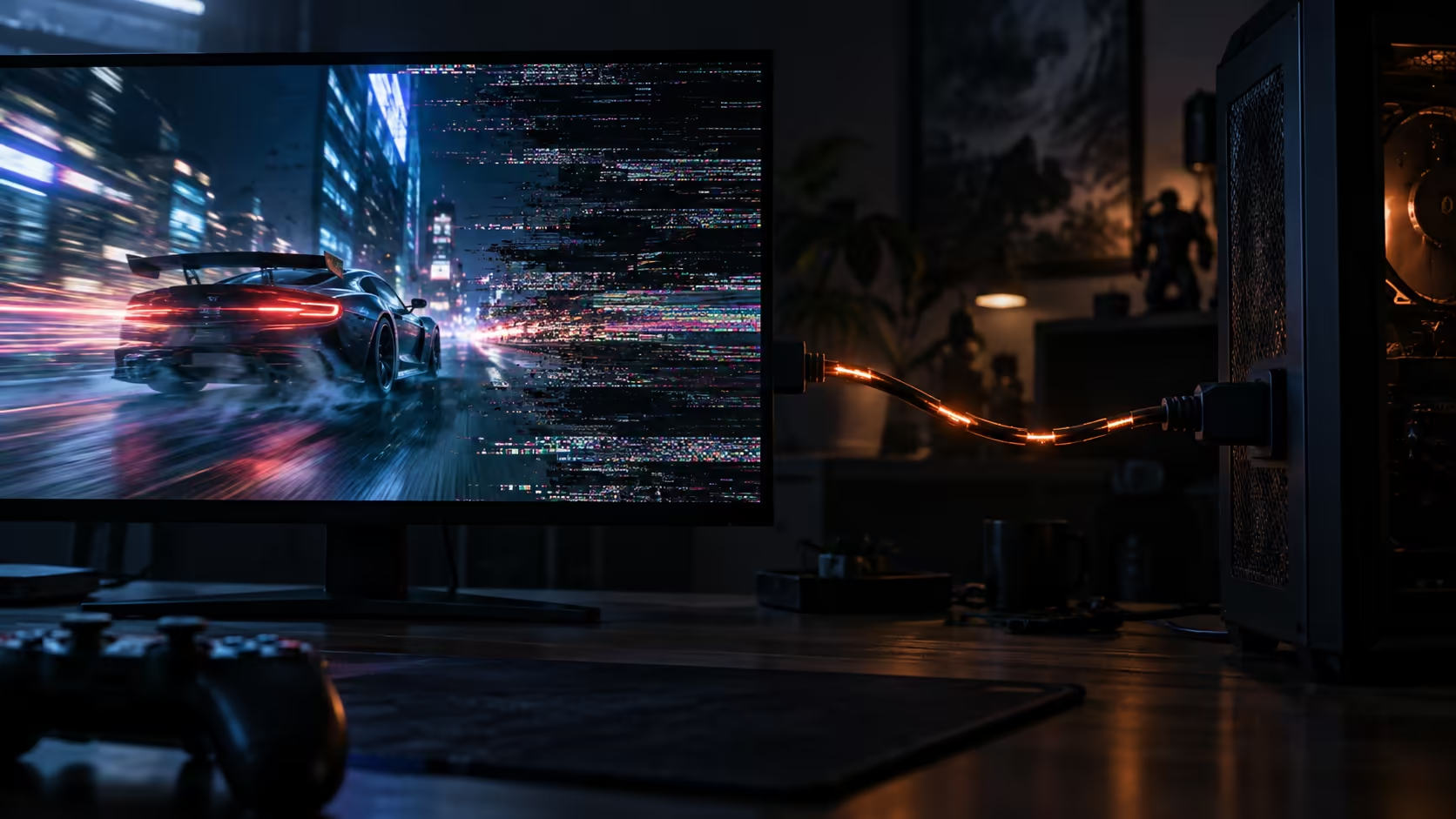
Once all four of those are confirmed and ruled out one by one, in the order given above rather than skipped around at random, the cable is what closes the loop. A lead that cannot carry the full 48Gbps a 4K120 signal needs fails in ways that mimic a settings problem: intermittent black screens, sparkles, or a silent drop back to 60Hz under load. The 1.8m Anker lead, from the comprehensive cable range, is rated for that full figure at R299, with a local warranty rather than one that requires shipping the cable back overseas to claim. If you are still shopping for the television itself, our monitor best sellers page shows which current models handle the higher refresh rates by default.
Frequently Asked Questions
Why does one HDMI port on my TV support 120Hz but another does not?
Many mid-range panels only wire full bandwidth to specific sockets, even though every port looks identical. Check the manual or the label beside each socket for which one is rated for the higher figure.
Does turning on Enhanced Format or HDMI UHD Colour reduce picture quality?
No. These settings unlock the input's full bandwidth rather than changing how the image is processed, so turning them on only adds capability, never removes it.
Can a firmware update add 120Hz support to a TV that does not have it?
No. Refresh rate ceiling is set by the panel's physical hardware, not software, so a television capped at 60Hz cannot be updated past that limit.
Why does my console offer 120Hz in its menu but the game still runs at 60?
The console's menu reports what the display can accept, not what every game will use. A title without a 120Hz mode of its own runs at its standard rate regardless of what the connection supports.
Is it worth replacing the HDMI cable before checking the other four causes?
No. Start with the socket, the enhanced-mode toggle, the panel's own limit and the game itself; the cable is the cheapest and least likely culprit, so check it last.
Does turning off HDR permanently fix a refresh rate problem?
Not permanently, and it should not need to. Turning it off is a diagnostic step to confirm colour depth is the cause; once confirmed, a cable rated for the full 48Gbps figure should carry both 120Hz and HDR together without a trade-off.
Should I check all five causes even if the first one I try fixes it?
Not necessarily. Once you find the actual cause and 120Hz appears reliably and stays that way over a full evening of use, there is no need to keep working through the rest of the list, though it is worth remembering all five in case a different device or a different television runs into the same problem later on.
Ready to work out why 120Hz will not stick?
Go through the socket, the toggle, the panel and the game in order, and the cable last.