

Complete Gaming Setup Guide for the SA Esports Athlete in SA 2026
Complete Gaming Setup Guide for the Esports. Clear setup instructions with SA-specific considerations, troubleshooting tips & recommended components.
Read moreWindows 11 HDR settings: a concise guide to calibrate and optimize HDR on Quantum Dot OLED displays for truer color, controlled brightness, and better gaming visuals 🎯🖥️
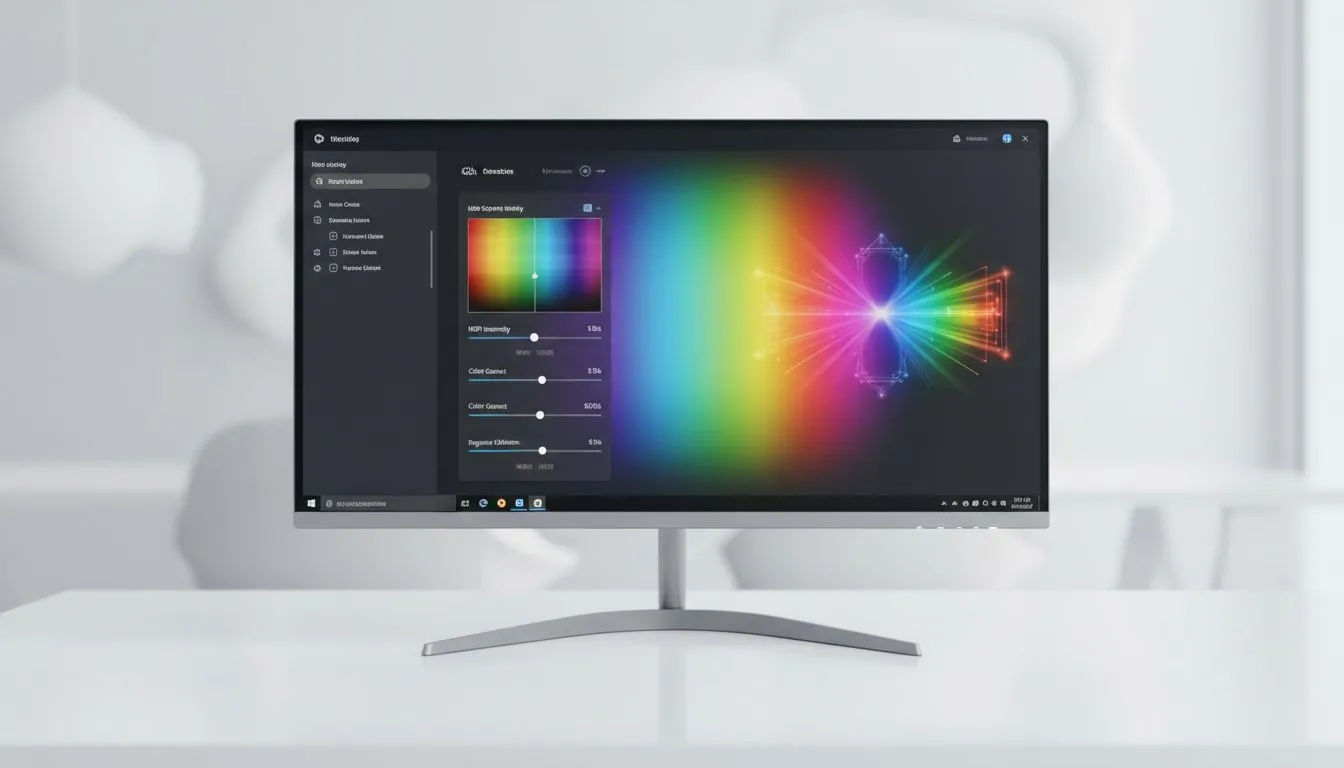
You’ve just unboxed a stunning QD-OLED monitor. The deep blacks and vibrant colours are mesmerising... but then you toggle HDR in Windows 11 and everything looks washed out. It is a common frustration for South African gamers looking for that perfect visual punch. Getting your Windows 11 HDR settings for Quantum Dot OLED Displays right is the difference between a dull image and a breathtaking experience.
Quantum Dot OLED (QD-OLED) technology combines the infinite contrast of OLED with the brightness and colour volume of Quantum Dots. Standard settings often fail to utilise this dynamic range. When you browse the latest PC monitors, you are looking for hardware that can handle 1,000 nits of peak brightness. Without the right software configuration, Windows might cap your output or distort the EOTF curve... leading to crushed blacks or blown-out highlights.
The first thing every QD-OLED owner must do is download the Windows HDR Calibration app from the Microsoft Store. This tool creates a custom colour profile for your specific panel. It allows you to define the exact black floor and peak brightness your screen can handle. Most all gaming monitors using QD-OLED tech perform best when the black level is set to zero and the peak brightness matches the manufacturer's spec.
You can instantly enable or disable HDR by pressing Windows Key + Alt + B. This is incredibly useful when switching from a colour-accurate photo editing session to a high-intensity gaming session without digging through the display settings menu.
If you are rocking one of the premium 5k 4k monitors, pixel density is your friend... but HDR scaling can be tricky. Ensure your "SDR Content Brightness" slider is set correctly. This slider controls how non-HDR apps look while HDR is active. If it is too high, your desktop icons will look unnaturally neon. Many users find a setting between 20 and 40 provides a natural balance for daily use in South African lighting conditions.
For those who prefer the immersion of curved monitors, the viewing angles of QD-OLED are already superior. However, reflections can still impact your HDR perception. Always ensure your "Auto HDR" toggle is on for older DirectX 11 and 12 titles. This feature uses AI to upgrade standard range games... giving them a vivid look that approaches native HDR quality.
Even if you use portable monitors as secondary displays, Windows 11 allows you to set independent HDR profiles. Remember that HDR uses more power and generates more heat. To keep your primary QD-OLED panel healthy, use a dark mode theme and hide your taskbar. These small habits prevent burn-in... ensuring your R20,000 investment lasts for years to come.
Finding the best pc monitor deals is only half the battle. You also need the right cables. Ensure you are using a high-bandwidth DisplayPort 1.4 or HDMI 2.1 cable from our monitor accessories section to avoid flickering or signal dropouts when running at high refresh rates with 10-bit colour enabled.
Ready to Experience True HDR? Upgrading your display is the single biggest improvement you can make to your setup. Whether you want the infinite contrast of OLED or the crisp detail of 4K, we have the stock to make it happen. Explore our massive range of monitor specials and find the perfect screen to bring your games to life.
Open Settings > Display, toggle Use HDR, pick the QD-OLED display, then adjust SDR/HDR brightness. For best results, enable Auto HDR if available.
Start with Windows 11 HDR settings: enable HDR, set SDR brightness to ~50%, use display OSD for contrast, and run HDR calibration for color balance.
Use Windows HDR Calibration, apply the manufacturer ICC profile, then tweak color temperature and saturation in the monitor OSD for accurate results.
Often due to improper tone mapping or SDR brightness. Adjust Windows HDR settings, lower HDR brightness, and run color calibration to fix washed-out HDR.
Enabling HDR may add a tiny GPU overhead. Use QD-OLED HDR settings for gaming to balance peak luminance and frame rate for best visuals and performance.
Lower HDR peak brightness, enable local dimming options if present, and adjust Windows 11 HDR settings to improve tone mapping and reduce bloom.
Use the manufacturer profile as a base, then run Windows 11 HDR calibration to refine color, gamma, and brightness for your environment.
Complete Gaming Setup Guide for the Esports. Clear setup instructions with SA-specific considerations, troubleshooting tips & recommended components.
Read more
AIO Liquid 360mm Installation Guide for Your PC. Clear setup instructions with SA-specific considerations, troubleshooting tips & recommended components.
Read more
MacBook Display Colour Looks Wrong? Calibration. Everything you need to know with SA pricing, step-by-step instructions & expert recommendations.
Read more
Printer Terminology Guide. Everything you need to know with SA pricing, step-by-step instructions & expert recommendations.
Read more
Git on Mac: Complete Setup Guide for Beginners. Clear setup instructions with SA-specific considerations, troubleshooting tips & recommended components.
Read more
Ryzen 9 9900X Thermal Paste Dry: Reapplication. Everything you need to know with SA pricing, step-by-step instructions & expert recommendations.
Read more
AMD RX 9050 XT: Rumoured Specs, Price & Release. SA-focused analysis with local pricing data, real-world insights & actionable buying advice.

Can RTX 4080 Super Run AI Workloads for SA Developers Detailed answer with SA data, expert analysis & practical recommendations for local buyers.

Can RTX 4090 Run AI Workloads for SA Developers Detailed answer with SA data, expert analysis & practical recommendations for local buyers.

Top Settings for Intel Arc B580 at Ultrawide 1440p picks evaluated on performance, value & SA availability with current Rand pricing from Evetech.

RTX 4060 CS2 Low Settings at 1080p: FPS Results. Real-world benchmark data, FPS numbers & performance analysis. What SA gamers can actually expect.

Visual Artifacts: Possible GPU Issue Issue #1. Diagnosis steps, proven fixes & when to seek professional help. SA-specific support info included.

Can the RTX 4090 Handle 1440p 144Hz Gaming. Performance testing verdict with real data & practical recommendations for SA buyers.

Top ASUS GPU Under R15000 picks evaluated on performance, value & SA availability with current Rand pricing from Evetech.

GTA 6 Max Settings on RTX 5070. Tested & verified settings for best FPS and visual quality on SA hardware budgets.

Cyberpunk 2077 Max Settings on RTX 5080. Tested & verified settings for best FPS and visual quality on SA hardware budgets.

Starfield Max Settings on RTX 5070 Ti. Tested & verified settings for best FPS and visual quality on SA hardware budgets.

Top RTX 5090 Under R5000 picks evaluated on performance, value & SA availability with current Rand pricing from Evetech.