

Complete Gaming Setup Guide for the SA Esports Athlete in SA 2026
Complete Gaming Setup Guide for the Esports. Clear setup instructions with SA-specific considerations, troubleshooting tips & recommended components.
Read moreWindows Spatial Audio vs Headset Surround Sound: Quick, practical advice on which Windows audio option to enable for gaming, movies, and call clarity 🎧🔊
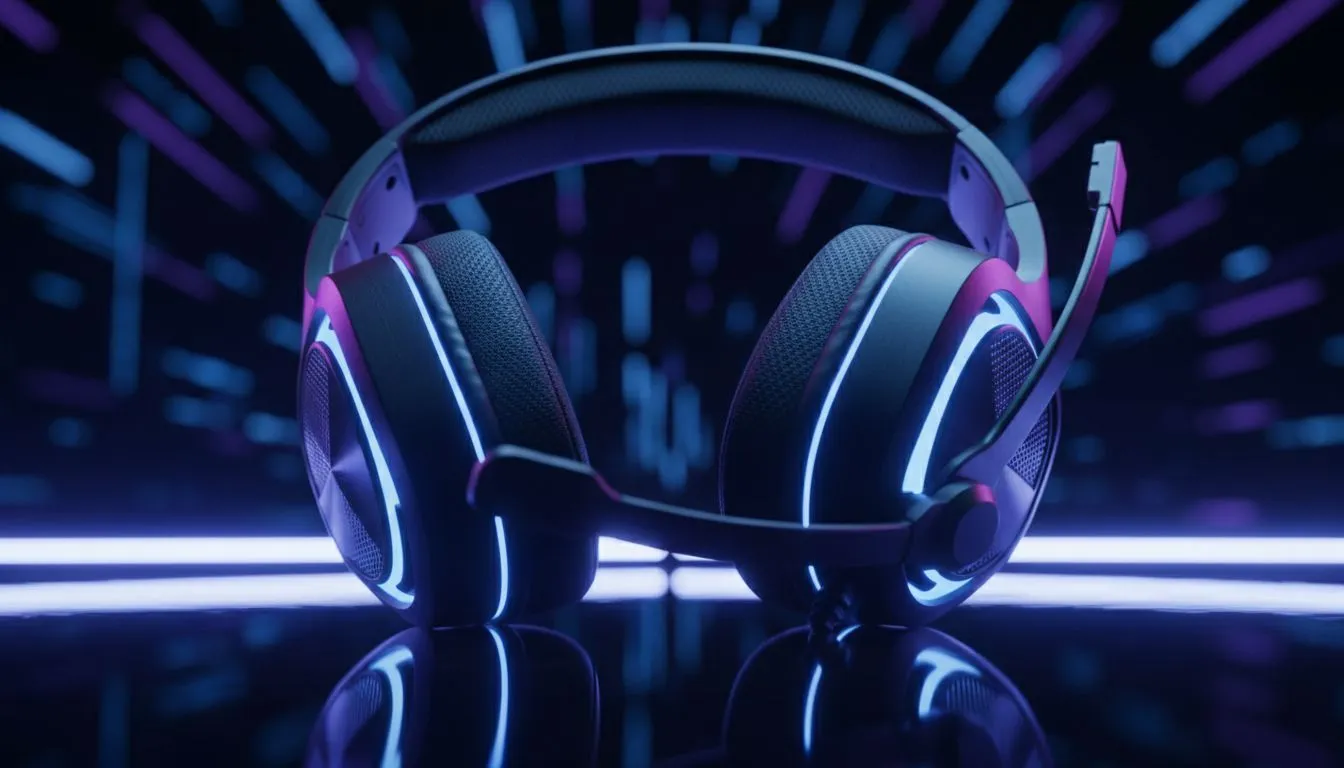
Imagine you are flanking the enemy in a tense round of Counter-Strike 2. You hear a faint metallic clink to your left... or was it behind you? In the high-stakes world of South African gaming, audio positioning is everything. Deciding between Windows Spatial Audio vs Headset Surround Sound can be the difference between a clutch victory and a frustrating defeat. Let's find out which setting you should enable.
Windows Spatial Audio is a platform-level solution built directly into Windows 10 and 11. It acts as a translation layer that takes 3D data from a game and converts it into a virtual surround sound experience for your ears. The most common version is Windows Sonic for Headphones, which is free and works with any stereo device.
When browsing our extensive collection of headphones and headsets, you will notice that almost every pair can benefit from this setting. Windows Sonic is designed to provide a sense of height and depth that traditional stereo lacks. It is a fantastic starting point because it requires zero third-party software to function... it just works.
While Windows offers a "one size fits all" approach, many premium manufacturers prefer their own solutions. If you have invested in the latest Razer gaming headsets, you likely have access to THX Spatial Audio or Razer's proprietary 7.1 virtual surround drivers.
These solutions are often tuned specifically for the drivers inside your earcups. Because the manufacturer knows the exact frequency response of the hardware, they can optimise the virtual surround stage to be more precise than a generic Windows setting. This often results in a cleaner sound profile with less "muddiness" in the bass frequencies... a common complaint with free spatial solutions.
Always ensure your Windows sound format is set to 24-bit, 48000Hz (Studio Quality) in the Control Panel. Many spatial audio technologies require this specific sample rate to function correctly without introducing latency or crackling during intense firefights.
The golden rule of PC audio is simple: never enable both at the same time. If you turn on Windows Sonic while your headset’s proprietary 7.1 software is active, you are "double-processing" the signal. This creates audio phasing, making the game sound like you are underwater.
For the best experience on a high-end device like the Razer Barracuda X Chroma Wireless Headset, we recommend using the manufacturer's software. It is generally more robust and offers custom EQ profiles for specific games. However, if you are using a budget-friendly stereo headset or prefer a "set and forget" approach, Windows Sonic is more than capable of helping you track those footsteps in Apex Legends or Warzone. 🔧 ⚡
If your headset comes with a dedicated USB dongle or specific software... use the headset surround sound. If you are plugging into a 3.5mm jack or using a generic Bluetooth connection... Windows Spatial Audio is your best friend. Both will significantly improve your immersion and spatial awareness compared to basic stereo. 🚀 ✨
Ready to Hear the Difference? Choosing between Windows Spatial Audio vs Headset Surround Sound is easier when you have the right gear. Explore our massive range of gaming headset specials and find the perfect pair to give you the competitive edge in your next match.
It depends on hardware and use. Spatial audio often wins for positional accuracy; headsets with native surround can beat virtual processing in clarity.
Open Settings > System > Sound > Choose device > Spatial sound and select Windows Sonic or Dolby Atmos. See enable spatial audio windows 10 for step-by-step.
Install the headset app or enable its virtual surround in Settings > Sound. For manual steps, search how to enable headset surround sound in windows.
Yes—when games support it and you use quality processing. Try best spatial audio settings for gaming to optimize cues and range.
Dolby Atmos offers richer head-related processing on supported devices, but Windows Sonic is free and low-latency. Compare windows sonic vs dolby atmos.
Minimal with native Windows options, but some third-party apps add processing. Check spatial audio latency for gaming headsets if you need ultra-low lag.
Not effectively; virtual surround and spatial audio overlap. Test virtual surround sound vs spatial audio to choose the best option for your setup.
Complete Gaming Setup Guide for the Esports. Clear setup instructions with SA-specific considerations, troubleshooting tips & recommended components.
Read more
AIO Liquid 360mm Installation Guide for Your PC. Clear setup instructions with SA-specific considerations, troubleshooting tips & recommended components.
Read more
MacBook Display Colour Looks Wrong? Calibration. Everything you need to know with SA pricing, step-by-step instructions & expert recommendations.
Read more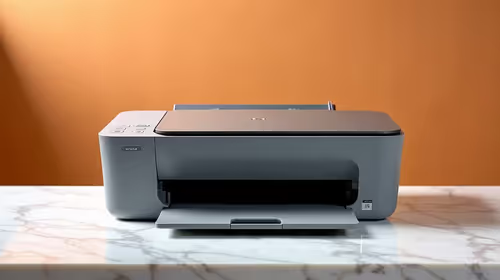
Printer Terminology Guide. Everything you need to know with SA pricing, step-by-step instructions & expert recommendations.
Read more
Git on Mac: Complete Setup Guide for Beginners. Clear setup instructions with SA-specific considerations, troubleshooting tips & recommended components.
Read more
Ryzen 9 9900X Thermal Paste Dry: Reapplication. Everything you need to know with SA pricing, step-by-step instructions & expert recommendations.
Read more
AMD RX 9050 XT: Rumoured Specs, Price & Release. SA-focused analysis with local pricing data, real-world insights & actionable buying advice.

Can RTX 4080 Super Run AI Workloads for SA Developers Detailed answer with SA data, expert analysis & practical recommendations for local buyers.

Can RTX 4090 Run AI Workloads for SA Developers Detailed answer with SA data, expert analysis & practical recommendations for local buyers.

Top Settings for Intel Arc B580 at Ultrawide 1440p picks evaluated on performance, value & SA availability with current Rand pricing from Evetech.

RTX 4060 CS2 Low Settings at 1080p: FPS Results. Real-world benchmark data, FPS numbers & performance analysis. What SA gamers can actually expect.

Visual Artifacts: Possible GPU Issue Issue #1. Diagnosis steps, proven fixes & when to seek professional help. SA-specific support info included.

Can the RTX 4090 Handle 1440p 144Hz Gaming. Performance testing verdict with real data & practical recommendations for SA buyers.

Top ASUS GPU Under R15000 picks evaluated on performance, value & SA availability with current Rand pricing from Evetech.

GTA 6 Max Settings on RTX 5070. Tested & verified settings for best FPS and visual quality on SA hardware budgets.

Cyberpunk 2077 Max Settings on RTX 5080. Tested & verified settings for best FPS and visual quality on SA hardware budgets.

Starfield Max Settings on RTX 5070 Ti. Tested & verified settings for best FPS and visual quality on SA hardware budgets.

Top RTX 5090 Under R5000 picks evaluated on performance, value & SA availability with current Rand pricing from Evetech.