

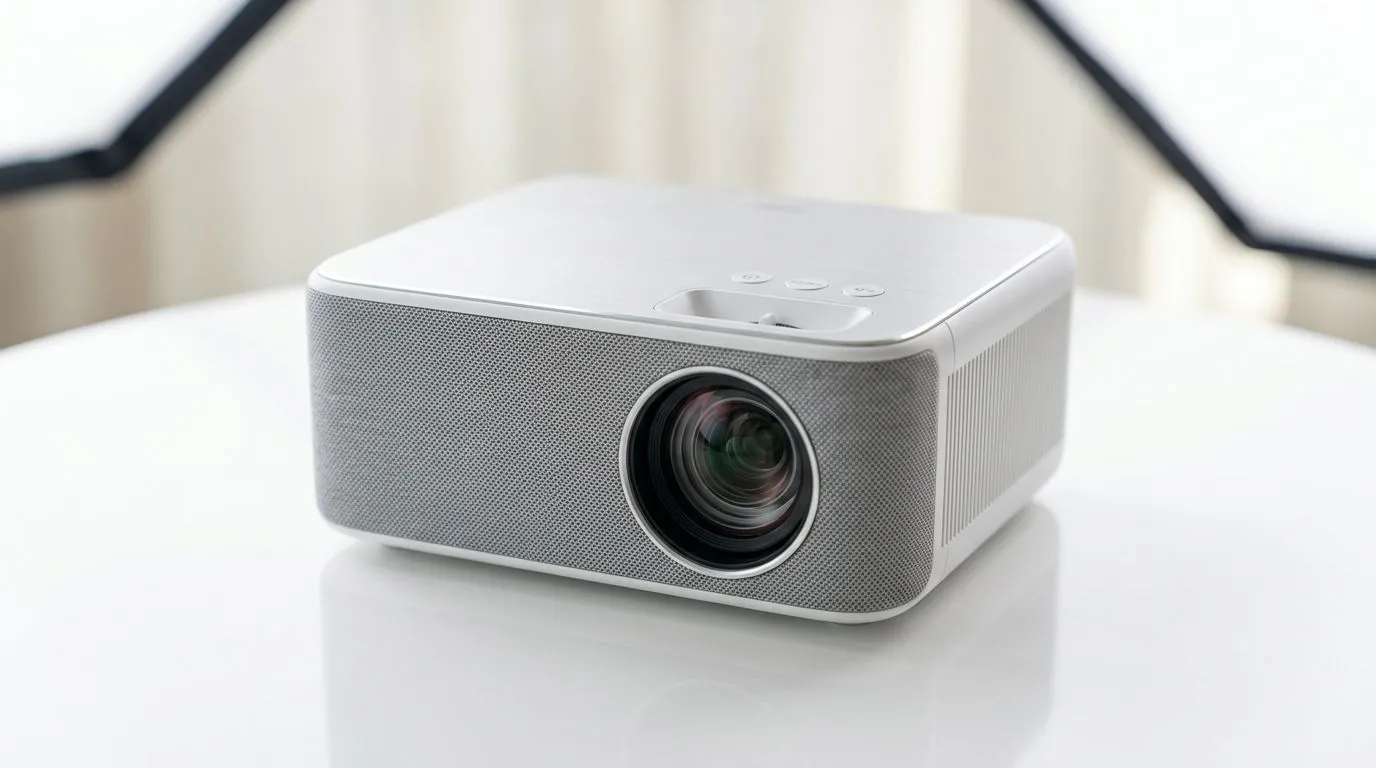
Wireless Screen Mirroring Guide: Connecting Smart Projectors Easily (Without the Headaches) 🎮✨
South African gamers and home-theatre fans… you know the vibe. You finally get your smart projector, you hit “connect”… and suddenly it’s buffering, searching, or just refusing to cooperate. 😅 This Wireless Screen Mirroring Guide: Connecting Smart Projectors Easily will help you go from “why won’t it show?” to “there it is!” fast. Whether you’re projecting gameplay, streaming movies for the weekend, or running presentations for work, the steps below keep things simple and reliable.
Wireless Screen Mirroring Guide: Connecting Smart Projectors Easily (What You Need First) 🔧
Before you mirror anything, check these basics. Smart projectors are usually straightforward, but the wireless setup depends on what your device supports.
Confirm your projector has the right mirroring mode
Look for terms like:
- Screen Mirroring / Miracast
- AirPlay
- Wi‑Fi Display
- Wireless Display
If your projector is “smart” but doesn’t show a mirroring screen, you may still be able to cast using an included app or a compatible receiver mode.
Match your device to the right method
- Android phones/tablets: typically use Miracast-style mirroring.
- Windows PCs: often use “Wireless Display” or Miracast.
- Apple devices: commonly use AirPlay.
When you match the method to the device, the connection tends to “just work” (or at least… works quickly). ⚡
Wireless Screen Mirroring Guide: Connecting Smart Projectors Easily (Step-by-Step Setup) 🚀
Follow this flow to reduce retries and failed connections.
Step 1: Use the same Wi‑Fi network (most reliable)
- Connect both the phone/PC and the projector to the same Wi‑Fi network.
- If your projector supports a “Mirroring” mode, enable it first so it’s discoverable.
In many homes, the router is the difference between smooth casting and constant reconnecting. If you’ve upgraded to fibre, your Wi‑Fi experience is usually better… and mirroring tends to follow.
Step 2: Start mirroring from your device
Windows (typical path):
- Open Settings
- Go to System
- Choose Display
- Select Connect to a wireless display
Android (typical path):
- Open Quick Settings → Cast or Screen mirroring
- Select your projector from the list
Apple (typical path):
- Open Control Centre
- Tap Screen Mirroring
- Choose your projector or Apple TV-compatible target
Step 3: Adjust resolution and audio after connection
Once mirrored:
- Confirm the projector’s input mode stays on the wireless display connection.
- If audio is delayed, check whether the projector has a separate audio output or “sync” option in its settings.
Step 4: If it fails, use the “fast fix” order
Try in this order:
- Restart mirroring on the device
- Reboot the projector
- Toggle Wi‑Fi off and back on (phone/PC)
- Disconnect and reconnect to the same network
That sequence fixes a lot of “it worked yesterday” issues.
Productivity Pro Tip ⚡
If you’re mirroring for content creation (streaming clips, editing, or demos), keep your projector on a fixed resolution setting once it connects. Then mirror again and compare. Consistency beats “auto changes” for gaming clarity and smoother playback.
Wireless Screen Mirroring Guide: Connecting Smart Projectors Easily (Choosing the Right Projector for SA Homes) ✨
Not every projector mirrors the same way. If you’re buying, it helps to start with models from brands that match your ecosystem and room setup.
For South African buyers comparing options, check out Evetech’s projector range here:
- Browse projectors under your budget: projectors up to R7,000
- If you prefer Promate, see what’s available: Promate projectors
- If you’re looking at ViewSonic, this is the place to start: ViewSonic projectors
- Or scan the full selection and compare features: all projectors from Evetech
Quick buying checklist for smoother mirroring
- Wireless display support that matches your phone/PC
- Stable Wi‑Fi performance (especially for gaming or fast UI)
- Brightness that fits your room (mirroring still looks rough if the image is too dim)
- Inputs you’ll actually use (wireless is great… until you need instant reliability)
Wireless Screen Mirroring Guide: Connecting Smart Projectors Easily (Troubleshooting for Gamers) 🎮
Wireless mirroring can be amazing, but gaming has higher expectations. Here are the most common issues and what to try.
“I can connect… but it’s laggy”
Wireless mirroring adds processing and network delay. To reduce it:
- Stay close to the Wi‑Fi router
- Use 5 GHz Wi‑Fi if your network supports it
- Avoid heavy downloads while mirroring
- Lower resolution if your projector supports it
“The projector doesn’t show up in the list”
- Make sure mirroring mode is enabled on the projector
- Use the same Wi‑Fi network name (some setups separate guest and main networks)
- Restart both devices, then try again
“Audio is out of sync”
Try:
- Switching audio output to the projector (if the device offers it)
- Checking projector audio settings for “sync” or “lip sync”
- Testing with a YouTube clip or a short video first, not a full match
If you’re building a home setup for weekend co-op sessions, reliable display switching matters. That’s why pairing the right projector with the right connection method is worth the extra minute upfront.
Wireless Screen Mirroring Guide: Connecting Smart Projectors Easily (You’re One Step Away) ✨
You’ve got the knowledge now… the next move is choosing (or tuning) the right projector for your devices and your home Wi‑Fi. Once it’s set, mirroring becomes the easiest “press play, project it” routine in your tech life. 🚀
Ready to Find Your Perfect Match? The Mac vs Windows debate is complex, but for maximum power, choice, and value in South Africa, Windows is hard to beat. Explore our massive range of laptop specials and find the perfect machine to conquer your world.











