Buy a top-tier graphics card for ZBrush and you will watch it sit nearly idle while your sculpt stutters. ZBrush system requirements break the usual rule of creative software, because Pixologic's sculpting engine leans on the CPU and system memory for almost everything, and treats the GPU as an afterthought. Understanding that one quirk changes how you should spend a fixed budget on a sculpting machine.
Quick Answer
ZBrush needs a minimum of 8GB RAM, but 32GB or more is strongly recommended for high-polygon work, and it relies on the CPU rather than the GPU for sculpting and rendering. On a tight budget, money is far better spent on RAM and a strong multi-core processor than on an expensive graphics card.
Why ZBrush Ignores Your GPU
Most 3D applications offload viewport rendering to the graphics card. ZBrush does not work that way. Its core technology, called Pixol, stores depth, colour, and material data per pixel and is processed almost entirely on the CPU. The viewport you sculpt in is drawn by the processor, not the GPU. That is why a machine with a modest graphics card and a powerful CPU runs ZBrush beautifully, while the reverse setup struggles the moment your model gets dense.
What the GPU still does
The GPU is not completely idle. It handles the desktop, the interface, and some newer real-time preview features in recent versions. A mid-range card is plenty. Spending more on graphics buys you almost nothing inside ZBrush itself, though it helps if you also run a GPU renderer like Keyshot or work in other DCC tools alongside it.
RAM Is the Real Ceiling
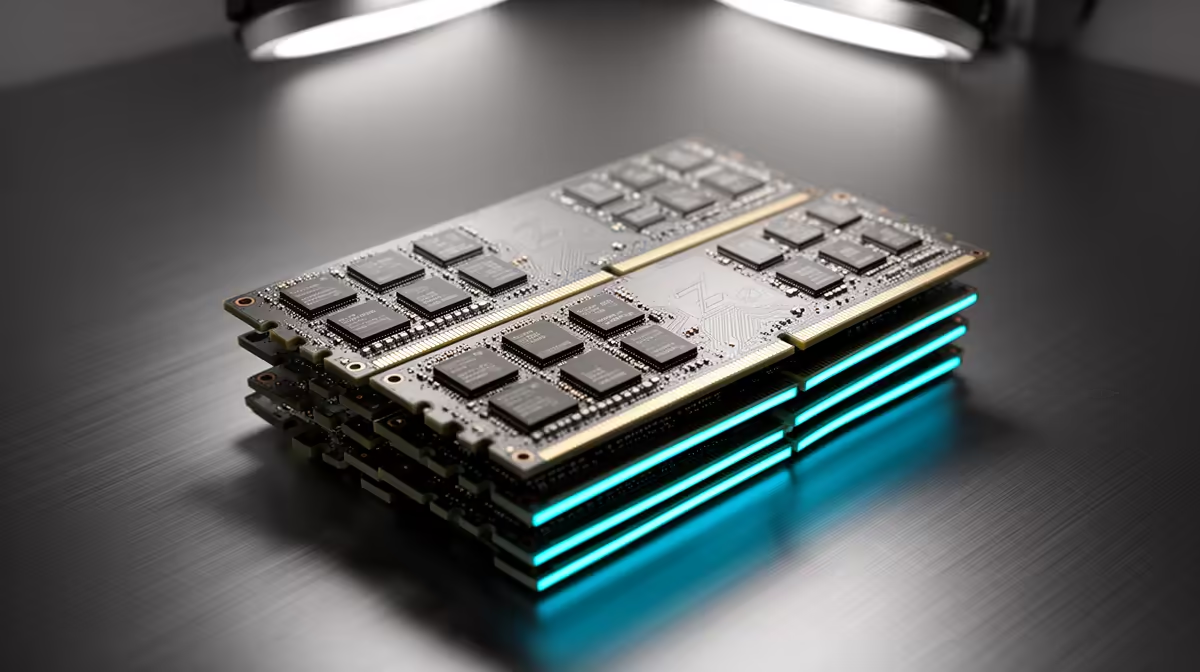
High-polygon sculpting is where memory decides whether you can finish a model. Every subdivision level multiplies polygon count, and ZBrush holds that geometry in system RAM. Run out and the application slows to a crawl or refuses to subdivide further.
How much you actually need
- 8GB is the bare minimum and only suits simple, low-subdivision work.
- 16GB handles moderate sculpts but fills up fast on detailed characters.
- 32GB is the practical sweet spot for serious high-poly sculpting.
- 64GB suits production artists working on dense multi-tool scenes.
For anyone doing this professionally or studying it seriously, 32GB is the floor, not a luxury. The current desktop range, including the best-selling PCs at Evetech if you were checking that lineup, is a useful gauge of what 32GB-plus machines cost locally, though for sculpting you want to confirm the CPU is a strong multi-core part rather than chase the flashiest GPU. If your pipeline also involves 3D printing your sculpted characters, the 3D printers available at Evetech are worth browsing to close the loop from digital sculpt to physical model.
Capacity matters more than speed
Faster RAM helps a little, but capacity is what stops you hitting a wall mid-project. Given a fixed budget, more gigabytes at a modest speed beats less RAM at a higher speed for sculpting. A character artist three subdivision levels deep cares only about whether the geometry fits in memory, not about a few extra megahertz. Buy the capacity first and treat speed as a minor bonus.
The CPU That Suits Sculpting
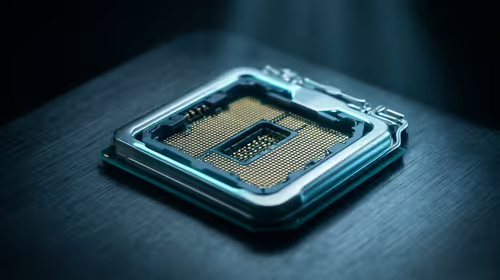
ZBrush benefits from both fast single-core speed and multiple cores. Brush responsiveness and viewport feel track single-thread performance, while operations like dynamesh, decimation, and BPR rendering scale with core count. A modern 8-core to 12-core processor with high clocks hits the right balance for most artists. Chasing core count alone is a mistake if those cores are slow, because everyday brush strokes will feel sluggish.
Storage and the scratch disk
ZBrush uses a scratch disk when RAM runs low, so an SSD matters more than people expect. A fast NVMe drive keeps the application responsive when you push past your installed memory, and it makes saving large ZTL files far quicker. A slow mechanical drive turns every big save into a coffee break.
A Sensible SA Build Priority
Spend in this order: RAM first, then a strong multi-core CPU, then a fast SSD, then a modest GPU. Reverse that and you waste money. A balanced sculpting workstation puts most of the budget into memory and processing, with just enough graphics card to drive the display cleanly. If you are gathering the supporting kit such as a drawing tablet, the popular creative accessories at Evetech are worth comparing, since a good pen tablet does more for sculpting comfort than another GPU tier ever would.
Display and Tablet Comfort
ZBrush is a long-session tool, so the things you touch for hours matter. A pen tablet with pressure sensitivity transforms control over your brushes, and a colour-accurate monitor helps with polypaint work. These are not in the system spec sheet, but they shape your output as much as raw horsepower. Budget for them rather than treating them as extras.
Who This Build Logic Is For
The CPU-and-RAM-first rule holds for almost every ZBrush user, but the exact balance shifts with what you do.
Students and hobbyists
If you are learning, 16GB of RAM and a capable six-core to eight-core CPU will carry you through coursework and personal projects comfortably. A modest graphics card is fine. Spend any spare budget on a pressure-sensitive tablet rather than a bigger GPU, because comfort and control matter more than raw power at this stage.
Freelance and production artists
Professionals pushing high-poly characters, hard-surface detail, or multiple subtools at once should treat 32GB as the starting point and consider 64GB for dense scenes. Pair it with an eight-core to twelve-core CPU at high clocks and a fast NVMe scratch disk. This is the configuration that stops a deadline-day project from stalling out.
Artists who also render and texture
If your pipeline includes a GPU renderer like Keyshot, texturing in Substance, or work in other 3D applications, the GPU stops being optional. In that case, split the budget more evenly, since those tools genuinely use the graphics card even though ZBrush itself does not. Match the spend to the whole workflow, not just the sculpting step.
Frequently Asked Questions
Does ZBrush use the GPU for rendering?
No. ZBrush's BPR rendering and core sculpting run on the CPU, not the GPU. A mid-range graphics card is sufficient, and spending more on the GPU brings almost no benefit inside ZBrush.
How much RAM do I really need for ZBrush?
The minimum is 8GB, but 32GB is the realistic recommendation for high-polygon sculpting. With less memory, dense models slow the application and can stop you from subdividing further.
Is a powerful CPU more important than a powerful GPU for ZBrush?
Yes. ZBrush leans heavily on the processor for sculpting and rendering, so a strong multi-core CPU with high clocks matters far more than an expensive graphics card.
Will ZBrush run on a laptop?
It will, provided the laptop has enough RAM, ideally 16GB or more, and a capable multi-core CPU. Sculpting on a laptop is workable, though desktop processors and easier cooling make high-poly work more comfortable.
Why does ZBrush slow down on dense models?
Dense models hold huge polygon counts in system RAM. Once memory fills, ZBrush falls back to a scratch disk, which is far slower. Adding RAM and using a fast NVMe SSD reduces the slowdown.
A sculpting machine lives or dies on RAM and CPU, not the graphics card. Browse the best-selling PCs at Evetech (https://www.evetech.co.za/pc-best-sellers/x/1912) and prioritise 32GB of memory with a strong multi-core processor for ZBrush that stays responsive at high subdivision levels.