1080p Output on a VGA Monitor: Fixing Laptop and Console Setups the Right Way 🎮🔧
If your laptop or console insists on dropping resolution when you plug into a VGA monitor, you’re not alone. In South Africa, many still use great old displays in home offices, LAN spaces, and even student rooms. The frustrating part? You might be paying for 1080p hardware and still watching everything look soft.
Let’s fix it… step by step. ⚡ Whether you’re gaming, streaming, or just trying to read text clearly, these checks usually get you back to crisp 1080p output on a VGA monitor.
1080p Output on a VGA Monitor: Quick Reality Check Before You Troubleshoot
VGA is analogue, and not all VGA monitors or adapters handle 1080p properly. Even when a device is capable, the monitor may cap output at 1024×768 or 1280×1024, depending on its supported modes.
Here’s the first thing to confirm:
- Does your monitor actually support 1920×1080 over VGA?
- Are you using an adapter or cable that claims 1080p support?
- Are you forcing a resolution that the chain can’t carry?
If the monitor cannot display 1080p, forcing it can cause blank screens, black borders, or “wobble” as the signal syncs.
1080p Output on a VGA Monitor: Laptop Fix (Windows) That Usually Works 🚀
Start with the simplest checks on Windows. Then move to advanced ones only if needed.
Set the resolution in Display settings
- Right-click the desktop → Display settings
- Scroll to Display resolution
- Select 1920 × 1080 (if available)
- Click Apply
If 1080p isn’t listed, the limiting factor is likely the monitor’s supported modes or the adapter/converter.
Confirm your adapter is not the bottleneck
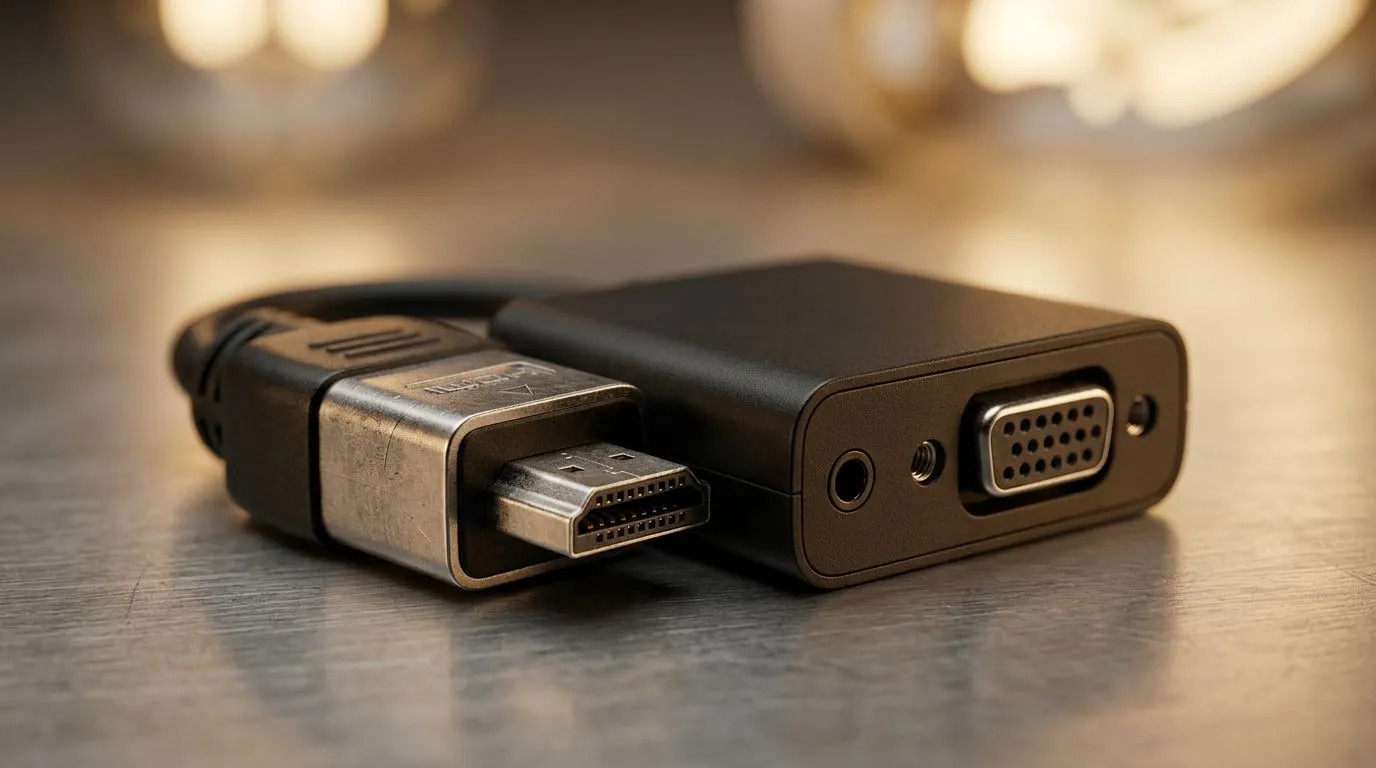
Many “HDMI to VGA” adapters convert to VGA resolution, but some top out at 1080p (interlaced) or lower. That’s why “it works, but looks bad” happens. You may get a picture at a lower resolution or with reduced clarity.
Tidy up scaling so text looks sharp
When 1080p is available but everything looks too large or blurry:
- Keep scaling at 100% or 125% (find what your eyes like)
- Avoid custom scaling unless you know why you’re changing it
Productivity Pro Tip ⚡
On Windows, use the PowerToys FancyZones utility to create custom snap layouts for your windows. It's a lifesaver for managing multiple apps on an ultrawide monitor, letting you organise your timeline, preview window, and asset folders perfectly for video editing.
Improve the picture quality (when the resolution is correct)
Even with 1080p output, VGA needs tuning:
- On the monitor OSD, adjust Auto-adjust
- Tweak clock and phase if the image looks “soft” or has horizontal noise
- Keep cable runs as short as practical
If you notice flicker, try a different VGA cable. VGA can be sensitive to shielding and connectors.
1080p Output on a VGA Monitor: Console Fix (PlayStation / Xbox) Without Guessing ✅
Console settings are usually simpler. But the “right” choice depends on what the monitor accepts.
Step 1: Set the console to the best supported mode
On most consoles:
- Go to Display and Video
- Try enabling 1080p
- If it’s blank or unstable, drop to the next option (often 720p)
Why? The console must handshake with the signal path. If the adapter or monitor can’t respond correctly, the console may pick a safer resolution.
Step 2: Use the correct HDMI output mode (when using HDMI-to-VGA)
If you’re using an HDMI-to-VGA converter:
- Prefer adapters that explicitly advertise 1080p output
- Some converters are built for office use and don’t handle gaming refresh rates well
If you’re planning to replace cables or adapters, browse the options here:
Gaming accessories for your setup
And if you’re hunting for a deal before payday, check out:
Gaming accessories deals on Evetech
You can also narrow your selection by category:
Explore gaming accessories by category
1080p Output on a VGA Monitor: Common Causes and Fast Diagnostics 🔍
“I can’t select 1080p”
Most likely causes:
- The monitor doesn’t support 1080p over VGA
- The adapter limits output
- The cable is faulty or not fully seated
Try this order:
- Confirm 1080p exists on another device with the same VGA monitor
- Swap the VGA cable
- Swap the adapter (if you’re using one)
“1080p works, but it’s blurry”
Often caused by analogue signal quality:
- Improper monitor phase/clock
- Long or low-quality VGA cable
- Adapter conversion limitations
If you’re using an adapter, expect some variation between brands and models.
“It flashes or goes black when I apply settings”
This usually means the requested mode isn’t compatible in the signal chain. Drop the resolution slightly (often 720p) and test again.
1080p Output on a VGA Monitor: How to Get the Best Gaming Feel (Even on Older Displays) ⚡
Even when you manage 1080p, VGA is not the same as HDMI or DisplayPort in bandwidth and stability. For better results:
- Prioritise sharpness (correct phase/clock) over forcing every setting
- If available, enable Game Mode on the monitor
- Keep cables clean and secured to avoid signal drops
And remember… if you plan to keep using this monitor long-term, it’s often worth investing in a reliable converter and a properly shielded VGA cable. That’s the difference between “works” and “looks right.”
Ready to Find Your Perfect Match?
The Mac vs Windows debate is complex, but for maximum power, choice, and value in South Africa, Windows is hard to beat. Explore our massive range of laptop specials and find the perfect machine to conquer your world.