


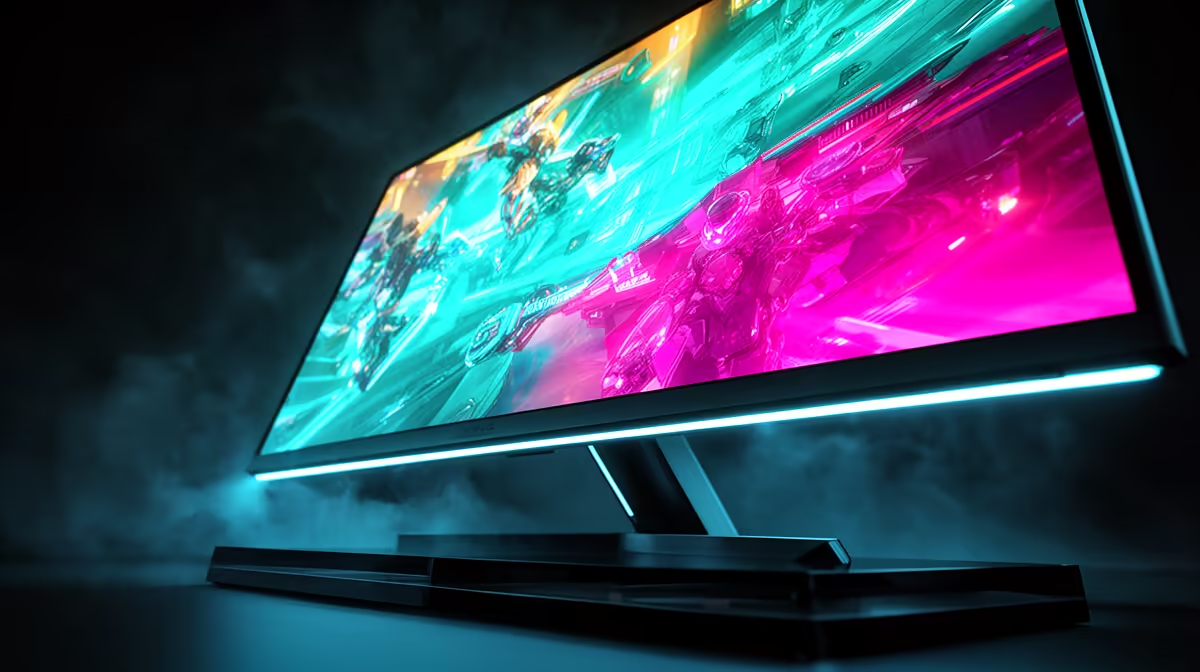
You’ve just unboxed that beautiful, pricey OLED monitor. The colours are electric, the blacks are truly black… but is it really optimised for your games? Getting the most out of this incredible tech isn't always plug-and-play. The default settings are often a compromise. This guide will show you how to dial in the perfect OLED settings for gaming, customising them by genre to transform your experience from merely great to absolutely breathtaking. ✨
Why Your Default OLED Settings Aren't Enough
Every game is different. The moody, shadow-filled corridors of a horror title have completely different visual demands than the bright, fast-paced arenas of an FPS. Monitor manufacturers create default profiles that try to be a jack-of-all-trades, but they often end up being a master of none. To truly unlock your display's potential, you need to tailor your OLED settings for gaming to what you play most. This ensures you're getting the competitive edge or the cinematic immersion you paid for, something that applies across all modern gaming monitors.
Core OLED Settings Explained (The Short Version)
Before we dive into genres, let's quickly demystify the key settings you'll be tweaking:
- Brightness: On an OLED, this controls the peak brightness of highlights. For HDR content, you generally want this high.
- Contrast: Adjusts the difference between the brightest whites and darkest blacks. OLEDs excel here, but finding the sweet spot is key.
- Black Stabilizer / Shadow Boost: This is a gamer's best friend. It brightens the darkest areas of the screen without washing out the whole image, helping you spot enemies lurking in the shadows.
- Response Time / Overdrive: This setting controls how quickly pixels change colour. Setting it too high can cause "overshoot" (a ghostly halo), so find the fastest setting that still looks clean.
These foundational settings are available on most quality PC monitors, but they have a special impact on OLED panels.
Customizing Your OLED Settings by Game Genre 🚀
This is where the magic happens. Let's create some profiles for South Africa's most popular game types.
For First-Person Shooters (FPS): Speed & Clarity
Games: Call of Duty, Apex Legends, CS2, Valorant
In an FPS, your priority is visibility and reaction time. You need to see the enemy first.
- Black Stabilizer: Turn this up significantly. You want to eliminate any deep shadows where an opponent could hide.
- Response Time: Set to the fastest or highest setting that doesn't introduce inverse ghosting.
- Colour Vibrance / Saturation: A slight boost (around 55-60%) can make enemy models pop against the background.
- Sharpness: Keep it at the default or slightly above. Too much can create distracting visual noise.
For RPGs & Adventures: Cinematic Immersion
Games: Baldur's Gate 3, Cyberpunk 2077, Alan Wake 2, Starfield
Here, it's all about visual fidelity and feeling like you're in the world. You want deep, inky blacks and stunning HDR highlights.
- Black Stabilizer: Keep this at its default or even lower it slightly to enhance contrast and make dark scenes more atmospheric.
- Brightness: For HDR games, crank it to the max to get the full impact of sunlit scenes or explosions.
- Colour: Aim for accuracy. Use the "Standard" or "Cinema" preset as a base, as they often have the most natural colour reproduction.
- Resolution: These games shine with detail, making stunning 4K monitors the perfect canvas. For an even more enveloping experience, many gamers find that immersive curved monitors pull them deeper into the game world.
Quick Tip for Burn-In Prevention 🔧
OLEDs have built-in protection like Pixel Orbiting, but you can help. If you're playing a game with a static HUD for many hours (like an MMO), slightly lower your overall brightness. For hardcore streamers or raiders, offloading static elements like maps or Discord chat to a [secondary portable monitor](https: www.evetech.co.za buy-portable-monitors x 1590) is a pro-level move to protect your main display.
For Racing & Flight Sims: Smooth Motion & Realism
Games: Forza Motorsport, Assetto Corsa Competizione, Microsoft Flight Simulator
Realism and motion clarity are paramount. You need to see the apex of the corner or the runway details without any blur or ghosting.
- Response Time: Crucial. Test different levels to find the one that minimises motion blur on fast-panning objects.
- Motion Blur Reduction (if available): Enabling this can create a clearer image, but sometimes at the cost of brightness. Experiment to see if you like the trade-off.
- Colour Temperature: A "Neutral" or "Warm" setting often provides a more realistic look for daylight driving or flying conditions.
Finding the Right Canvas
Perfecting your OLED gaming monitor settings is half the battle, but it all starts with having the right hardware. The quality of the panel itself determines the peak brightness, colour accuracy, and response time you have to work with. If you're looking to make the jump to OLED or upgrade your current screen, finding the best PC monitor deals can make that premium experience surprisingly affordable.
Ready to See the Difference? The right monitor doesn't just show you the game; it pulls you into it. From lightning-fast OLEDs to immersive ultrawides, the perfect display is waiting. Explore our massive range of gaming monitors and find the perfect screen to conquer your world.









