


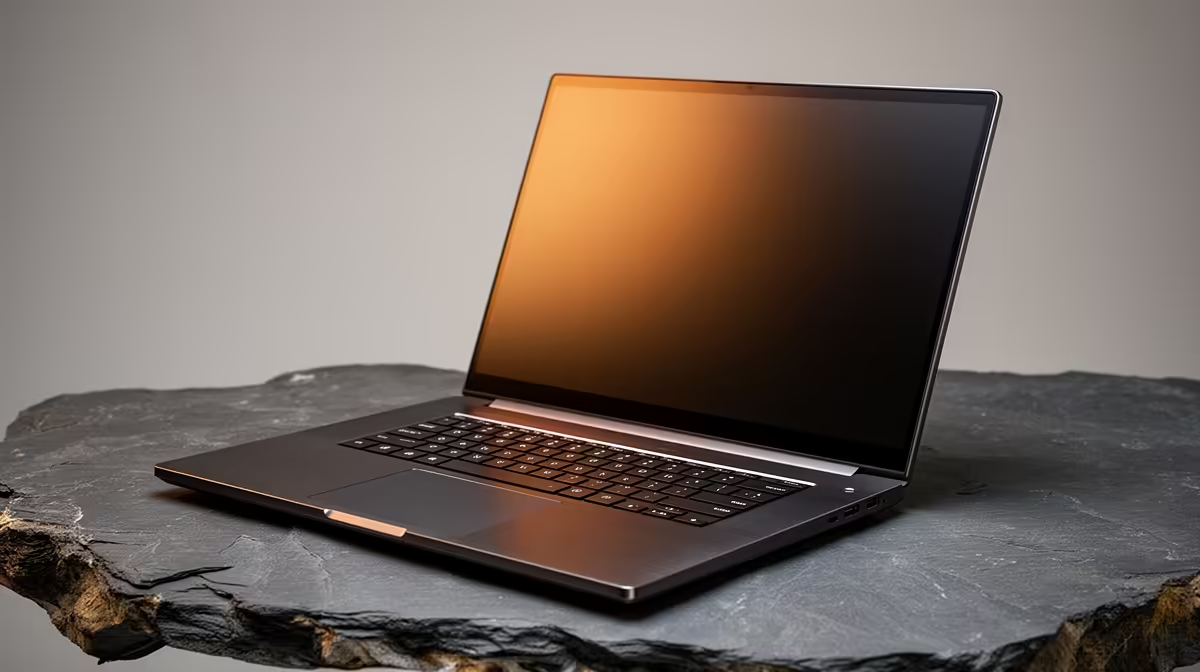
Is your Dell XPS running hotter than a summer's day in the Karoo? You’re not alone. These sleek, powerful machines are famous for their stunning displays and premium build, but their slim design can sometimes struggle with heat. A Dell XPS overheating isn't just annoying; it can throttle performance when you need it most. We decided to put its thermal performance to the test, specifically for our demanding South African climate. Let's dive in. 💻
Understanding the Dell XPS Heat Problem
At its core, the issue is a classic engineering trade-off. Dell packs high-performance Intel Core processors and dedicated NVIDIA graphics into an incredibly thin and light chassis. This creates a challenge: dissipating the heat generated by these powerful components in a very confined space.
When you add the high ambient temperatures of a South African summer, the cooling system has to work overtime. This is why you might experience a Dell XPS overheating during intensive tasks like gaming, video editing, or even just a heavy multi-tab browsing session. The fans spin up loudly, the chassis gets warm to the touch, and in worst-case scenarios, the system slows down (thermal throttles) to protect itself.
Our Thermal Performance Test: Pushing the Limits
To see how a modern Dell XPS 15 handles the pressure, we simulated a typical power-user workload. We ran a 10-minute Cinebench R23 benchmark, followed by a 30-minute gaming session in Cyberpunk 2077, and finished by exporting a 10-minute 4K video project.
The results were predictable but insightful. During the initial bursts of activity, performance was stellar. However, as core temperatures climbed, we noticed the CPU and GPU clock speeds gradually dropping to maintain safe operating levels. The keyboard deck became noticeably warm, especially around the centre. This is the thermal throttling in action—a smart safety feature, but one that caps your machine's potential. For truly demanding, non-stop rendering, a dedicated mobile workstation like a Dell Precision Workstation laptop is often engineered with more robust cooling solutions.
Practical Fixes for Dell XPS Overheating
Frustrated with the heat? Don't despair. You can significantly improve your XPS's thermal performance with a few tweaks. Here are some effective strategies to fix your Dell XPS thermal issues. 🔧
Software and Settings Optimisation
- Update Your BIOS & Drivers: Dell frequently releases updates that improve thermal management. Always start here.
- Use Dell Power Manager: Set the thermal profile to "Ultra Performance" for maximum fan speed when you need power, or "Cool" or "Quiet" for less demanding tasks.
- Undervolting (Advanced): For tech-savvy users, tools like ThrottleStop can reduce the voltage supplied to the CPU, lowering heat output without sacrificing much performance. Proceed with caution here.
If your daily grind involves more spreadsheets than 4K renders, the excellent thermal management of a Dell Vostro laptop offers a cooler, quieter experience for business tasks.
Quick Airflow Tip 💡
Never use your XPS on a soft surface like a bed or couch. It blocks the air intake vents underneath. Always place it on a hard, flat surface. For a significant temperature drop (5-10°C), invest in a quality laptop stand to maximise airflow around the entire chassis.
Physical and Environmental Adjustments
A clean machine is a cool machine. Over time, dust can clog the fans and heatsinks, trapping heat. If you're comfortable doing so, a gentle cleaning with compressed air can work wonders. For professionals who need certified performance for demanding software, exploring our full range of Dell workstation laptop deals can uncover machines built from the ground up for thermal stability.
Is It Time for a Different Solution?
The Dell XPS is a phenomenal laptop for users who prioritise portability and aesthetics. However, if your work demands sustained, top-tier performance without compromise, its thermal limitations might be a bottleneck.
Sometimes, the best solution is a machine designed for a different purpose. If you love the Dell ecosystem but need sustained power without the heat, a Dell All-in-One desktop PC offers a fantastic thermal advantage in a sleek, desk-friendly package. The larger chassis allows for superior cooling, ensuring you get 100% performance, 100% of the time. 🔥
Ready to Find Your Perfect Performance Match? The Dell XPS is a stunning machine, but thermal performance is key. Whether you're optimising your XPS or looking for a cooler alternative, we've got the solution. Explore our massive range of laptop specials and find the perfect machine to conquer your workload.










