

RX 9060 XT Like a Dragon Performance: FPS Test & Settings Guide 2026
RX 9060 XT Like a Dragon Performance: FPS Test. Real-world benchmark data, FPS numbers & performance analysis. What SA gamers can actually expect.
Read moreDisplayPort 144Hz not working? Learn fast troubleshooting steps to restore high refresh rates: cable checks, driver fixes, GPU settings, and monitor configs. 🔧⚡
You just set up your dream rig, but that buttery smooth motion is missing. Seeing "DisplayPort 144Hz not working" in your settings is a massive letdown. Instead of 144Hz, you are staring at a choppy 60Hz. It is a common headache for South African gamers. We are here to help you troubleshoot this issue and get your display running at full speed... 🚀
Sometimes the fix is simpler than you think. Windows often defaults to 60Hz to save power or compatibility. Right-click your desktop and head to Display Settings. Scroll down to Advanced Display. Ensure your refresh rate is actually set to 144Hz in the dropdown menu. If you are currently browsing great deals on high-refresh panels, this is the first thing you should check once your new screen arrives.
NVIDIA and AMD have their own software suites. These can sometimes override Windows settings. Open your NVIDIA Control Panel or AMD Radeon Software. Look for the resolution settings. Make sure you have selected the "PC" version of the resolution. The "Ultra HD, HD, SD" list often caps out at 60Hz. If you are using any of our standard PC monitors, this step is vital for a smooth experience.
Always ensure your monitor's On-Screen Display (OSD) has "DisplayPort 1.2" or "1.4" enabled. Some older models ship with a lower version enabled by default, which physically limits the bandwidth available for 144Hz. Use the physical buttons on your screen to navigate the menu and toggle this setting.
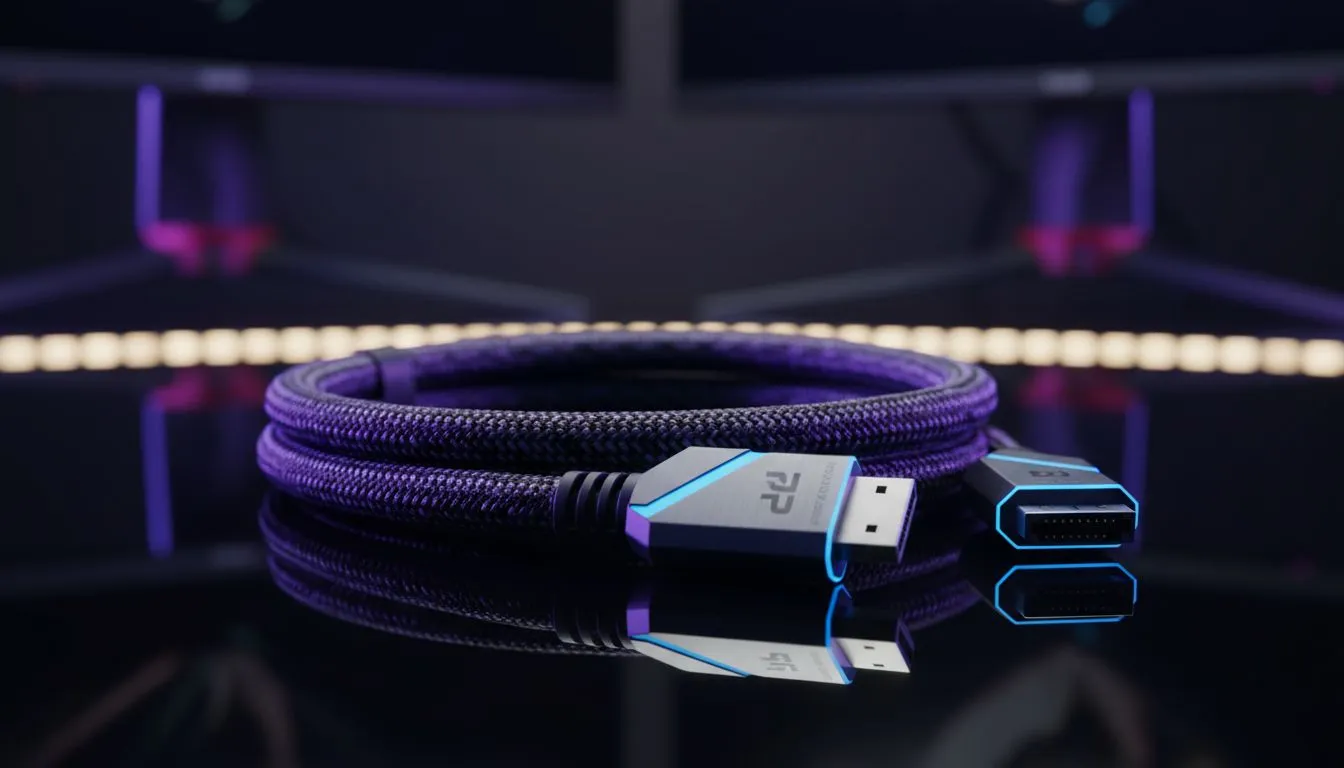
Not all cables are equal. A cheap DisplayPort cable might not handle the bandwidth required for high refresh rates. You need at least DisplayPort 1.2 for 144Hz at 1080p. If you are pushing high-performance gaming monitors to their limit, a certified cable is a must. Check your ports too. Some immersive curved monitors have specific ports that support higher refresh rates while others are limited to 60Hz.
Higher resolutions demand significantly more data. If you are using compact portable monitors for work, 60Hz is usually the standard. However, for gaming, resolution matters. Pushing 144Hz on ultra-clear 4K and 5K monitors requires DisplayPort 1.4 or even DSC (Display Stream Compression). If your hardware is a few years old, it might simply lack the bandwidth to drive those pixels that fast.
Outdated drivers are a common culprit for the "DisplayPort 144Hz not working" error. Use a tool like DDU to wipe old drivers before installing fresh ones from the manufacturer. Also, check your physical connections. A loose cable can cause the signal to drop to a lower bandwidth mode. If you need a replacement, browse our high-quality monitor accessories to find a reliable cable for under R500. Fixing this issue usually comes down to one of these small details... 🔧
Ready to Upgrade Your Visual Experience? Troubleshooting can be a pain, but the right hardware makes all the difference. If your current screen just isn't cutting it, it might be time for a change. Explore our massive range of monitor specials and find the perfect display to elevate your gaming setup today.
Usually caused by a low-quality cable, DP version mismatch, or incorrect GPU/OS settings. Check cable rating and enable 144Hz in Windows and monitor OSD.
Yes. Older or uncertified cables may not support required bandwidth. Use a DP 1.4 or high-bandwidth cable to fix common displayport cable 144hz issues.
It depends on resolution and color depth. 1080p 144Hz often works on DP 1.2; 1440p/4K at higher color depths may require DP 1.4 or DSC.
Go to Settings → System → Display → Advanced display. Select your monitor and choose 144Hz. Update GPU drivers if the option is missing.
Yes. Outdated or corrupted GPU drivers can prevent 144Hz detection. Update or reinstall drivers from NVIDIA/AMD/Intel to resolve gpu displayport 144hz driver issues.
Flicker can come from insufficient cable bandwidth, poor grounding, or wrong refresh settings. Swap the DP cable and test alternate ports to isolate the cause.
Test the monitor with a different DP cable, try another PC or GPU port, or use HDMI. If the issue follows the cable, replace it to resolve displayport 144hz problems.
RX 9060 XT Like a Dragon Performance: FPS Test. Real-world benchmark data, FPS numbers & performance analysis. What SA gamers can actually expect.
Read more
Head-to-head comparison of RTX 5080 vs RTX 4070 Super: Gaming Performance for SA gamers. Performance benchmarks, Rand pricing & which delivers better value.
Read more
Ryzen 7 9800X3D + RTX 5060 Build: Bottleneck. Real-world benchmark data, FPS numbers & performance analysis. What SA gamers can actually expect.
Read more
RTX 4070 Super Linux Support: Benchmark. Real-world benchmark data, FPS numbers & performance analysis. What SA gamers can actually expect.
Read more
RTX 5080 CS2 FPS: Performance Benchmark & Settings. Real-world benchmark data, FPS numbers & performance analysis. What SA gamers can actually expect.
Read more
RX 9070 PUBG at 4K: FPS Benchmark & Optimal. Real-world benchmark data, FPS numbers & performance analysis. What SA gamers can actually expect.
Read more
Snapdragon X2 NPU Explained: How 80 TOPS Changes. Plain-English explanation of what it means, why it matters & how it affects your buying decisions in SA.

HBM? High Bandwidth Memory Used in GPUs and AI. Plain-English explanation of what it means, why it matters & how it affects your buying decisions in SA.

How much should you spend on sim racing accessories in South Africa for a realistic setup? We break down budgets by quality tiers, so you buy smart gear and avoid overspending 🎮💸

G-Sync and FreeSync? Variable Refresh Rate. Plain-English explanation of what it means, why it matters & how it affects your buying decisions in SA.

AMD Laptop: Value. SA-focused analysis with local pricing data, real-world insights & actionable buying advice.

How MacBook Neo Handles 30+ Chrome Tabs with Only. SA-focused analysis with local pricing data, real-world insights & actionable buying advice.

Why Apple Put 8GB RAM in MacBook Neo: The A18 Pro. SA-focused analysis with local pricing data, real-world insights & actionable buying advice.

Upgrade your work laptop with a New Motherboard. Step-by-step instructions with SA-specific tips, common pitfalls to avoid & expert recommendations.

Maintain wired headset — Checklist: • inspect cables • clean earpads • store properly 🔧🎧 Practical steps to preserve sound quality and avoid premature replacements.

Fix crackling headset fast: step-by-step checks for cables, connectors, drivers, and settings to remove static or distorted audio on wired headsets 🎧⚙️

Stereo vs mono headsets: learn which delivers clearer calls, better spatial music, or simpler mono voice performance — pick the right headset for meetings, music, or gaming 🎧💬

- Compare gaming headset vs studio headphones; - Assess comfort, mic and sound; - Recommend best daily picks. Gaming headset vs studio headphones: learn which suits work, music and casual gaming. 🎧⚖️