

RX 9060 XT Like a Dragon Performance: FPS Test & Settings Guide 2026
RX 9060 XT Like a Dragon Performance: FPS Test. Real-world benchmark data, FPS numbers & performance analysis. What SA gamers can actually expect.
Read moredota 2 laptop settings checklist: • Audit current settings • Prioritize FPS vs battery • Apply power profiles — tweak graphics, thermal, and GPU options for better play 🎮🔋
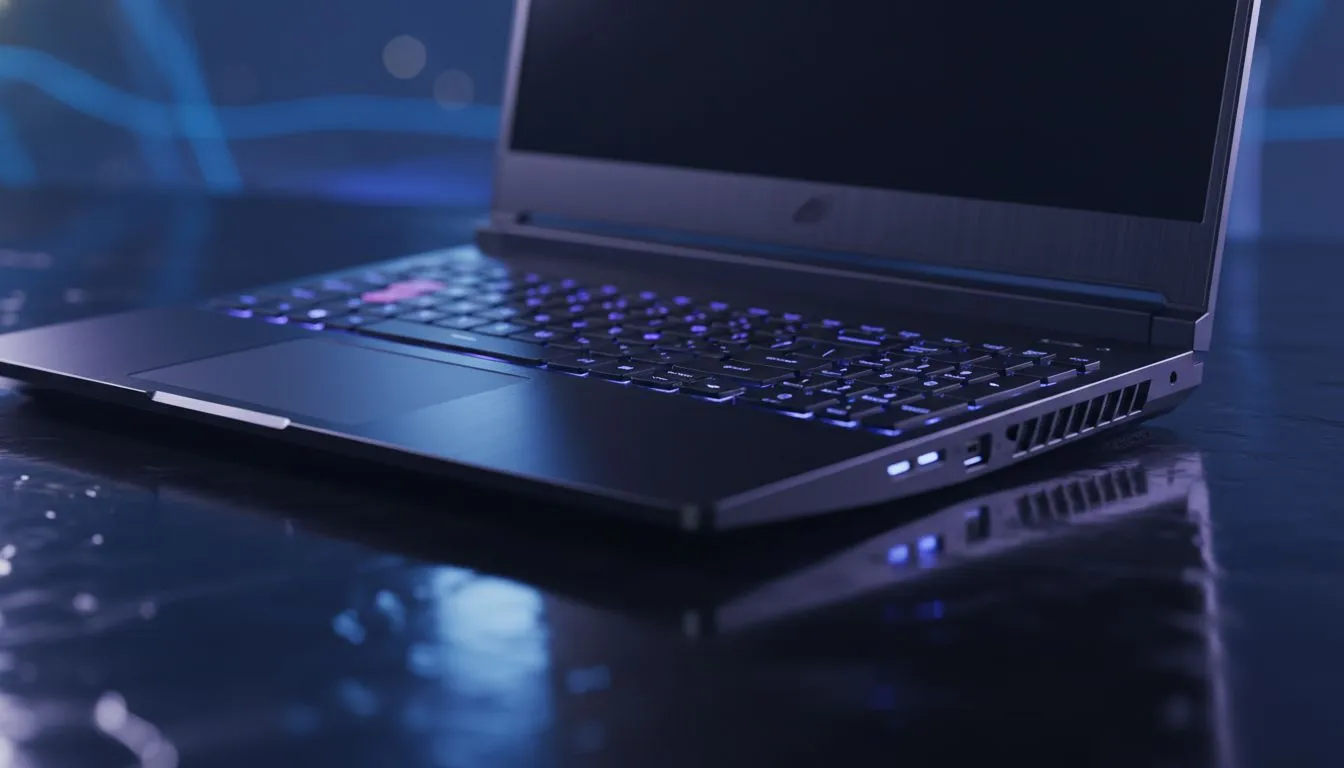
Stuck in a 60-minute slugfest while the power goes out? We’ve all been there. Playing Dota 2 on the move in South Africa requires more than just high MMR... it requires the perfect Dota 2 laptop settings: balance FPS and battery to ensure your game doesn't cut out mid-teamfight. Whether you are on the bus or dodging load shedding, every frame and every milliampere counts.
When you are far from a wall socket, your first priority is efficiency. Modern hardware, like the intel laptops on special, offers incredible power management. However, you still need to tweak your in-game dashboard. Start by setting your "Rendering" to "Use advanced settings". Lowering shadow quality and turning off "World Lighting" provides the biggest boost to your battery life without making the game look like a spreadsheet. 🔧
Finding the right Dota 2 laptop settings: balance FPS and battery means making some visual sacrifices. You should cap your frame rate to match your screen's refresh rate... or even lower it to 60 FPS when on battery. This prevents your GPU from working overtime on frames you cannot even see. Many gamers find that ryzen laptop deals provide excellent multi-threaded efficiency for these exact scenarios.
Switch your display mode to 'Exclusive Fullscreen' rather than 'Borderless Window'. This allows Windows to focus all resources on the game and reduces the background overhead of the desktop window manager, giving you a few extra minutes of precious game time during a power cut.
If you are looking for a new machine to handle these tweaks, check out the best gaming laptop deals available right now. You want a balance between thermal efficiency and raw power. High-end components are great, but they can drain a battery in under an hour if not configured correctly. 🚀
For those on a stricter budget, there are fantastic gaming laptops under R20k that handle Dota 2 with ease. Look for models with "Battery Boost" features in their software suites. These tools automatically adjust your Dota 2 laptop settings: balance FPS and battery by limiting power draw when the charger is disconnected.
Don't forget to disable "High Quality Water" and "Ambient Creatures". These add flavour but eat into your playtime. If you have a machine from the GeForce RTX gaming laptops on special range, you can use NVIDIA’s power management modes to further refine your experience. ✨
Keeping your laptop cool also helps battery health. A hot battery drains faster and wears out sooner. Use a flat surface and ensure your fans aren't blocked by a duvet or pillow. With these adjustments, you can defend your Ancient even when Eskom has other plans. ⚡
Ready to Find Your Perfect Match? The quest for the ultimate portable rig is complex, but for maximum power, choice, and value in South Africa, Evetech has you covered. Explore our massive range of laptop specials and find the perfect machine to conquer your world.
Lower resolution, set texture and shadow quality to medium/low, disable anti-aliasing and v-sync, and use a high performance power profile for better FPS.
Use a balanced power profile when unplugged, cap FPS (60) in-game, lower GPU power limit and graphics presets to extend battery while keeping playable FPS.
Switch to high performance while plugged in for max FPS; use balanced or a custom power profile on battery to preserve life and avoid thermal throttling.
Driver updates, GPU power limit, shader cache, anti-aliasing and vsync have the biggest impact — tweak gpu settings dota 2 laptop for gains.
It varies by hardware, but expect roughly 1–2% battery per minute on mid-high settings; lowering presets and capping FPS reduces drain.
Yes — safe undervolting can lower temps and reduce throttling, improving sustained FPS and efficiency. Test stability and monitor temps closely.
Absolutely. Custom profiles let you quickly swap performance modes, cap FPS, and tune GPU/CPU limits to balance fps and battery for different situations.
RX 9060 XT Like a Dragon Performance: FPS Test. Real-world benchmark data, FPS numbers & performance analysis. What SA gamers can actually expect.
Read more
Head-to-head comparison of RTX 5080 vs RTX 4070 Super: Gaming Performance for SA gamers. Performance benchmarks, Rand pricing & which delivers better value.
Read more
Ryzen 7 9800X3D + RTX 5060 Build: Bottleneck. Real-world benchmark data, FPS numbers & performance analysis. What SA gamers can actually expect.
Read more
RTX 4070 Super Linux Support: Benchmark. Real-world benchmark data, FPS numbers & performance analysis. What SA gamers can actually expect.
Read more
RTX 5080 CS2 FPS: Performance Benchmark & Settings. Real-world benchmark data, FPS numbers & performance analysis. What SA gamers can actually expect.
Read more
RX 9070 PUBG at 4K: FPS Benchmark & Optimal. Real-world benchmark data, FPS numbers & performance analysis. What SA gamers can actually expect.
Read more
Snapdragon X2 NPU Explained: How 80 TOPS Changes. Plain-English explanation of what it means, why it matters & how it affects your buying decisions in SA.

HBM? High Bandwidth Memory Used in GPUs and AI. Plain-English explanation of what it means, why it matters & how it affects your buying decisions in SA.

How much should you spend on sim racing accessories in South Africa for a realistic setup? We break down budgets by quality tiers, so you buy smart gear and avoid overspending 🎮💸

G-Sync and FreeSync? Variable Refresh Rate. Plain-English explanation of what it means, why it matters & how it affects your buying decisions in SA.

AMD Laptop: Value. SA-focused analysis with local pricing data, real-world insights & actionable buying advice.

How MacBook Neo Handles 30+ Chrome Tabs with Only. SA-focused analysis with local pricing data, real-world insights & actionable buying advice.

Why Apple Put 8GB RAM in MacBook Neo: The A18 Pro. SA-focused analysis with local pricing data, real-world insights & actionable buying advice.

Upgrade your work laptop with a New Motherboard. Step-by-step instructions with SA-specific tips, common pitfalls to avoid & expert recommendations.

Maintain wired headset — Checklist: • inspect cables • clean earpads • store properly 🔧🎧 Practical steps to preserve sound quality and avoid premature replacements.

Fix crackling headset fast: step-by-step checks for cables, connectors, drivers, and settings to remove static or distorted audio on wired headsets 🎧⚙️

Stereo vs mono headsets: learn which delivers clearer calls, better spatial music, or simpler mono voice performance — pick the right headset for meetings, music, or gaming 🎧💬

- Compare gaming headset vs studio headphones; - Assess comfort, mic and sound; - Recommend best daily picks. Gaming headset vs studio headphones: learn which suits work, music and casual gaming. 🎧⚖️