

RTX 4060 Ti PUBG at 1440p: FPS Benchmark & Optimal Settings
RTX 4060 Ti PUBG at 1440p: FPS Benchmark. Real-world benchmark data, FPS numbers & performance analysis. What SA gamers can actually expect.
Read moreAre sports games crashing on your PC, ruining your match? 😫 Our guide provides easy, step-by-step solutions to diagnose and fix common crashes. From updating drivers to verifying game files, we'll help you get back in the game and secure that win. Stop the frustration now! 🏆
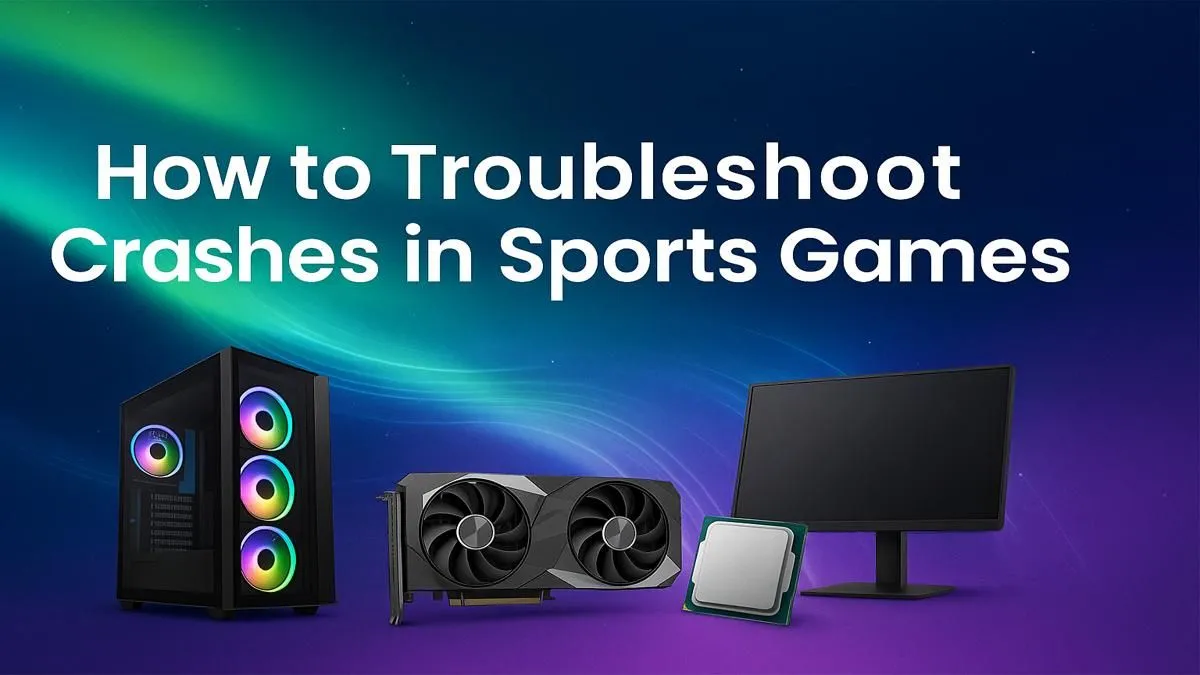
You’re in the 90th minute of a tense FIFA match, about to score a screamer, when… bam. Your screen freezes, the sound loops, and you’re staring at your desktop. Lekker. There’s nothing more frustrating than when your sports games keep crashing on PC, especially when you’re in the zone. Whether it’s EA FC 24, F1, or Madden, these crashes can ruin a perfect session. But don’t stress, we’ve got your back with this ultimate fix guide.
Before you start thinking about a pricey hardware upgrade, let's tackle the most common culprits. More often than not, a simple software tweak is all you need to solve why your sports games are crashing on PC. These steps are the foundation of a stable gaming experience.
This is rule number one. Outdated graphics drivers are the leading cause of game instability. NVIDIA, AMD, and Intel constantly release updates that optimise performance and squash bugs for new titles. Head over to GeForce Experience or AMD Software: Adrenalin Edition and grab the latest version. It’s the single most effective fix for crashing games. A stable driver is crucial, even for famously well-optimised titles like Counter-Strike 2, where every frame counts.
Sometimes, a file can get corrupted during download or after an update. It happens. Luckily, most game launchers have a built-in repair tool.
This process scans for and re-downloads any broken or missing files, often fixing persistent crashes instantly.
That Discord overlay showing who's talking? Super useful, but it can also conflict with your game's rendering process. The same goes for NVIDIA's ShadowPlay, Steam Overlay, or even your RGB software. Try disabling all non-essential overlays. While you're at it, close unnecessary background apps like web browsers or streaming services to free up precious RAM and CPU resources. A lean system is a happy system, a principle that applies whether you're playing a simple-looking game like Minecraft or a graphically intense blockbuster.
If the basics didn't work and you're still dealing with your PC crashing during sports games, it’s time to dig a little deeper. These next steps involve checking your system's stability under load. 🚀
Modern sports games can be surprisingly demanding, pushing your CPU and GPU to their limits. If your components get too hot, they'll automatically slow down (thermal throttle) or even shut down to prevent damage, causing a crash. Use a tool like HWMonitor or MSI Afterburner to check your temperatures while gaming. If your CPU or GPU is hitting 90°C or more, you may have a cooling problem. Similarly, an old or underpowered Power Supply Unit (PSU) might not be able to provide stable voltage when your system is under full load.
Use MSI Afterburner's RivaTuner Statistics Server to put a real-time hardware monitor on your screen while you play. You can track CPU GPU temperature, usage, clock speeds, and frame times. If you see a huge spike or a sudden drop right before a crash, you've likely found your culprit. It's an invaluable tool for diagnosing the root cause of game crashes.
Are you running an overclock on your CPU, GPU, or RAM? While it might be stable in benchmarks, it might not be stable in every single game. Some game engines are notoriously sensitive to even minor instability. Try resetting your components to their stock speeds and see if the crashing stops. If it does, you can try re-applying your overclock more conservatively. Stability is paramount, especially in demanding open-world games like Cyberpunk 2077 that tax every part of your PC.
You've tried every software fix, your temperatures are fine, and you're still crashing. Now it’s time to consider the tough question: is your hardware holding you back? If your PC components are struggling to keep up with the demands of modern titles, crashes can become a regular occurrence.
A balanced PC build is essential for smooth gameplay. For instance, you need a solid GPU for the fast-paced action in games like Fortnite, but also a capable CPU to handle the player counts in a battle royale like PUBG.
Insufficient RAM can be a major cause of crashes, especially in large, detailed environments like those found in GTA V. While 8GB might be the minimum, 16GB is the modern standard for a reason. Likewise, a processor that can't keep up will cause bottlenecks, an issue that becomes very clear in CPU-intensive simulations like Microsoft Flight Simulator or the chaotic team fights of Overwatch 2.
Ultimately, if your hardware is several years old, it might simply not have the power needed to run the latest sports titles smoothly, leading to the PC game crashes you're experiencing. A well-rounded system, like one optimised for competitive shooters such as Call of Duty: Warzone, ensures every component works in harmony to deliver a stable, high-performance experience. ✨
Ready to Stop the Crashing for Good? If you've tried every software fix and your sports games are still crashing, it might be time for an upgrade. A stable, powerful rig is the ultimate solution. Build your dream crash-free gaming PC with Evetech and get back in the game.
Sports games often crash on PC due to outdated graphics drivers, corrupted game files, or hardware not meeting minimum requirements. Background apps and overlays can also cause conflicts.
Start by updating your GPU drivers and Windows. Then, use the game launcher to verify the integrity of your game files. Closing unnecessary background applications also improves stability.
Yes, CPU or GPU overheating is a primary cause for a sports game to crash to desktop with no error. Ensure your PC has adequate cooling and monitor temperatures during gameplay.
Verifying game file integrity is a crucial troubleshooting step. This process scans for and repairs missing or corrupted files that are a common cause of frequent game crashes.
The first steps are always to restart your PC, check for available game updates, and ensure your graphics card drivers are current. These simple actions resolve many crash issues.
If you experience visual glitches, stuttering, or crashes immediately after a game update, your graphics drivers are a likely culprit. Perform a clean installation of the latest drivers.
RTX 4060 Ti PUBG at 1440p: FPS Benchmark. Real-world benchmark data, FPS numbers & performance analysis. What SA gamers can actually expect.
Read more
Head-to-head comparison of RTX 4080 Super vs RTX 3050: Gaming Performance for SA gamers. Performance benchmarks, Rand pricing & which delivers better value.
Read more
RTX 4080 Super for Scientific Computing. Real-world benchmark data, FPS numbers & performance analysis. What SA gamers can actually expect.
Read more
RTX 4060 Ti Star Wars Outlaws FPS: Performance. Real-world benchmark data, FPS numbers & performance analysis. What SA gamers can actually expect.
Read more
RTX 4060 Ti AV1 Encoding: Benchmark & Real-World. Real-world benchmark data, FPS numbers & performance analysis. What SA gamers can actually expect.
Read more
Snapdragon X2 NPU Explained: How 80 TOPS Changes. Plain-English explanation of what it means, why it matters & how it affects your buying decisions in SA.

HBM? High Bandwidth Memory Used in GPUs and AI. Plain-English explanation of what it means, why it matters & how it affects your buying decisions in SA.

How much should you spend on sim racing accessories in South Africa for a realistic setup? We break down budgets by quality tiers, so you buy smart gear and avoid overspending 🎮💸

G-Sync and FreeSync? Variable Refresh Rate. Plain-English explanation of what it means, why it matters & how it affects your buying decisions in SA.

AMD Laptop: Value. SA-focused analysis with local pricing data, real-world insights & actionable buying advice.

How MacBook Neo Handles 30+ Chrome Tabs with Only. SA-focused analysis with local pricing data, real-world insights & actionable buying advice.

Why Apple Put 8GB RAM in MacBook Neo: The A18 Pro. SA-focused analysis with local pricing data, real-world insights & actionable buying advice.

Upgrade your work laptop with a New Motherboard. Step-by-step instructions with SA-specific tips, common pitfalls to avoid & expert recommendations.

Maintain wired headset — Checklist: • inspect cables • clean earpads • store properly 🔧🎧 Practical steps to preserve sound quality and avoid premature replacements.

Fix crackling headset fast: step-by-step checks for cables, connectors, drivers, and settings to remove static or distorted audio on wired headsets 🎧⚙️

Stereo vs mono headsets: learn which delivers clearer calls, better spatial music, or simpler mono voice performance — pick the right headset for meetings, music, or gaming 🎧💬

- Compare gaming headset vs studio headphones; - Assess comfort, mic and sound; - Recommend best daily picks. Gaming headset vs studio headphones: learn which suits work, music and casual gaming. 🎧⚖️