

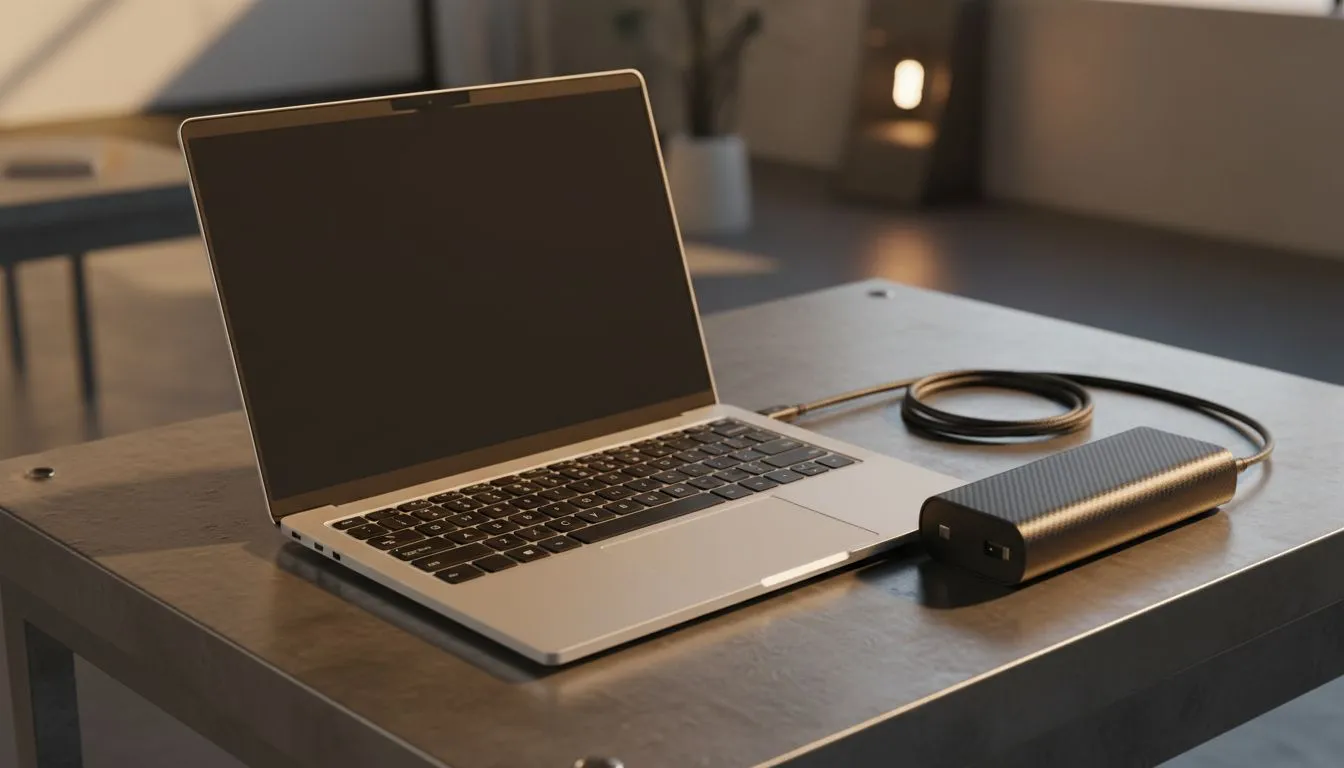
We all know that sudden silence when the fans stop and the lights dim. Loadshedding is a constant reality for South African tech enthusiasts, and when the grid goes dark... your battery becomes your most valuable asset. Whether you are finishing a ranked match or a critical work report, knowing how to maximize battery life Windows 11 during loadshedding is the difference between staying online and a total blackout.
Master the Windows 11 Power Efficiency Settings
The first step to surviving a power outage is telling your operating system to prioritise longevity over raw speed. Windows 11 includes a robust "Best Power Efficiency" mode that throttles background processes and reduces CPU clock speeds. If you are currently browsing Intel laptops on special, you will notice that modern E-cores are designed specifically to handle these background tasks with minimal power draw... allowing the performance cores to rest.
To activate this, head to Settings > System > Power & battery. Switch the Power Mode to "Best power efficiency". This simple change can often grant you an extra 30 to 45 minutes of runtime, depending on your current workload.
Optimise Your Display and Visuals
Your screen is usually the biggest power hog in any portable setup. High-refresh-rate panels look amazing, but they eat through juice. Reducing your refresh rate from 144Hz to 60Hz can significantly extend your uptime. Similarly, many Ryzen laptop deals offer incredible power-to-watt ratios, but even the most efficient processor cannot save you if your screen brightness is cranked to 100%.
Lower your brightness to the minimum comfortable level. If you have an OLED display, switching to "Dark Mode" across Windows and your apps will save even more energy, as black pixels effectively turn off.
Battery Health Pro Tip ⚡
To see exactly how your battery is performing, open Command Prompt as admin and type 'powercfg batteryreport'. It generates a detailed HTML file showing your original capacity versus your current capacity... helping you decide if it is time for an upgrade before the next stage of loadshedding hits.
Manage High-Performance Hardware Wisely
While the best gaming laptop deals often feature massive batteries, even a 99Wh cell will drain quickly if your dedicated GPU is active. For non-gaming tasks like browsing or streaming, ensure your laptop is using the integrated graphics rather than the power-hungry discrete card.
For those who managed to buy gaming laptops under R20k, keeping an eye on your open browser tabs is vital. Chrome and Edge have "Efficiency Modes" that sleep inactive tabs... use them. Every unnecessary process stopped is another minute of power saved.
High-end machines found in our geforce rtx gaming laptops on special section often use MUX switches or Advanced Optimus. Ensure your settings are set to "Hybrid" or "Integrated Only" mode during those two-hour blocks of darkness to keep your machine running until the lights come back on.
Ready to Find Your Perfect Match? Loadshedding is tough, but the right hardware makes it manageable. Explore our massive range of laptop specials and find the perfect machine to conquer your world.











