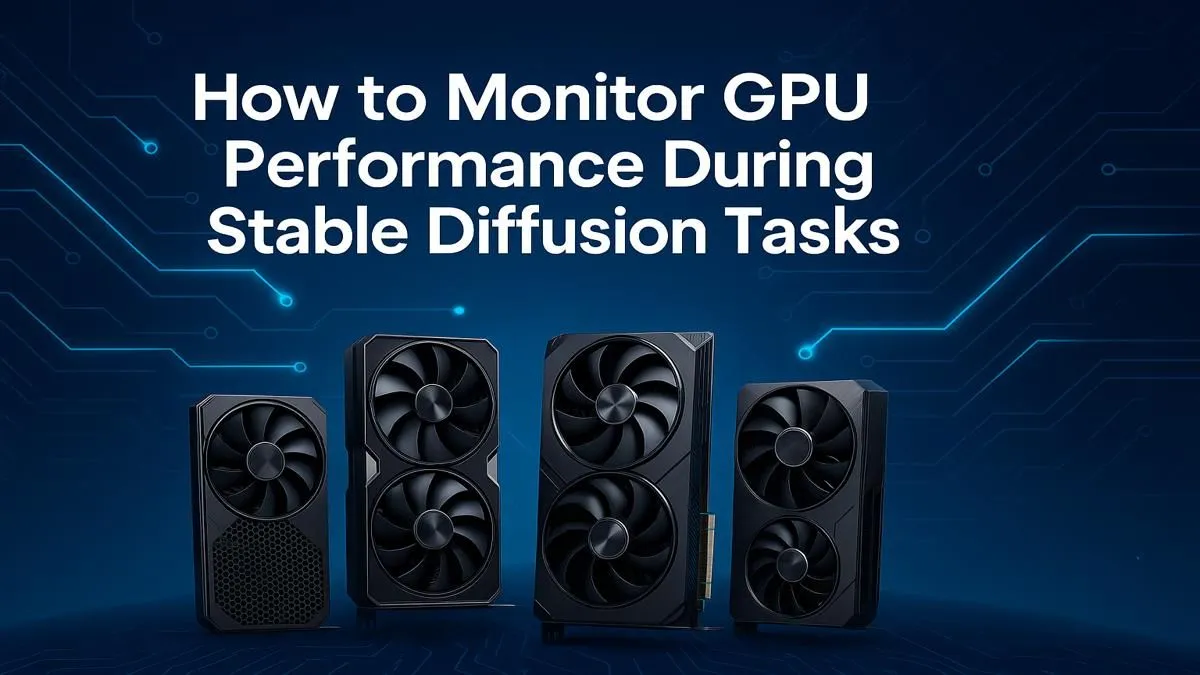
So, you’ve dived into the incredible world of Stable Diffusion, turning simple text prompts into stunning AI art. It’s amazing... until your PC starts sounding like a jet engine and a single image takes forever to generate. Here in South Africa, getting the most out of your hardware is crucial. That’s why learning to monitor GPU Stable Diffusion performance isn't just for tech nerds; it's the key to faster, smoother, and more creative workflows. 🚀
Why Monitoring Your GPU's Performance Matters
Before you can optimise anything, you need to understand what’s happening under the hood. Firing up Stable Diffusion without a performance overlay is like driving a race car without a dashboard. Are you hitting your VRAM limit? Is your GPU even running at full speed? Answering these questions helps you pinpoint bottlenecks.
Monitoring your GPU performance for Stable Diffusion allows you to:
- Identify VRAM Limits: Discover if your image resolution or batch size is too ambitious for your card's memory.
- Diagnose Throttling: See if high temperatures are forcing your GPU to slow down, sabotaging your render times.
- Optimise Settings: Tweak your software settings based on real data to achieve the best balance of speed and quality.
Ultimately, keeping an eye on performance ensures you're getting every Rand's worth of power from your graphics card.
Key Metrics to Watch for Stable Diffusion
When the generation process kicks off, a few key metrics tell the whole story. Forget about raw framerates; for AI, the game is different.
VRAM Usage: The Most Critical Factor
Video RAM (VRAM) is the single most important resource for Stable Diffusion. It’s the high-speed memory on your graphics card that holds the AI model, the image being generated, and other essential data. If you run out, the process will either crash or slow to a crawl as it uses your system's much slower RAM. For high-resolution outputs, cards with ample VRAM are essential. This is an area where modern NVIDIA GeForce cards, with their robust memory configurations, truly shine.
GPU Utilisation & Core Clock Speed
This metric shows how much of your GPU's processing power is actually being used. For Stable Diffusion, you want this number to be consistently high, ideally 95-100%, during image generation. If it's low, something else is bottlenecking your system. Core Clock Speed, measured in MHz, is the raw speed of the processor. A higher, stable clock speed means faster calculations and quicker results. While NVIDIA often leads in AI, AMD's Radeon lineup offers competitive performance that can be a great value alternative for gamers and creators alike.
Temperature and Power Draw 🌡️
Your GPU's performance is directly linked to its temperature. If it gets too hot (typically above 85°C), it will "thermal throttle"—automatically reducing its clock speed to cool down. This directly impacts your generation speed. Monitoring your temps ensures your cooling solution is up to the task. For those running complex models for hours on end, the superior cooling and stability of professional workstation graphics cards can be a major advantage.
The Best Tools to Monitor Performance
You don't need complicated software to get started. A few trusted, free utilities will give you all the insight you need.
- MSI Afterburner: The gold standard for GPU monitoring. Its on-screen display (OSD) is perfect for watching your stats in real-time without alt-tabbing.
- HWiNFO64: Provides incredibly detailed sensor data for every component in your PC. It’s great for a deep-dive analysis.
- Windows Task Manager: The built-in tool is surprisingly capable. Just open it, go to the "Performance" tab, and click on your GPU to see utilisation, VRAM usage, and temperature.
Real-Time Monitoring Pro Tip ⚡
In MSI Afterburner, go to Settings > Monitoring. Select the metrics you want to track (GPU Temperature, VRAM Usage, Core Clock) and tick the "Show in On-Screen Display" box for each. Now you can see your GPU's vital signs overlaid directly on your screen while Stable Diffusion is running. It's the easiest way to spot issues as they happen.
By actively monitoring these metrics, you can fine-tune your Stable Diffusion setup for maximum efficiency. You'll learn the limits of your hardware and how to push it for the best possible results, turning frustrating waits into a seamless creative flow. ✨
Ready to Unleash Your AI Creativity? Monitoring your GPU is the first step, but if you're constantly hitting VRAM limits or waiting ages for a render, it might be time for an upgrade. Don't let your hardware be the bottleneck. Explore our massive range of graphics cards and find the perfect GPU to bring your wildest ideas to life.