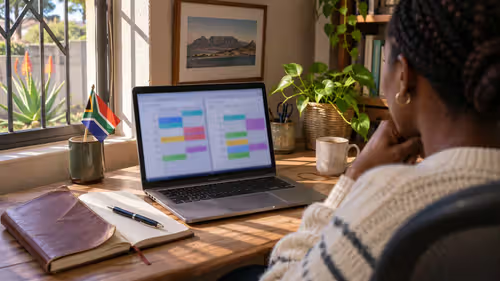
Open Tinkercad in a browser tab and you can have a first printable part designed before supper, which is why it tops any list of the best free 3D print design software. Once simple shapes feel limiting, FreeCAD handles precise mechanical parts and Blender handles figurines and sculpts.
Quick Answer
Begin with Tinkercad for brackets, boxes and name plates. Move to FreeCAD or OpenSCAD when a part needs exact dimensions, and to Blender when it needs curves. All of these are free and all of them export STL, the file your slicer reads. Tinkercad needs only a browser, while Blender is happier on a laptop with 16 GB of memory and a dedicated graphics card.
🧱 Tinkercad: the gentle start
Tinkercad works by dragging cubes, cylinders and cones onto a grid, then combining or cutting them. A hole is simply a shape you set to "hole" and overlap with a solid. That is enough for phone stands, cable guides, drawer dividers and lettering.
It lives in the browser, so there is nothing to install on a res laptop or a shared family PC. Export is a single click on the Export button, choosing STL. The limit arrives when you want fillets, threads or parts that must fit another part to a tenth of a millimetre.
📐 FreeCAD and OpenSCAD: exact parts
FreeCAD is a parametric modeller. You sketch a profile, give it dimensions, and extrude it, and every number can be edited later without redrawing. That is the right habit for a replacement knob, a bracket that must match a screw spacing, or an enclosure for a circuit board.
OpenSCAD takes another route, describing shapes in short lines of code. If you enjoy programming, a parametric box becomes a handful of variables, and changing one number rebuilds the whole part. Both are slower to learn than Tinkercad, so budget a couple of weekends.
🗿 Blender: figurines and organic shapes
Blender is built for sculpting, so it suits dragons, characters and anything with flowing surfaces. Its sculpt mode behaves like digital clay, and the mesh tools let you thicken thin areas so the print survives handling.
It is not a precision tool, so avoid it for parts that must bolt onto something. Export through File, then Export, then STL, and check the model is watertight before slicing. Models with holes in the surface often print with gaps.
💻 What your PC needs, and your line
Tinkercad runs on almost any machine. Blender and large FreeCAD assemblies want more memory, with 8 GB workable for small projects and 16 GB comfortable. A capable graphics card keeps the viewport smooth when a sculpt gets dense.
Browser tools load their editor each session, so a steady fibre connection beats a capped LTE bundle in a South African flat. FreeCAD and Blender work offline once installed. When you are ready to print, compare 3D printers and pick up some 3D printing filament for your first test.
Frequently Asked Questions
What is the easiest free tool for a complete beginner?
Tinkercad. It runs in your browser, builds from basic shapes and exports STL.
Which tool suits mechanical parts?
FreeCAD, because it stores dimensions you can change later. OpenSCAD does the same through code.
Can Blender be used for printing?
Yes, especially for figurines. It is weaker for exact engineering fits, so use CAD for those.
Do I need an expensive PC?
Not for Tinkercad. Blender and complex CAD models prefer more memory and a decent graphics card.
Is browser software fine on a capped plan?
It reloads the editor each time, so uncapped fibre is more comfortable. Desktop programs work offline after installing.
Should I design or download first?
Downloading free models from Printables or Thingiverse first shows you what prints well, which improves your own designs later.
Ready to print the part you just designed?
Look through Evetech's 3D printer and filament categories to match a machine to your first design, and start with something small.