Mouse input delay is experienced at the screen, but its source can sit anywhere from the sensor to the game and display. To reduce mouse input lag in PC games, establish a stable connection and report baseline, then examine frame timing and display behaviour without changing every layer at once.
Quick Answer
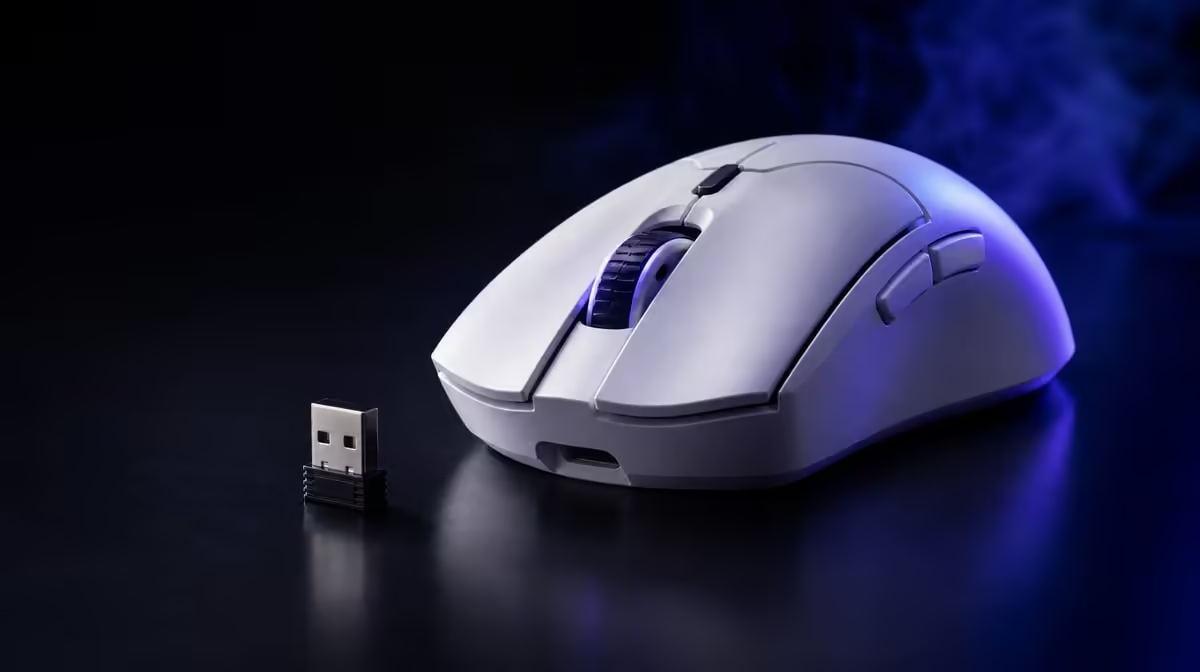
Use the performance-focused connection, place the receiver clearly, restore familiar DPI and a stable report rate, then test game frame consistency and display settings. The R1,499 G305 X SUPERLIGHT offers tri-mode connectivity and up to 8kHz reporting, giving controlled variables rather than a one-click latency cure.
🔹 Build the input chain
Write the path: mouse movement, sensor, connection, USB, game processing, rendering and display. A delayed feel can originate after the mouse has already sent the input.
Evetech's Logitech gaming mouse selection provides comparable devices once the chain is mapped.
Create a known-good profile
Use moderate DPI, a stable report rate, default buttons and the intended connection. Save it before tuning.
🔹 Test the connection
Keep receiver placement and USB route fixed. Compare suitable wired operation if the delayed feel persists.
Bluetooth can serve another task, but the main gaming diagnosis should use the performance route selected for play.
Raise report rate carefully
Move from baseline towards 8kHz one step at a time. Observe the complete game's consistency, not only an input tester.
🔹 Inspect game and display
Run the same scene and watch for frame-time spikes. Compare another game while holding the mouse profile constant.
Evetech's wider gaming mouse category can support a device comparison after the PC side is stable.
Avoid sensitivity confusion
44,000 maximum DPI is sensor range. A sudden change in movement scale can feel wrong without being latency.
🔹 Confirm the result under load
Play through a busy match and a long session. Keep normal background activity similar across tests.
Use Evetech's popular accessories page as a separate R1,499 comparison and verify the live product before purchase.
Keep the correction documented
Record connection, receiver, USB, report rate, game and display state. If delay returns, start from the same path.
Set a stop rule
Once the input chain is stable and the player can repeat the improvement, stop changing settings. Continual tuning can create new inconsistencies.
Compare input under three frame conditions
Test a light training scene, a normal match and the busiest repeatable game moment. Keep the mouse profile and display unchanged. If delayed feel appears only when frame timing worsens, investigate the system load before altering the connection.
Record the least consistent period rather than the best average. Competitive response depends on the chain remaining predictable under pressure.
Inspect display configuration separately
Confirm the active display mode and game presentation settings, then hold them fixed during mouse tests. A display change can alter visible response without any change at the sensor or radio.
Do not combine a report-rate increase with a new display mode. Test each layer against the same known-good profile.
Test the six-button map
Remove profile switches or DPI changes from programmable inputs during diagnosis. An accidental press can create an abrupt movement change that feels like lag.
Restore genre commands only after the baseline remains stable across several matches.
Audit the repair after an update
Game, mouse-software and system updates can alter the chain. Repeat the original training scene after a major change and compare it with the saved result.
If every profile degrades, investigate the shared PC and display layers. If only one mode changes, narrow the check to its connection and settings.
Reintroduce performance settings in order
After the baseline feels immediate again, restore the preferred DPI, higher report rate and custom buttons one stage at a time. Play long enough at each stage to reveal repeated problems.
Keep the last stable stage recorded. If delay returns, the most recent addition becomes the first suspect instead of the entire mouse.
Frequently Asked Questions
Can the display contribute to input lag?
Yes. The visible response includes game rendering and display behaviour after mouse input.
Does 8kHz eliminate lag?
No. It increases possible mouse reports, while the rest of the input chain retains its own constraints.
Why compare wired operation?
It provides another route that can help isolate a wireless-link problem.
Can DPI feel like latency?
An unexpected sensitivity change can feel uncontrolled, so confirm DPI before diagnosing delay.
What should be documented?
Keep connection, receiver or cable route, report rate, game and display conditions with the result.
Ready to inspect the full input chain?
Compare Evetech's gaming mice after establishing one stable profile, then test connection, game and display variables in order.