


How to Reduce Desk Clutter with a TKL Wireless Keyboard
Learn how to reduce desk clutter with a TKL wireless keyboard using fewer cables, smart placement, and tidy essentials. Get a faster, calmer workspace with better ergonomics. ✅🧼
Read moreCentre Stage camera not working properly? Fix your 12MP FaceTime setup with practical checks for settings, permissions, and signal flow. ✅📷
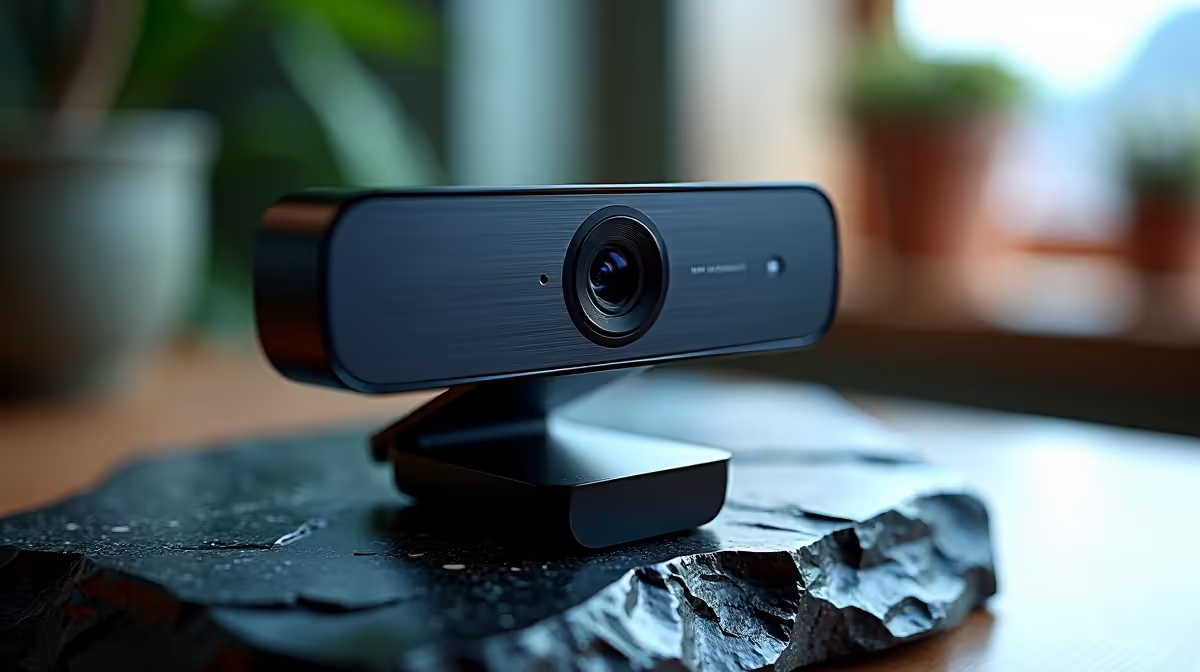
If you’ve been struggling with your Centre Stage camera acting up on your 12MP FaceTime setup, you’re not alone. Many South African gamers and tech buyers expect crystal-clear video for work, study or catching up with mates — and a malfunctioning camera just disrupts that flow. Whether the framing feels off or your footage is jittery, we’ll help fix that Centre Stage camera issue and get your MacBook’s video back on point.
Apple’s Centre Stage technology uses the 12MP ultra-wide lens to automatically keep users centred during calls. This feature is a real boon for hands-free chatting and multi-person Zoom sessions. However, hardware quirks or software hiccups can cause it not to function properly.
If you own one of the latest MacBooks like the MacBook Air 13” models or even a powerful MacBook Pro 14” laptop, it’s worth checking if your macOS is fully updated. Apple often releases camera fixes in system updates that boost Centre Stage stability and accuracy.
Before diving into complex repairs, try these quick steps which often resolve common Centre Stage camera glitches:
If you use older models such as the classic MacBook Air laptops, the camera might not support Centre Stage features fully. In that case, consider if an upgrade or external camera might improve your video quality.
Keep your MacBook’s firmware and macOS updated. Frequent updates optimise camera drivers and fix bugs that interfere with Centre Stage responsiveness.
Physical damage or sensor malfunctions can lead to Centre Stage failures. Dirty lenses or camera obstructions are easy fixes — just use a microfiber cloth to clear dust. But if your MacBook Pro from the MacBook Pro laptops lineup shows persistent errors, hardware servicing might be necessary.
For serious camera issues, Evetech offers expert support and replacement options. South Africans can also explore new MacBook purchases like the 15” MacBook Air laptop which come with enhanced cameras optimised for Centre Stage.
Beyond fixing glitches, making your camera work well involves environmental tweaks:
Understanding these fine details can make a big difference in your FaceTime call quality and webcam presentations.
Even soft natural daylight increases your camera’s clarity drastically. Avoid harsh backlight for balanced, flattering video.
Get the Best MacBook Experience Is your MacBook’s Centre Stage camera still underperforming? Upgrade to the latest model or get expert help at Evetech today — Shop now at Evetech for clarity that truly centres you in every call.
It usually comes down to camera permissions, FaceTime video settings, or an outdated macOS/iOS version. Run quick checks to restore Centre Stage behavior.
Open FaceTime settings and make sure the correct camera input is selected. If you use an external camera, toggle back to the built-in 12MP device.
Verify Camera permissions for FaceTime (macOS/iOS Privacy settings). Without access, Centre Stage can fail or fall back to a static frame.
Focus on FaceTime-specific video settings and reboot FaceTime. Also confirm no other app is locking the camera while FaceTime is open.
Check network stability, close bandwidth-heavy apps, and ensure your device is updated. Test with a shorter FaceTime call to isolate the cause.
Yes. Restart the device and toggle FaceTime camera settings if needed. A clean restart often resolves camera detection conflicts.
Absolutely. A macOS/iOS update can fix camera pipeline bugs that break Centre Stage. Install updates and re-test in FaceTime after reboot.
Unplug the external camera and restart FaceTime. If Centre Stage returns, set FaceTime to the built-in 12MP camera and retest.
Learn how to reduce desk clutter with a TKL wireless keyboard using fewer cables, smart placement, and tidy essentials. Get a faster, calmer workspace with better ergonomics. ✅🧼
Read more
RGB keyboard lighting too distracting? Learn how to manage backlight modes, set brightness, and reduce distraction for focus and productivity 😌🖱️
Read more
A plunger switch keyboard uses a simple plunger mechanism for a crisp feel—often compared to mechanical keyboards. Here’s what it is, how it sounds, and whether it feels right. ⌨️🔍
Read more
Fix ghost inputs in multiplayer gaming fast—learn quick checks, controller and keyboard settings, and troubleshooting steps to stop missed key commands. 🎮⚡ Get your aim and actions back.
Read more
Learn how to connect MacBook Air to multiple external monitors without adapters ✅ Use the right ports, cables, and settings for smooth display control across screens. 🖥️
Read more
Is a Ultra Short Throw Projector Good for Gaming?. Diagnosis steps, proven fixes & when to seek professional help. SA-specific support info included.

Is a Short Throw Projector Good for Gaming? Input. Diagnosis steps, proven fixes & when to seek professional help. SA-specific support info included.

Top Mouse Settings for Competitive FPS: Sensitivity picks evaluated on performance, value & SA availability with current Rand pricing from Evetech.

Top Speakers for MacBook Desk Setup picks evaluated on performance, value & SA availability with current Rand pricing from Evetech.

Is a Ergonomic Chair Better Than a Standard Office Chair for Gaming Detailed answer with SA data, expert analysis & practical recommendations for local buyers.

Use Spotlight Search Like a Pro on macOS. Step-by-step instructions with SA-specific tips, common pitfalls to avoid & expert recommendations.

wireless keyboard Fan Noise Too Loud: Quiet. Everything you need to know with SA pricing, step-by-step instructions & expert recommendations.

Connection Timeout: Troubleshooting Guide #2. Diagnosis steps, proven fixes & when to seek professional help. SA-specific support info included.
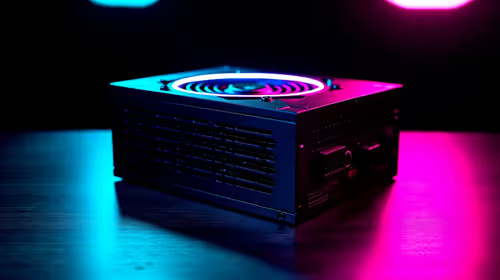
Gaming PC Question: Is my power supply dying Detailed answer with SA data, expert analysis & practical recommendations for local buyers.
Projector Throw Ratio Calculator: Perfect. SA-focused analysis with local pricing data, real-world insights & actionable buying advice.
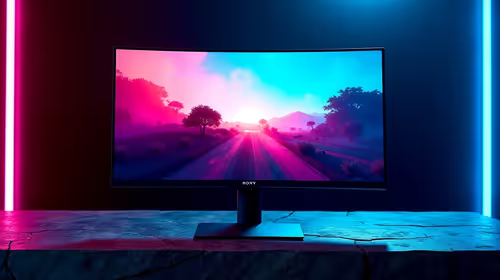
Monitor Stock Levels in Nelspruit: July Report. Current stock data & price tracking for SA buyers. See what is available and where prices are heading.
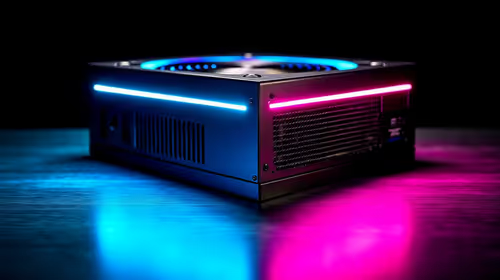
CS2 Low FPS: Power Supply Bottleneck. Real-world benchmark data, FPS numbers & performance analysis. What SA gamers can actually expect.