


How to Reduce Desk Clutter with a TKL Wireless Keyboard
Learn how to reduce desk clutter with a TKL wireless keyboard using fewer cables, smart placement, and tidy essentials. Get a faster, calmer workspace with better ergonomics. ✅🧼
Read moreLearn how to connect MacBook Air to multiple external monitors without adapters ✅ Use the right ports, cables, and settings for smooth display control across screens. 🖥️
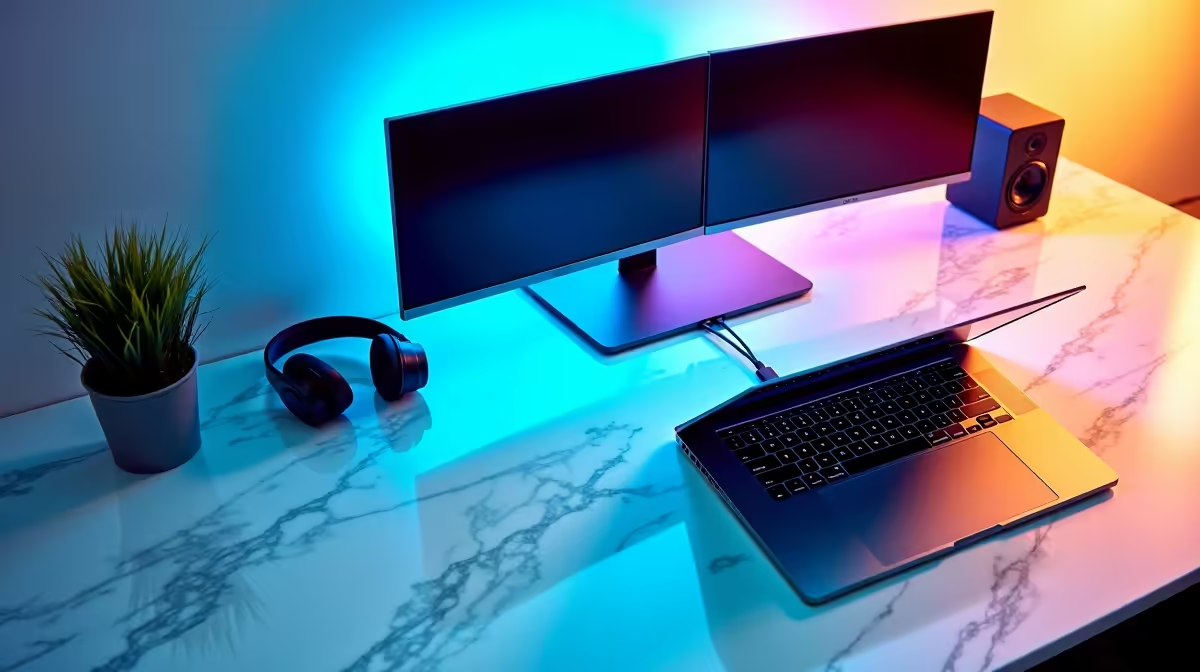
Ever tried to dock your MacBook Air at home, then hit that annoying monitor limit? You’re not alone. In SA we want clean desks, fewer dongles, and setups that actually keep up with work and gaming… whether you’re editing clips, running Discord, or building a battlefield.
If you’re asking how to connect MacBook Air to multiple external monitors without adapters, the good news is you can do a lot with the right MacBook model and a smart cable strategy. 🔧 Let’s make it practical.
“Without adapters” usually means “without relying on random HDMI/VGA dongles.” The hard limit is still your MacBook model’s native video output support.
Before you buy anything, check two things:
For browsing and choosing the right Air model, start here:
If you’re still comparing across sizes, you can also check:
The most reliable way to avoid adapters is to use a dock or monitor connection method that matches your MacBook’s ports and standards.
Here’s the approach that usually stays adapter-light:
What does that look like in practice? For many users, it’s multiple monitors that can accept USB‑C (or Thunderbolt) video input directly. Then you connect each monitor using a compatible cable, rather than chaining adapters.
If you’re comparing Air vs Pro options for more flexible multi-display support, have a look at:
Even within the same laptop family, external display support can vary by generation. That’s why buying based on the marketing name alone can get messy.
Quick reality check:
So the win here is model alignment. If you need the freedom to run multiple screens smoothly, exploring the right Air generation is often the cheapest path, compared to stacking adapters and docks that still rely on unsupported output modes.
On macOS, open System Settings → Displays and use the arrangement options to set your monitor layout to match your desk. Even if your monitors connect successfully, the “wrong” order makes switching apps feel slow and messy. Pair this with Mission Control to keep your game launcher, chat, and walkthrough videos in predictable spaces while you work.
Before you go from “one monitor works” to “I want two, now”, do this:
If you’re still deciding what to buy, Evetech’s MacBook Air listings are a good place to compare the models that fit your external-monitor goal:
The biggest lesson? “Without adapters” is less about hacks and more about matching the right laptop generation with monitors that speak the same language over the right ports. When that lines up, your setup feels effortless… and your downtime drops.
If you’re ready to upgrade or you’re hunting a specific model that supports your multi-monitor needs, don’t guess. Pick from a range curated for real-world buyers in South Africa, then build your desk around it.
Ready to Find Your Perfect Match? If you want maximum power, clean desk setups, and real value in South Africa, choosing the right MacBook model matters. Explore our massive range of laptop specials and find the perfect machine to conquer your world.
Sometimes. Many MacBook Air models support only one external display directly, so check your exact model and ports before planning a dual-monitor setup.
Depending on model, Thunderbolt/USB-C ports may handle external video, but true multi-monitor support varies. Verify your MacBook Air’s display capability first.
Yes. Use Display settings to choose Extend these displays, then arrange monitor order. This works once your MacBook Air recognizes both displays.
Common causes include unsupported multi-monitor hardware, incorrect cable/port, or mirroring/refresh-rate limits. Confirm model support and try each port.
Use high-quality USB-C to DisplayPort or HDMI cables that match your monitor inputs. Stable connections help avoid flicker and missing signal issues.
Not always. Resolution and refresh rate can be limited by the MacBook Air’s graphics output and the connection type. Adjust settings in Displays.
Yes. If your MacBook Air supports it, clamshell mode can work great for multi-monitor productivity. Ensure power, lid, and display settings are configured correctly.
Search your exact MacBook Air model’s supported external display count and supported resolutions. Port availability alone does not guarantee multi-monitor output.
Learn how to reduce desk clutter with a TKL wireless keyboard using fewer cables, smart placement, and tidy essentials. Get a faster, calmer workspace with better ergonomics. ✅🧼
Read more
RGB keyboard lighting too distracting? Learn how to manage backlight modes, set brightness, and reduce distraction for focus and productivity 😌🖱️
Read more
A plunger switch keyboard uses a simple plunger mechanism for a crisp feel—often compared to mechanical keyboards. Here’s what it is, how it sounds, and whether it feels right. ⌨️🔍
Read more
Fix ghost inputs in multiplayer gaming fast—learn quick checks, controller and keyboard settings, and troubleshooting steps to stop missed key commands. 🎮⚡ Get your aim and actions back.
Read more
Centre Stage camera not working properly? Fix your 12MP FaceTime setup with practical checks for settings, permissions, and signal flow. ✅📷
Read more
Is a Ultra Short Throw Projector Good for Gaming?. Diagnosis steps, proven fixes & when to seek professional help. SA-specific support info included.

Is a Short Throw Projector Good for Gaming? Input. Diagnosis steps, proven fixes & when to seek professional help. SA-specific support info included.

Top Mouse Settings for Competitive FPS: Sensitivity picks evaluated on performance, value & SA availability with current Rand pricing from Evetech.

Top Speakers for MacBook Desk Setup picks evaluated on performance, value & SA availability with current Rand pricing from Evetech.

Is a Ergonomic Chair Better Than a Standard Office Chair for Gaming Detailed answer with SA data, expert analysis & practical recommendations for local buyers.

Use Spotlight Search Like a Pro on macOS. Step-by-step instructions with SA-specific tips, common pitfalls to avoid & expert recommendations.

wireless keyboard Fan Noise Too Loud: Quiet. Everything you need to know with SA pricing, step-by-step instructions & expert recommendations.

Connection Timeout: Troubleshooting Guide #2. Diagnosis steps, proven fixes & when to seek professional help. SA-specific support info included.
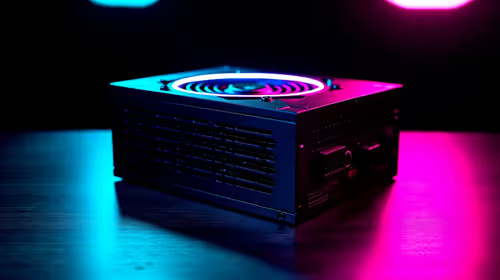
Gaming PC Question: Is my power supply dying Detailed answer with SA data, expert analysis & practical recommendations for local buyers.
Projector Throw Ratio Calculator: Perfect. SA-focused analysis with local pricing data, real-world insights & actionable buying advice.
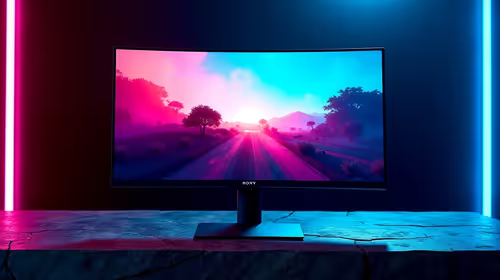
Monitor Stock Levels in Nelspruit: July Report. Current stock data & price tracking for SA buyers. See what is available and where prices are heading.
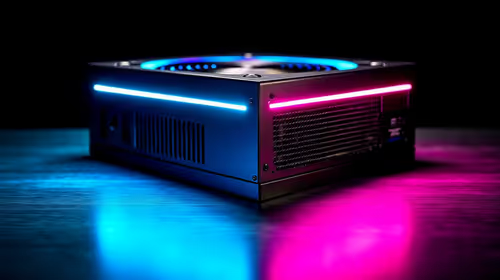
CS2 Low FPS: Power Supply Bottleneck. Real-world benchmark data, FPS numbers & performance analysis. What SA gamers can actually expect.