


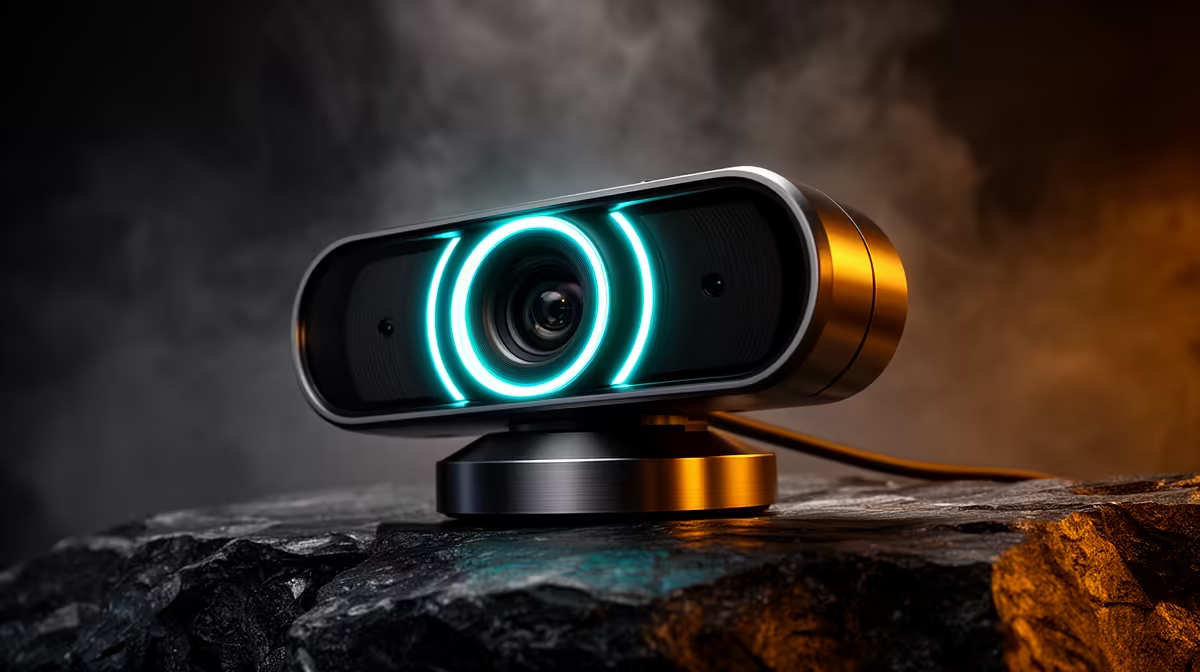
A 95-degree webcam field of view shows everything: your monitor, your desk clutter, the shelf behind you, and the half-open door to your left. For a solo streaming setup, that wide a capture is usually more than you want. The good news is that most adjustable-FOV webcams let you pull that angle in through the companion app, so the scene you broadcast is exactly the scene you intended rather than a tour of your room.
Quick Answer
Open the webcam's companion app and select a narrower angle preset, typically 65 or 78 degrees, to tighten the frame on a solo presenter. Leave the full 95-degree setting for co-host setups or panel streams where multiple people share the frame.
🔧 What Field of View Numbers Actually Mean on Screen
Field of view is the angle of the scene the lens captures from edge to edge. A 95-degree webcam effectively sees a cone almost as wide as it is deep. At a normal desk distance of around 60 to 80cm, that means significant portions of the wall on either side of you are included in the frame.
A 65-degree preset crops that cone considerably. At the same desk distance, the frame tightens to roughly your upper body and the area immediately behind your head. That is the framing most solo streams use because it centres attention on the presenter, hides peripheral clutter without requiring a physical move, and creates a tighter, more broadcast-quality look.
Some cameras offer three steps: 95, 78, and 65 degrees. Others offer a continuous slider. Either way, the setting is found in the manufacturer's companion software rather than in your streaming app, because it is a camera-level control applied before the signal reaches OBS or any other software.
⚡ Solo vs Group Framing: Picking the Right Preset
The practical rule is straightforward. If one person is on screen, narrow the angle. If multiple people need to fit in the same frame, open it up.
For a solo gaming or commentary stream, 65 to 78 degrees is the range to work in. At 65 degrees you fill the frame with your face and shoulders, which works well for a facecam overlay. At 78 degrees you get a slightly wider crop that includes a bit more of the space around you, which suits a full-frame talking-head or reaction setup.
For a co-hosted stream with two people seated side by side at about one metre from the lens, 95 degrees keeps both presenters in frame without either being clipped at the edge. Beyond two people, or for a panel stream where participants spread further, you are moving into conference camera territory rather than a standard streaming webcam.
Switching between these during a session is possible if the companion app supports live angle switching, though not all cameras allow the change mid-stream without a brief reconnect. Check your specific model's app before planning content that requires a live angle change.
🎯 Image Sharpness at Different Angle Settings
Wider angles spread the same sensor pixels across a broader scene, so narrowing to 65 degrees concentrates more resolution on your face. The difference is not dramatic but it is real: tighter framing dedicates more pixel density to the subject, which is why a narrowed angle often looks sharper on stream than the full 95-degree setting at the same resolution.
Frequently Asked Questions
What angle works best for a single presenter on a streaming camera?
The 65 to 78-degree range keeps the framing tight on one person seated at a standard desk distance, cutting out the peripheral clutter that a 95-degree setting captures. Start at 78 degrees and tighten to 65 if the frame still includes too much background beyond your shoulders.
How do I access the field of view setting on my webcam?
The control lives in the camera's dedicated companion app rather than in streaming software. Install the manufacturer's app, look for a field of view, angle, or zoom preset option, and select the angle from the available steps. Changes take effect on the camera feed immediately in most apps.
Does a wider field of view make a solo streamer look smaller on screen?
Yes. A 95-degree angle shrinks the apparent size of the subject because the scene fills the frame, pushing the presenter further back visually. Narrowing to 65 or 78 degrees brings the apparent subject size forward without any physical repositioning of the camera.
Why is there too much ceiling showing in my webcam frame?
Two things are typically happening: the field of view is wider than needed, and the camera is angled slightly upward. Fix the angle first by tilting the camera down a few degrees until your eye line sits in the upper third of the frame, then tighten the FOV preset to remove the remaining excess background.
Ready to get a tighter, more professional streaming frame? Browse the adjustable-FOV streaming webcams at Evetech to find a camera that lets you dial in the exact angle your setup needs, whether you are streaming solo or hosting with a co-presenter.










