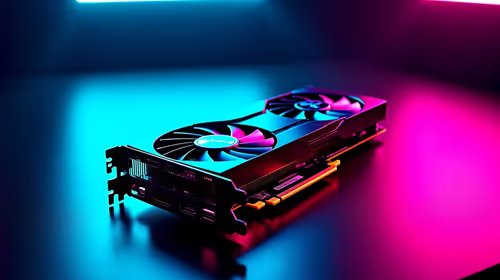
GPU fans not spinning can be perfectly ordinary when a modern card is cool, but it is worrying when a demanding game sends temperatures climbing and the blades remain still. The useful distinction is between an intentional zero-RPM idle state and a cooling system that cannot respond when it should.
Quick Answer
Many graphics cards hold their fans at zero RPM below a set temperature so a desktop PC stays quiet. Test the card under a short, controlled graphics load while watching temperature and fan speed; stop the test if heat rises rapidly without any fan response. Do not remove a cooler or unplug internal fan leads while local warranty cover is still relevant.
🔌 Establish what the card is meant to do
Start by identifying the exact card and looking in its monitoring utility for a fan-speed reading. An idle fan reading of zero is expected on cards with a stop-start profile, especially after the PC has been sitting at the Windows desktop. A steady load changes the picture: the fan curve should normally wake up as the GPU gets warmer.
Before changing anything, switch off the PC and inspect through the side panel for a cable tie, label, dust buildup or other visible obstruction. A gentle check is enough; forcing a blade can create a new fault. If the card was recently moved, make sure its external power plugs and its slot seating look secure. Accessories for a build or tidy-up are available in the graphics card accessories section, but a stopped fan is not a reason to start dismantling a card blindly.
✅ Run a controlled test
Use a familiar game or a brief benchmark rather than leaving a synthetic workload unattended. Keep the monitoring window visible and note the starting temperature, the highest temperature reached, fan percentage and whether artefacts or crashes occur. A fan that starts once the card warms up has demonstrated that zero-RPM mode was doing its job.
If it stays silent, restore any custom fan curve to its default setting and close overlapping tuning applications. Two utilities trying to control one header can leave a confusing result. Rebooting after the change gives Windows a clean starting point. Do not keep increasing the load to force an answer; a rising temperature without cooling is the point to stop.
🛡 Keep the warranty path intact
Photograph the card in the case and save a screenshot of the monitoring figures, driver version and the game or test used. That record gives a South African support desk a reproducible symptom instead of a vague report that the PC became hot. Rattling, grinding, a fan error, or blades that never engage under load are stronger reasons to request help than an idle zero reading.
For a replacement decision or broader comparison, the current graphics-card range shows the hardware category without assuming that every model uses the same fan behaviour. Avoid opening the shroud unless the warranty route has clearly confirmed that it is appropriate.
Frequently Asked Questions
Is it normal for GPU fans to stop at idle?
Yes. Cards with zero-RPM control can leave the fans off until a temperature or load threshold is reached, reducing idle noise.
How can I test whether the graphics-card fans work?
Watch temperature and fan speed during a short controlled graphics load. End the test promptly if heat climbs unusually while the fans do not move.
Can software settings stop GPU fans?
A custom curve, corrupted profile or competing tuning tool can affect fan control. Return software settings to default before drawing a hardware conclusion.
Should I spin a GPU fan by hand?
With power disconnected, inspect gently for an obvious obstruction. Do not force the blades or touch a powered card.
Could a loose power connector cause the problem?
Poor seating can cause card faults, although internal fan connections should be left alone while warranty cover applies. Check only accessible connections first.
When is a stopped GPU fan a warranty case?
Document it when fans remain off under load, make unusual noise or coincide with errors. Give the local warranty provider the temperature and test details before any disassembly.
Need parts for a graphics upgrade?
Explore compatible graphics-card options and accessories, then plan the build around safe cooling and support.