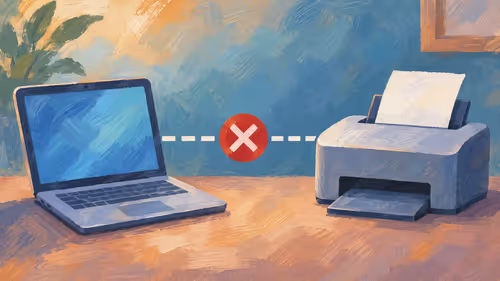
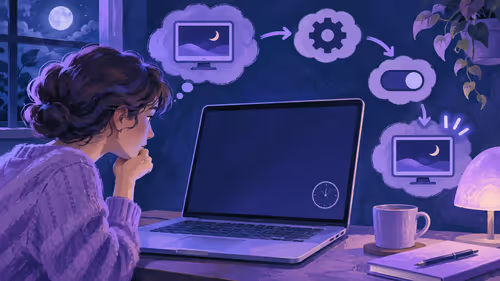
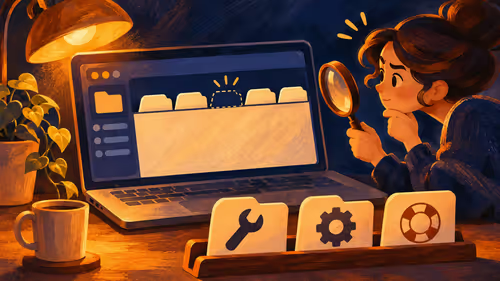
People who type hdmi splitter does not detecting second monitor into a search bar are usually staring at two screens showing the same picture, or one screen stuck on black. The splitter is not broken. It was never built to create a second desktop, only to copy one HDMI signal to two displays.
Quick Answer
An HDMI splitter duplicates a single output, so Windows still sees one monitor and cannot extend your desktop. To get two independent screens, use a second video port on the graphics card, a DisplayPort-to-HDMI adapter at roughly R150 to R450, or a USB dock that creates a new display. If one screen stays black, test each monitor alone at 1080p first.
🔌 What a splitter actually does
Your graphics card sends one stream down one HDMI port. A splitter takes that stream and sends identical copies to two outputs. Windows only ever talks to the card, so under Settings, System, Display it lists one monitor, not two. There is nothing to "detect" on the second screen, because the second screen is just a clone.
This is why a splitter suits a laptop shown on a Johannesburg boardroom TV and a desk monitor at the same time. It does not suit a coding setup with email on the left and a browser on the right.
A switch is the opposite device. It lets several sources share one screen, and it will not add a desktop either.
🖥️ Getting a real second desktop
Turn your tower around and tally the sockets on the graphics card first. Typical cards offer a single HDMI plus a few DisplayPort sockets, so the second monitor often just needs the right lead. A DisplayPort-to-HDMI adapter lets an HDMI-only monitor use a spare DisplayPort socket, and Windows will list it as a separate display straight away.
Laptops are tighter. If yours has only one HDMI port, a USB-C or USB dock with video output can add a display, as long as the port supports video. Have a look through the monitor accessories range for cables, adapters and docks that match your ports.
Some DisplayPort monitors support daisy chaining through MST, which can drive two screens from one output on supported cards. Check that your graphics card supports DisplayPort 1.2 before trying it.
🛠️ When the second screen stays black
If a splitter is all you have, a black screen usually has one of three causes.
- Resolution mismatch. The splitter reports the weaker monitor's limits to the PC. Plug in one monitor at a time, then set both to 1920x1080 at 60Hz to test.
- Protected content. Some splitters fail HDCP checks, which blanks streaming apps and certain 4K sources.
- Cable length. Long, thin cables lose signal, and a 4K or 144Hz picture is the first thing to drop out.
Tap the Windows and P keys together, pick Extend, and the pop-up shows what Windows can actually see. If you shop for a new screen to pair with your setup, the gaming monitors category covers many sizes and refresh rates in one place.
Frequently Asked Questions
Why does my HDMI splitter show the same picture on both screens?
The splitter copies one signal to both outputs. Windows believes a single monitor is attached, so it cannot give each screen its own desktop.
What do I use instead for an extended desktop?
Plug the second monitor into another output on your graphics card or motherboard. A DisplayPort-to-HDMI adapter or a USB dock with video output also works and creates a genuinely separate display.
Is an HDMI splitter the same as a switch?
No. A splitter sends one source to several screens, and a switch lets several sources share one screen. Neither adds an extended desktop.
Why does the second screen stay black?
The splitter may be dropping both screens to the weaker monitor's resolution or failing HDCP checks. Test each monitor alone, then lower the resolution.
Can a splitter still be useful?
Yes, for mirroring a presentation to a TV and a monitor at once. Choose one rated for your resolution and refresh rate.
Does a splitter reduce picture quality?
A cheap one can cap resolution or break HDCP, which causes blank screens. If you stream or use a 4K display, buy one rated for 4K and HDCP.
Is a DisplayPort MST hub a splitter?
It looks similar but behaves differently, since it can create separate displays on supported cards. Confirm your GPU supports DisplayPort 1.2 MST first.
Ready to run two screens that each show something different?
Browse the Evetech monitor accessories category for adapters, cables and docks, then pair them with a second display from the gaming monitor range.