


650W PSU Planning for RTX 5090 Builds in SA
650W for RTX 5090 needs a full-build check, not a simple yes. Review GPU guidance, CPU draw, transient load, connectors, PSU quality, and upgrade plans before deciding.
Read moreHow to fix fps drops windows 11 gaming laptop starts with drivers, power mode, thermals, and background apps. Use an SA-friendly checklist to test GPU settings, cooling, frame caps, and game limits before replacing parts. Track one change at a time.
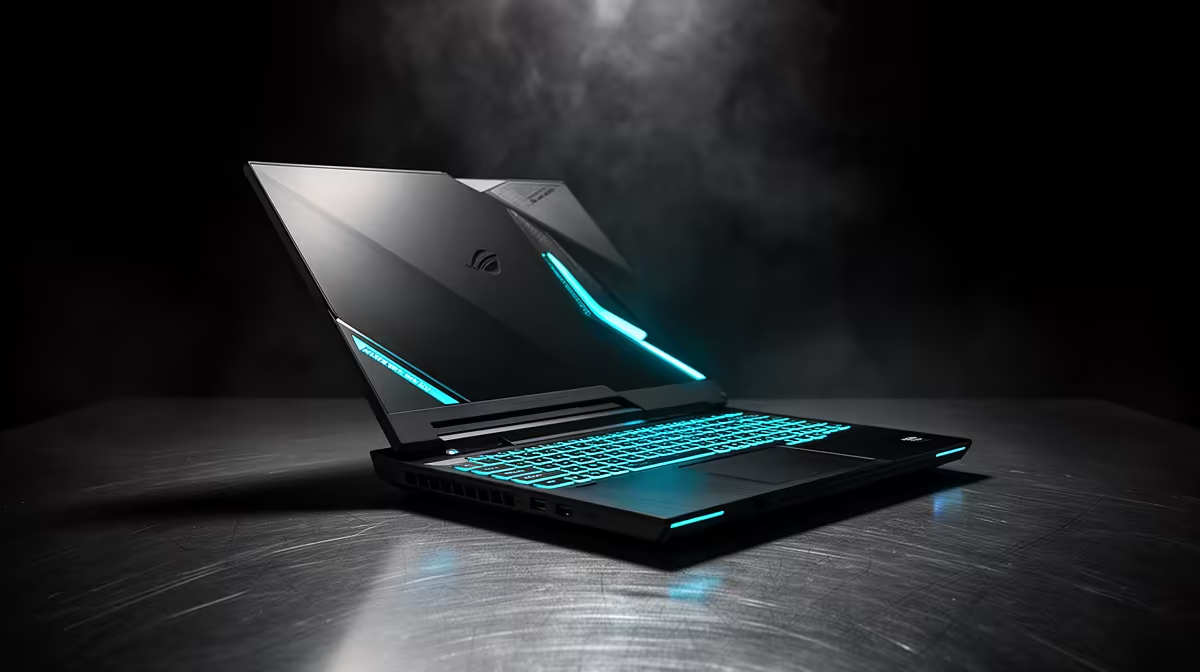
Most FPS drops on a gaming laptop come from power mode, MUX state, thermals, charger wattage or vendor control software, not from a broken game. Prove it with MSI Center, Lenovo Vantage, Armoury Crate, HWiNFO and RTSS; an RTX 4060 laptop should not fall from 90 fps to 45 fps unless power or thermals are limiting it. On Windows 11, also check Game Mode, HAGS, VBS and vendor power profiles.
Use one repeatable test scene and record average FPS, 1% lows and frame time. For gaming laptop, the useful tools are MSI Center, Lenovo Vantage, Armoury Crate, HWiNFO and RTSS. Do not judge by feel alone: 60 fps equals 16.7 ms, 144 fps equals 6.94 ms, and 240 fps equals 4.17 ms.
For gaming laptop, start here: use the original charger, select performance mode, confirm dGPU mode, clean the cooling path, and raise the laptop. Keep RTX 4060 gaming laptop in mind because its driver, firmware or control software can change how the system behaves after an upgrade. Use broad price context as a sanity check: gaming laptops start near R8,000 and stronger RTX models cost more.
If the setup uses online play, separate network stutter from frame pacing. RTSS shows the frame-time graph; ping and jitter tools show the connection. A router change can affect online movement, but it should not reduce local benchmark FPS unless software or USB services changed too.
Confirm monitor refresh rate, in-game FPS cap, VRR or FreeSync/G-Sync state, and overlay recording. On GPU builds, check ReBAR, PCIe link width and driver state. On laptops or handhelds, match charger, TDP profile and performance mode to the FPS target.
The likely cause is power mode, MUX state, thermals, charger wattage or vendor control software. Use MSI Center, Lenovo Vantage, Armoury Crate, HWiNFO and RTSS so you can see whether the limit is GPU load, CPU scheduling, storage, USB, audio, thermals or network jitter.
No. Many fixes cost R0 because they come from drivers, firmware, FPS caps, refresh settings or power profiles. Buy hardware only after the same test proves the part cannot meet target.
Watch 1% lows and frame time, not only average FPS. A good fix makes the graph flatter: 144Hz should sit near 6.94 ms and a 60 fps cap near 16.7 ms.
Save one before-and-after result from RTSS or CapFrameX, then keep the setting that improves 1% lows without reducing image quality more than needed.
650W for RTX 5090 needs a full-build check, not a simple yes. Review GPU guidance, CPU draw, transient load, connectors, PSU quality, and upgrade plans before deciding.
Read more
How to fix FPS drops Windows 11 RX 9070 XT starts with GPU drivers, overlays, power plans, and frame pacing checks. For SA gaming PCs, verify chipset updates, HAGS, refresh rate, thermals, and per-game graphics settings.
Read more
How to fix FPS drops on X870E motherboard starts with BIOS, chipset drivers, PCIe settings, and memory stability. SA gamers can check EXPO, resize BAR, thermals, display refresh, and background apps before replacing components.
Read more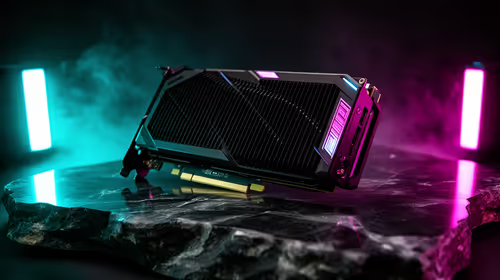
RTX 5060 is popular with SA students because it can fit gaming, coursework, and creative app needs in one setup. Compare total system price, cooling, RAM, storage, and screen quality before picking a desktop or laptop.
Read more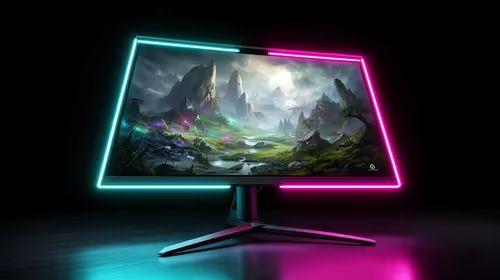
1440p is the sweet spot for SA gamers because it balances sharp visuals, high frame rates, and GPU cost better than 4K. It is a practical monitor target for players who want smoother upgrades without the heavier hardware demands of 4K.
Read more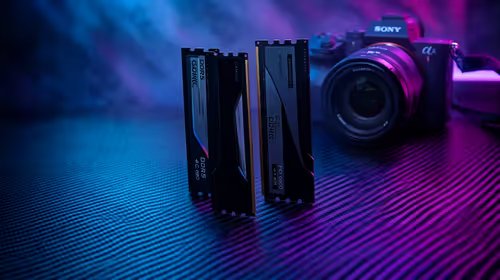
RAM pricing for Midrand gamers can shift with exchange rates, supply, specs, and model tier. Treat the title as a buying prompt, then compare SA warranty, timing, and build priorities.
Read more
Windows 11 update KB5121003 is linked to crashes in several multiplayer games on versions 24H2 and 25H2. Check the build, report the fault and avoid risky file or update changes unless the problem is confirmed on your PC.

Sennheiser's Momentum True Wireless 5 adds user-replaceable batteries, 12-hour playback and a $299.95 launch price. There is no confirmed South African date, so compare longevity with live earbuds from R199 to R2,999.

AVerMedia's GC531 and GC535 are professional HDMI capture devices for continuous streaming, with RGB24 capture up to 2K30 and 4K30. South African creators should compare them with live 4K capture cards from R2,099.

From 1 October 2026, WhatsApp Business Platform service replies in South Africa are expected to cost about $0.0076, or 12 cents, per delivered message.
Windows 11 update KB5121003 is linked to crashes in several multiplayer games on versions 24H2 and 25H2. Check the build, report the fault and avoid risky file or update changes unless the problem is confirmed on your PC.

Comsol's standalone 5G network covers about one million Gauteng homes and starts commercial ISP service in September. Early packages range from R275 to R875 a month, but coverage and fair-use rules still decide the real value.
Sennheiser's Momentum True Wireless 5 adds user-replaceable batteries, 12-hour playback and a $299.95 launch price. There is no confirmed South African date, so compare longevity with live earbuds from R199 to R2,999.
AVerMedia's GC531 and GC535 are professional HDMI capture devices for continuous streaming, with RGB24 capture up to 2K30 and 4K30. South African creators should compare them with live 4K capture cards from R2,099.
Windows 11 update KB5121003 is linked to crashes in several multiplayer games on versions 24H2 and 25H2. Check the build, report the fault and avoid risky file or update changes unless the problem is confirmed on your PC.
Comsol's standalone 5G network covers about one million Gauteng homes and starts commercial ISP service in September. Early packages range from R275 to R875 a month, but coverage and fair-use rules still decide the real value.
Sennheiser's Momentum True Wireless 5 adds user-replaceable batteries, 12-hour playback and a $299.95 launch price. There is no confirmed South African date, so compare longevity with live earbuds from R199 to R2,999.
AVerMedia's GC531 and GC535 are professional HDMI capture devices for continuous streaming, with RGB24 capture up to 2K30 and 4K30. South African creators should compare them with live 4K capture cards from R2,099.