

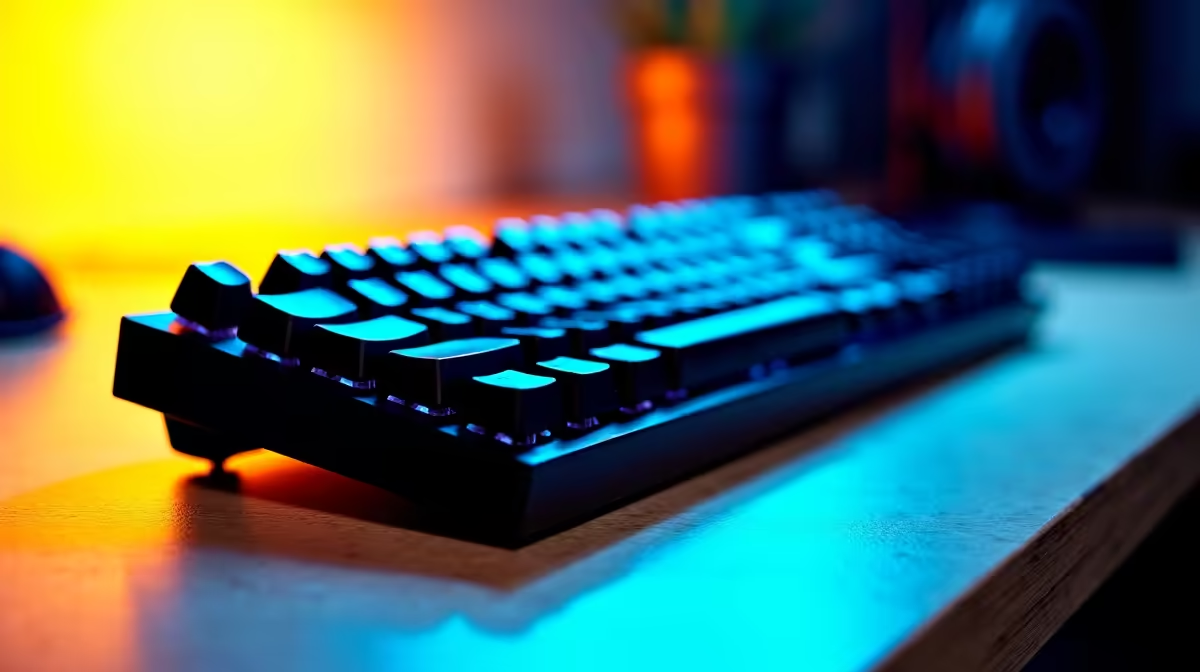
Using a Windows keyboard with a Mac is a common scenario - you might have a mechanical keyboard you love, you’re working at a shared workstation, or you simply prefer the feel and layout of PC keyboards. The good news is that Windows keyboards work natively on macOS with minimal setup, and a few key remaps make the experience seamless.
Quick Answer
How do you use a Windows keyboard with a Mac? Plug it in (USB or via Bluetooth) and macOS will detect it immediately. The main adjustment is that the Windows key functions as the Mac Command key, and Alt functions as Option. You can remap keys in System Settings > Keyboard > Modifier Keys to customise the layout further.
🔧 Plug-and-Play Basics
Most Windows keyboards work out of the box with macOS via USB or Bluetooth. When you first connect an unrecognised keyboard, macOS may run the Keyboard Setup Assistant - a brief wizard that identifies your keyboard layout. Follow the prompts and you’re done.
Default key mappings when using a Windows keyboard on Mac:
| Windows Key | macOS Function |
|---|---|
| Windows key (⊞) | Command (⌘) |
| Alt | Option (⌥) |
| Ctrl | Control (^) |
| Delete (Backspace) | Delete (backspace) |
| Insert | No default function |
| Print Screen | No default function |
The most important thing to know: on Mac, most keyboard shortcuts use Command (⌘), which maps to the Windows key. So Command+C (copy) becomes Windows key+C on your remapped keyboard. This feels awkward at first - your thumb hits the Windows key where your brain expects Control+C - but most users adapt within a day or two.
📊 Remapping Keys in macOS
For fine-tuned control, macOS offers built-in modifier key remapping:
- Open System Settings (macOS Ventura and later) or System Preferences (older macOS)
- Navigate to Keyboard
- Select Keyboard Shortcuts then Modifier Keys
- Choose your Windows keyboard from the dropdown
- Remap to your preference - common choice is swapping Option and Command positions to match Mac keyboard muscle memory
For more advanced remapping - reassigning F-keys, creating macros, or remapping keys not covered by System Settings - third-party tools like Karabiner-Elements (free, open source) give you complete control over every key on any keyboard.
Missing keys on Windows keyboards used on Mac:
- No dedicated Eject key (use Control+F1 if needed for optical drives on older Macs)
- No dedicated Mission Control or Spotlight keys (assign these in System Settings > Keyboard Shortcuts)
- Print Screen can be mapped to a screenshot shortcut via Karabiner-Elements
❓ Frequently Asked Questions
Will a Windows mechanical keyboard work with a Mac? Yes. Mechanical keyboards using standard USB or USB-C connections work immediately on macOS. Keyboards with proprietary software for RGB or macro management may require Windows-only software for advanced features, but basic typing and key functionality works natively.
How do I type @ and other symbols that are in different positions on a Windows keyboard? Key symbol positions depend on the keyboard layout set in macOS. Go to System Settings > Keyboard > Input Sources and ensure your keyboard layout matches your physical keyboard (e.g., US QWERTY, UK, or South African layout). Symbol positions should then match your key legends.
Can I use a wireless Windows keyboard with a Mac via Bluetooth? Yes. Most Bluetooth keyboards pair with Mac the same way any Bluetooth device does: put the keyboard in pairing mode, open System Settings > Bluetooth, and select the keyboard. The same modifier key remapping applies once connected.
Check out All Gaming Keyboards and Graphics Card Deals at Evetech — South Africa's home for gaming gear.
Ready to Find Your Perfect Match? Shop at Evetech











