


550W PSU Planning for RTX 5080 Super Builds in SA
550W for RTX 5080 Super needs a full-build check, not a simple yes. Review GPU guidance, CPU draw, transient load, connectors, PSU quality, and upgrade plans before deciding.
Read moreA gaming mouse firmware update is worth installing when it fixes a documented sensor jitter or debounce bug, but chasing every minor release for a mouse that already feels right adds risk without real benefit. Check the changelog before flashing anything.
A mouse that feels perfect does not need every firmware release the day it lands. Mouse firmware updates are worth the flash when the changelog fixes a relevant fault or adds a feature you will use.
Update gaming-mouse firmware when the maker's changelog fixes a problem you have, adds support you need or closes a documented fault. Leave a stable mouse alone when the release changes nothing relevant and no support notice calls for it. Firmware flashing carries a small interruption risk, so verify the exact model, charge a wireless mouse, use a direct USB connection and keep input backup before you begin.
Open the mouse maker's official support page or companion application and record current firmware. Match the full model, hardware revision and receiver when the wireless set has separate firmware.
Look for fixes to sensor tracking, click debounce, wireless dropouts, battery reporting, polling stability or onboard memory. A line such as improvements and fixes gives little reason to update a fault-free competitive setup before an event.
Security or compatibility notices deserve more weight than a feature you will never use. Follow the maker's current instruction.
For jitter, test a clean mousepad at one DPI and polling rate. Draw slow lines in a trusted input tool and check another USB port.
For double clicks, use a click log and test normal pressure. For wireless drops, move the receiver close through an extension and separate it from busy USB 3 devices.
Save a short result before updating. If the issue remains, you know firmware did not solve it.
Charge the mouse and connect it by the cable required in the update guide. Plug the receiver into the recommended direct PC port. Close games, RGB hubs and other peripheral tools.
Keep a second mouse or keyboard navigation ready. Prevent sleep and do not disconnect power, cable or receiver until both application and device report completion.
Do not use firmware from a similar model or an unofficial mirror. A wrong image can leave the mouse or receiver unusable.
Confirm the new version, then restore DPI, polling, lift-off, debounce and button assignments. Firmware can reset onboard profiles.
Export the restored profile when the software allows it.
Repeat the exact tracking, click or wireless test. Play one familiar game before a ranked session. If the fault worsens, use the official recovery or rollback path when one exists; not every device supports downgrade.
Compare exact support and onboard features in the gaming mouse deals. The mouse best-seller page helps you price replacement only when a documented hardware fault remains.
It can when the changelog documents a firmware cause. Surface, receiver and USB faults can create similar symptoms.
Only when the release addresses a security, compatibility or feature need that applies to your setup.
Some makers provide recovery or rollback and others do not. Check the exact support guide before flashing.
Record the current fault and firmware, read the exact changelog and update only when the release solves a need you can retest.
It can when the changelog documents a firmware cause. Surface, receiver and USB faults can create similar symptoms.
Only when the release addresses a security, compatibility or feature need that applies to your setup.
Some makers provide recovery or rollback and others do not. Check the exact support guide before flashing.
550W for RTX 5080 Super needs a full-build check, not a simple yes. Review GPU guidance, CPU draw, transient load, connectors, PSU quality, and upgrade plans before deciding.
Read more
8000Hz polling is overrated for most SA gamers because gains can be tiny next to battery drain and monitor limits. Mbombela players should weigh mouse feel, game support, and system stability before chasing the number.
Read more
Magnetic switches are taking over SA gaming keyboards because actuation can be tuned. For Sandton gamers, rapid trigger, reset control, and profile depth can help, but layout, key feel, and software quality still matter.
Read more
Polokwane oled monitor value questions need cautious SA context because pricing can move with availability, exchange rates, specs, and warranty support. Treat the trend as a planning signal, not a fixed price promise.
Read more
Arc B580 budget builds for Midrand gamers can shift with exchange rates, supply, specs, and model tier. Treat the title as a buying prompt, then compare SA warranty, timing, and build priorities.
Read more
ROG Ally X may beat the LCD Steam Deck for SA gamers who value stronger handheld performance, more memory, and Windows flexibility. Compare battery life, controls, game libraries, and Polokwane support needs before deciding.
Read more
Minisforum's M2 Pro pairs Core Ultra X7, Arc B390 graphics and 32GB onboard memory in 1.8 litres. SA buyers should weigh its fixed memory and $1,439 launch offer against local mini PCs.

Lenovo says Legion Go failures linked to BIOS N3CN42WW are not user error. Affected SA owners should stop retrying the update, preserve proof and open a support case.

Smart monitors can add apps and convenience, but they also add privacy settings and unwanted-software risk. SA buyers should audit the operating system before paying for extras.

A fake 113GB GTA VI ISO reportedly used empty padding around a small malware payload. SA gamers should delete unofficial builds, keep Windows security active and wait for official channels.

ASUS calls the ROG GT-BN98 the first Wi-Fi 8 gaming router. SA buyers should fix coverage and client limits before paying for a future wireless standard.

Apple's M6 Mac mini adds faster AI, graphics and networking in the same compact format. SA buyers should wait for a rand listing before comparing value.

The Vulcan II XP adds hot-swappable switches, sound damping and gaming controls to a full-size wired board. SA buyers should compare feel before features.

Microsoft says Windows on Arm now has over 7,000 verified apps and games. SA buyers should still check each driver, game and work tool before switching.
550W for RTX 5080 Super needs a full-build check, not a simple yes. Review GPU guidance, CPU draw, transient load, connectors, PSU quality, and upgrade plans before deciding.
Skyrim HD texture packs that actually run on RX 9070 helps SA readers plan hardware, settings, compatibility, and upgrade trade-offs. Check GPU, CPU, RAM, storage, monitor, and stability needs without risky performance claims.
8000Hz polling is overrated for most SA gamers because gains can be tiny next to battery drain and monitor limits. Mbombela players should weigh mouse feel, game support, and system stability before chasing the number.
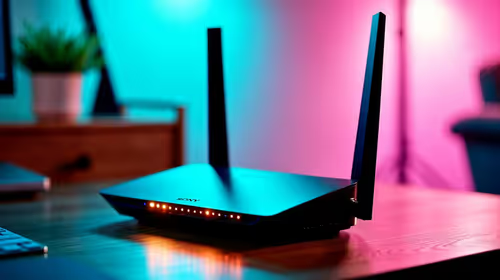
Wi-Fi 7 or Wi-Fi 6e for streaming on twitch and youtube should be judged by fit, not a single winner. Compare compatibility, latency, capacity, upgrade path, cost planning, and South African setup needs.