


FPS Drops Troubleshooting for DDR5 build
DDR5 build FPS drops needs a methodical troubleshooting pass. Review drivers, thermals, power settings, background apps, cables and game settings before replacing parts in an SA gaming setup.
Read moreInstant plug-and-play USB webcams skip capture cards and driver installs by working the moment you plug them in, with the OS recognizing them automatically. A driverless USB cam is detected in seconds, ideal for first-time streamers.
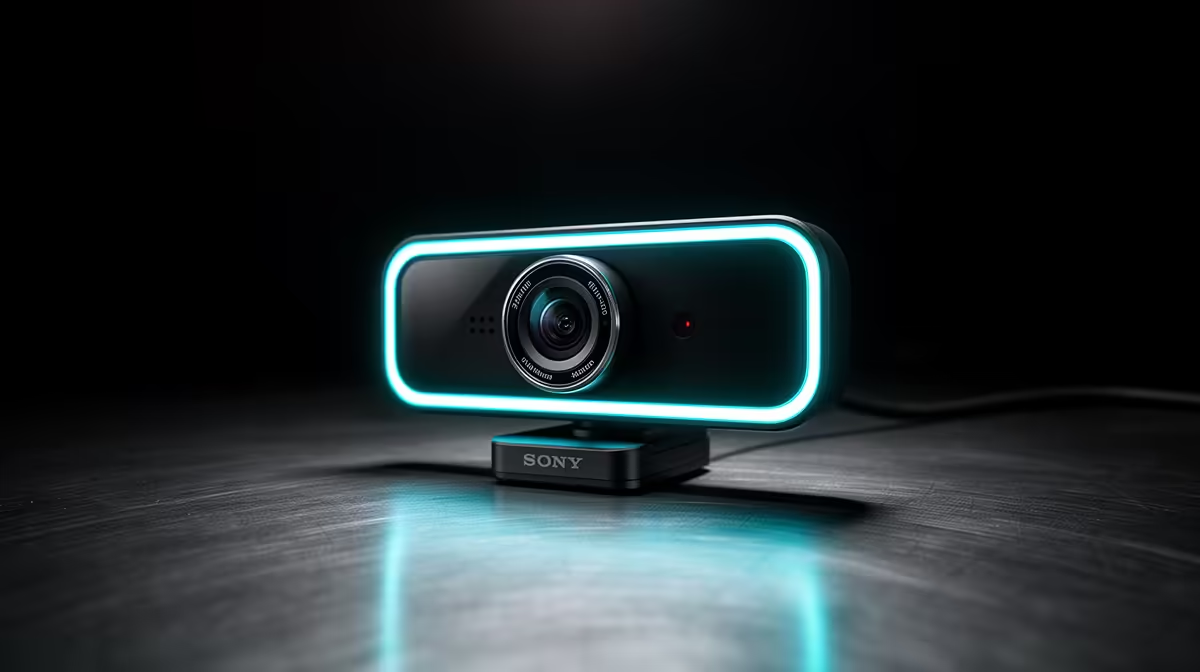
Setting up a stream used to mean sourcing drivers, configuring capture cards, and spending an afternoon troubleshooting before a single frame hit the feed. Plug-and-play USB webcams cut all of that out. You connect the cable, your machine sees a camera, and within a minute you are live. That simplicity is not a beginner compromise. It is a well-designed default that most creators never need to move beyond.
Plug-and-play USB webcams work the moment they are connected. They use the UVC standard built into Windows, macOS, and Linux, so the operating system recognises them in seconds with no driver download. Plug in, select in your streaming app, and stream.
The reason plug-and-play functions reliably across different operating systems is a standard called UVC, or USB Video Class. It is a protocol baked into the operating system that defines how any compliant camera should present itself to a computer. When the OS sees a UVC device, it loads the necessary support automatically from what is already installed, rather than downloading anything new.
This is why the same webcam plugs into a Windows gaming PC, a Mac used for editing, or a Linux machine running streaming software, and behaves identically on all three without any disc, download, or configuration step. The operating system handles it, and the camera just appears in the device list.
Moving a webcam between machines is equally frictionless. Unplug from one machine, plug into the next, and the feed is available within seconds.
The comparison that matters is to a camera that comes in through an HDMI connection. An HDMI camera sends a clean high-quality signal, but that signal cannot talk to streaming software directly. It needs a capture device in between, which is an extra purchase, an extra piece of hardware on the desk, and an extra thing to configure and troubleshoot.
A USB webcam skips the capture device entirely. The USB cable carries both video data and power simultaneously, and the video arrives at the PC in a format streaming software reads without translation. Open OBS, Streamlabs, or any conferencing tool and the camera appears as an input option immediately.
For a first-time streamer trying to get live as quickly as possible, or for a home office worker who just wants reliable call quality without an afternoon of setup, that directness is the genuine advantage.
Not all USB ports are equal, and this matters when you are pushing higher-resolution webcam feeds. A USB 2.0 port can technically carry webcam video, but it becomes a bottleneck at 1080p60 or 4K, which may cap your frame rate or compress the stream more heavily than the camera would normally do.
A USB 3.0 port, identifiable by the blue plastic inside the port on many machines, gives the webcam the bandwidth it needs to deliver its full capability. For most desks this means a rear port on a desktop or one of the main ports on a laptop, rather than a hub or a front-panel port which may share bandwidth.
If your webcam is not appearing on a machine where it has worked before, a powered hub or a low-bandwidth USB port is frequently the cause. Moving the cable to a direct USB 3.0 port resolves this in most cases without any other change.
No, for normal operation. UVC-compliant webcams are supported natively by modern Windows, macOS, and Linux without downloading anything. Some manufacturers provide optional companion apps that add extra features like FOV adjustment or exposure control, but the camera streams perfectly without them from the moment it is plugged in.
From unboxing, most people are streaming within one to two minutes. That time covers plugging the cable into a USB port, opening your streaming or conferencing app, selecting the camera as the video input, and starting the session. There is no driver installation, no reboot, and no capture device to configure between the camera and the software.
If maximum image quality is the absolute priority, HDMI outputs an uncompressed signal that technically has an edge, but it requires a capture device and extra configuration. For most streaming and conferencing the difference is not visible at normal broadcast resolutions, so USB remains the right default.
A USB 3.0 port on the rear of a desktop connects directly to the motherboard, giving the camera full bandwidth. Front-panel ports often share a header and can bottleneck the feed. On a laptop, any main port works well; avoid multi-device hubs.
Yes. UVC support is built into Windows, macOS, and Linux. The same camera moves between these systems freely, appearing as a recognised input device without reinstalling anything.
Ready to go live without the setup headache? Browse the plug-and-play webcam range for South African streamers and home offices, where you are one cable away from a working camera feed.
No, for normal operation. UVC-compliant webcams are supported natively by modern Windows, macOS, and Linux without downloading anything. Some manufacturers provide optional companion apps that add extra features like FOV adjustment or exposure control, but the camera streams perfectly without them from the moment it is plugged in.
From unboxing, most people are streaming within one to two minutes. That time covers plugging the cable into a USB port, opening your streaming or conferencing app, selecting the camera as the video input, and starting the session. There is no driver installation, no reboot, and no capture device to configure between the camera and the software.
If maximum image quality is the absolute priority, HDMI outputs an uncompressed signal that technically has an edge, but it requires a capture device and extra configuration. For most streaming and conferencing the difference is not visible at normal broadcast resolutions, so USB remains the right default.
A USB 3.0 port on the rear of a desktop connects directly to the motherboard, giving the camera full bandwidth. Front-panel ports often share a header and can bottleneck the feed. On a laptop, any main port works well; avoid multi-device hubs.
Yes. UVC support is built into Windows, macOS, and Linux. The same camera moves between these systems freely, appearing as a recognised input device without reinstalling anything.
DDR5 build FPS drops needs a methodical troubleshooting pass. Review drivers, thermals, power settings, background apps, cables and game settings before replacing parts in an SA gaming setup.
Read more
Fps drops on ddr5 build in south africa usually needs a settings, driver, thermal, or power check first. Work through safe SA troubleshooting steps before replacing parts or assuming a full upgrade.
Read more
X870E motherboard frame pacing issues needs a step-by-step check before replacing parts. Review drivers, settings, thermals, power, background apps, display limits, cables, and game options before changing hardware.
Read more
4K monitors cost more as sharp panels raise the bar. See why 4k monitors still expensive for gamers in cape town before choosing screen specs, GPU targets, and value trade-offs.
Read more
4K monitors still feel expensive for Gqeberha gamers because panel quality, higher refresh rates, and GPU demands raise total setup cost. Compare 1440p, screen size, ports, and refresh rate before paying more for 4K.
Read more
ARGB cases explain mid-tier SA build appeal with visible style, airflow room, and cable control. For SA buyers, the smarter choice is a case where lighting, fan layout, and GPU clearance work together instead of just looking bright.
Read more
The Epomaker RT75 is a tri-mode 75% keyboard with a removable TFT screen. Local screen-equipped compact boards started at R1,199 in our snapshot.
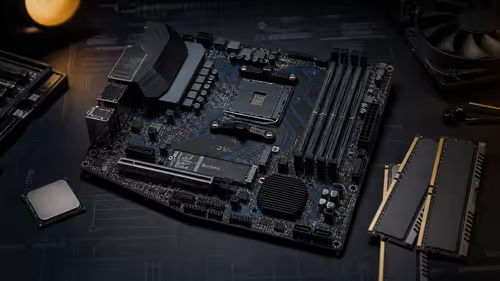
Gigabyte has launched two B450M D3HP boards for Ryzen 3000 to 5000 CPUs. The exact models had no confirmed Evetech listing on 15 August.
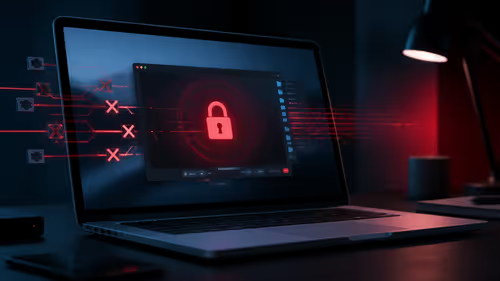
Attackers are exploiting a patched Mac screen-sharing flaw to gain root access. Update macOS and remove public port 5900 exposure immediately.
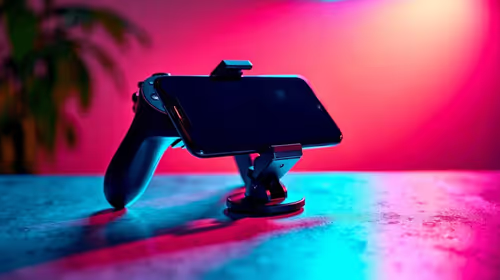
An auto-clamping phone holder offers seamless, one-handed convenience for your vehicle. Discover how it compares to manual cradle mounts to see which keeps your device secure during your daily drive. 🚗📱

A 10,000-hour test found similar image retention across older and newer OLED TVs, while newer panels were brighter and more efficient. Local OLED monitors started at R9,999.

Canonical expects Ubuntu on WSL users to outnumber native Ubuntu desktop users before the end of 2026. The software is open source and runs inside supported Windows PCs.

Telkom's daily bundles pair WhatsApp access with 10 all-network voice minutes. The R15 option includes 300MB, while the R17 option uses a fair-use threshold.
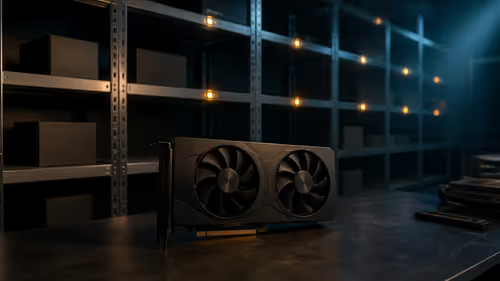
PC Partner expects entry-level graphics-card shortages to worsen in the second half of 2026. Current Evetech GPU listings started at R4,399 in our snapshot.
DDR5 build FPS drops needs a methodical troubleshooting pass. Review drivers, thermals, power settings, background apps, cables and game settings before replacing parts in an SA gaming setup.

Wi-Fi 6E vs Wi-Fi 6 depends on AAA single-player gaming needs, platform limits, and budget fit. Compare compatibility, latency, upgrade path, and real setup constraints before choosing for an SA build.
Fps drops on ddr5 build in south africa usually needs a settings, driver, thermal, or power check first. Work through safe SA troubleshooting steps before replacing parts or assuming a full upgrade.
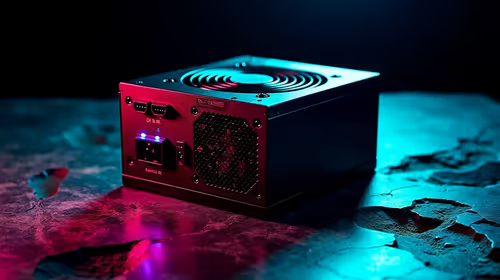
ATX 3.1 vs ATX 3.0 for cinematic story games Difference explained is mostly about compatibility, budget, upgrade path, and setup fit. SA buyers should check device support and real needs before expecting a clear win from either option.