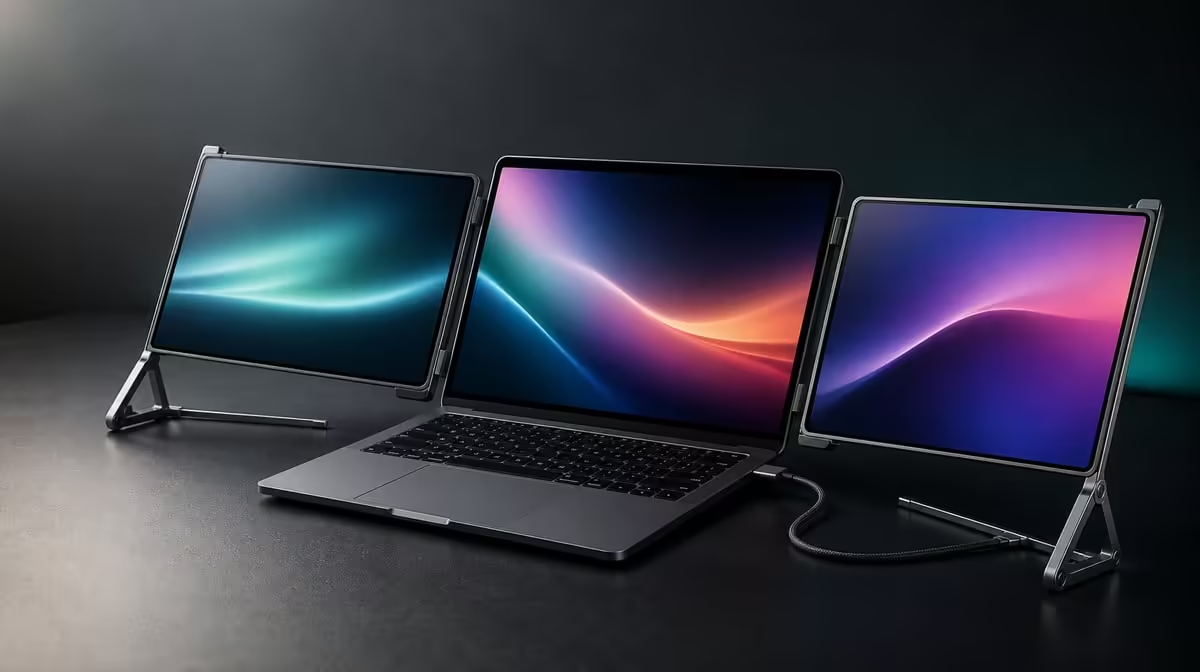
A hybrid workstation earns its place when it can leave one office and restore the same useful desktop in the next. A portable dual-touch workstation for SA offices should therefore be judged through setup time, laptop compatibility and the interactive tasks performed at each location.
Quick Answer
The Delta Pro Touch suits hybrid professionals who repeatedly need two QHD work areas, direct gestures or pressure-aware tools away from a permanent desk. At R11,999, it combines dual 16-inch screens, 180-degree auto-rotation and ergonomic support. Test the complete folded kit in the intended bag before treating it as a mobile setup.
🧳 Map the office-to-office job
List the locations used in a normal week and assign a task to each panel. One may hold a detailed working document while the other shows reference material, or a shared view may sit apart from laptop controls. Remove any role that sounds useful but never appears in the schedule.
Evetech's portable-monitor range can be compared through that same weekly map. Measure the real monitor-and-laptop equipment against the carrying method and desks involved.
🖥️ Restore QHD work quickly
At each location, detect both Delta screens and set them to 2560 x 1600. Arrange the laptop desktop to match the physical panels and choose a scale that keeps text and touch targets readable. Put labelled windows on every screen to verify the route between them.
Break down and rebuild the setup once before relying on it. A hybrid workstation is useful when screen order and application roles return without lengthy repair.
👆 Prove interaction in office software
Start with taps and drags on each panel, then try gestures the intended application supports. Ten-point control can allow several contacts, but software determines what those contacts do and does not prove independent multi-user operation.
For pressure input, use a compatible tool and a pressure-aware function. Test the real business or creative task rather than treating touch as an automatic upgrade.
Compare Evetech's PC-monitor category when the main office already provides a fixed screen and mobility is only an occasional need.
🔄 Rehearse arrival, rotation and departure
Set the ergonomic stand on the smallest office surface, apply ordinary corner touches and check stability. Rotate one panel to the planned portrait or sharing position, allow gravity sensing to settle and verify input again.
Keep the laptop and connection path clear during movement. Record the successful arrangement, then close work and pack down through a consistent routine.
The monitor best-seller page gives wider context for the R11,999 decision. Recheck current availability when the workstation plan is ready.
Compare the first and fifth setup
Time the initial installation, then repeat the same arrival routine several times during a normal week. Record which display, touch or window steps become predictable and which still require repair.
A workstation that becomes quick to restore offers stronger hybrid value than one that only succeeded under careful first-day attention. Keep the laptop and application set consistent during this comparison.
Protect privacy in shared rooms
Decide which panel can face visitors and where private notes, messages or controls should remain. Rehearse moving the shared window without dragging confidential content through the visible screen.
Rotation may help with presentation positioning, but the user still owns application placement. Verify the intended panel before a meeting begins and restore the normal layout afterwards.
Review the physical carry plan
Place the complete equipment beside the bag or case intended for travel and measure it directly. Include the laptop and required connections. Avoid inferring weight or fit from the word portable.
Use a consistent pack-down order that protects the work and keeps the next setup understandable. The physical routine should be proven at the locations in the weekly map.
Frequently Asked Questions
Which hybrid tasks suit dual touch panels?
Detailed creative layouts, interactive presentations and two-surface business workflows can benefit when software supports direct input.
How does QHD support a mobile workstation?
Each 2560 x 1600 panel can provide detailed working space with readable scaling.
What does auto-rotation help professionals do?
It can support planned portrait, landscape or sharing positions, followed by a touch-mapping check.
Can multiple people interact through 10-point touch?
Several contacts are supported, but the application decides how simultaneous input behaves.
What travel detail remains unknown?
Measure the folded monitor and complete equipment against the intended carrying method.
Who should choose a simpler portable display?
A buyer who only needs one passive extra screen and rarely uses touch or changing orientations.
Ready to make the same laptop desktop work in both offices?
Compare Evetech's portable monitors through your weekly locations, software roles and setup-recovery test.