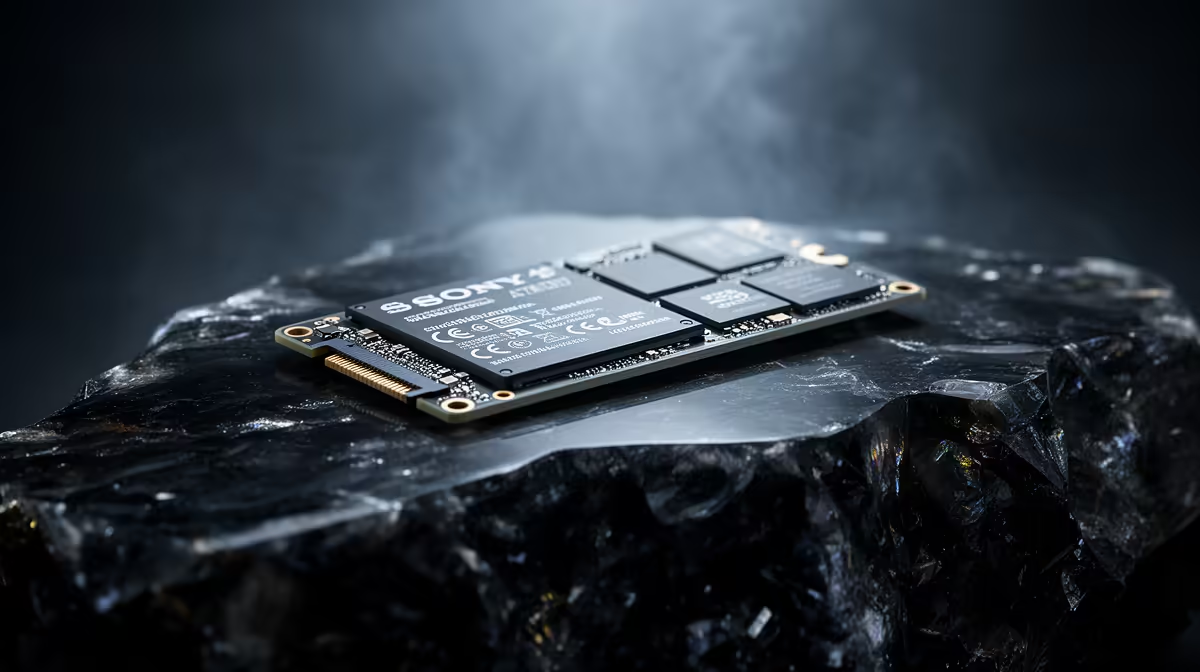
A 2.5-inch SATA SSD remains one of the best upgrades for an older laptop that has no NVMe-capable M.2 slot. It cannot match NVMe transfer numbers, but replacing a hard drive removes seek delay and makes booting, launching apps and everyday file work feel much faster.
Quick Answer
Buy SATA when the laptop has a 2.5-inch SATA bay and no compatible NVMe socket, or when you are replacing a mechanical drive with the least disruption. Choose NVMe when the machine supports it and a named drive offers better capacity and value.
Compare solid-state drives by interface and capacity with popular SSD choices. As of July 2026, the dated price pack lists the ADATA SU650 512GB 3D-NAND SATA 2.5-inch SSD at R1,599.
Check the Bay Before Buying
Read the laptop service manual. Confirm that the bay accepts a 2.5-inch SATA drive, note the supported thickness, and check whether the caddy, screws and ribbon cable are present. A machine sold without a drive may also be missing the proprietary connector.
An M.2 slot can carry SATA or NVMe depending on the laptop. Its shape alone does not prove compatibility. Use the maker's storage specification and service documentation.
The Upgrade Changes Responsiveness
A hard drive must move a head across spinning media for scattered files. An SSD accesses them without that mechanical delay. Windows startup, application launches and background updates become less disruptive.
SATA 6Gb/s caps sequential throughput well below current NVMe, yet normal desktop use rarely sustains one large transfer all day. For an older CPU and chipset, the hard-drive-to-SSD jump is the important one.
Clone or Install Fresh
Cloning preserves apps and settings. Check that used space fits the new SSD, back up important files and use reputable migration software. Keep the old drive untouched until the clone boots and passes checks.
A fresh Windows installation clears years of driver and software residue. Download network drivers first and confirm the Windows activation path. Restore personal files only after the new system is stable.
Check Drive Quality
Compare NAND type, controller, endurance rating and warranty, not capacity alone. Leave free space for updates and controller housekeeping. A 512GB drive can feel cramped once Windows, recovery data and several games are installed.
After installation, confirm TRIM is active and check the drive's health data. Update firmware only through the maker's official tool and keep a current backup, because an SSD is storage rather than a backup plan.
FAQ
Is SATA SSD much faster than a laptop hard drive?
Yes. The reduction in access latency transforms boot, app launches and everyday responsiveness.
Can every older laptop take a 2.5-inch SSD?
No. Confirm bay size, SATA connector, caddy and service procedure for the exact model.
Should I clone the old drive?
Clone for continuity, or install fresh for a clean start. Back up first and keep the old drive until testing is complete.
Check the laptop's exact storage bay and connector, then choose a named SATA SSD with enough room for Windows, apps and recovery space.