


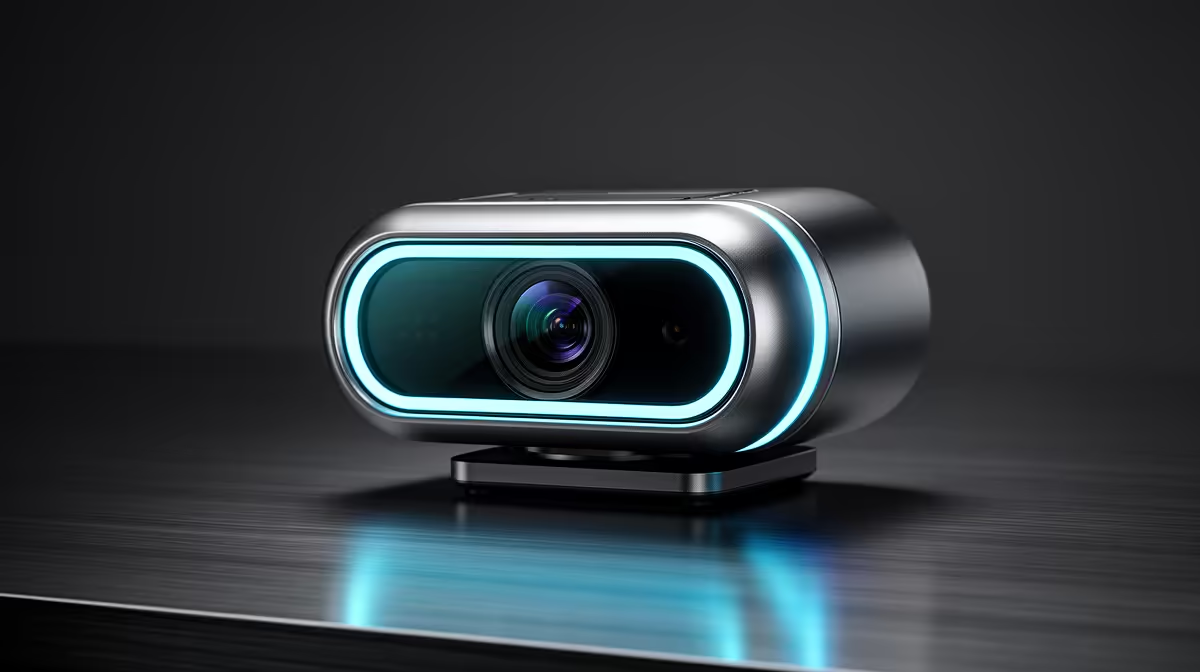
Nothing derails a streaming or meeting setup like a camera that refuses to install. The error messages vary -- driver not found, device not recognised, unknown USB device -- but they share the same root cause: the operating system cannot find a working software layer to talk to the hardware. Webcam driver installation errors are almost entirely preventable if you choose a camera that sidesteps the driver requirement entirely, and the mechanism that makes this possible has been built into every major operating system for years.
Quick Answer
Driverless webcams use the USB Video Class standard, which is baked into Windows, macOS, and Linux. The OS already knows how to handle these cameras without any manufacturer-supplied driver. Plug one in and it appears immediately. No download, no installer, no version mismatch -- and therefore no installation error to diagnose.
🔧 Why Non-UVC Webcams Cause Driver Problems
Webcams that require proprietary drivers depend on a software package the manufacturer supplies and must maintain. This introduces several failure points a UVC camera avoids entirely.
A stale driver that has not been updated after a Windows feature update can lose compatibility with the newer USB stack. The result is a camera that worked fine before the update and then stops being recognised without any user action that should have broken it. Hunting down an updated driver, finding the right version for your OS build, and installing it cleanly is a debugging loop that costs time and resolves nothing about the actual hardware.
Driver conflicts are a separate problem. If an older webcam's driver left registry entries or device filter layers behind after uninstalling, a new camera's driver may conflict with those remnants. The device appears to install, the indicator light comes on, but the camera shows errors in Device Manager or does not appear in streaming software.
A UVC camera has neither problem because it carries no manufacturer driver to go stale or conflict. The USB Video Class driver ships with the operating system and is maintained by Microsoft, Apple, or the Linux kernel team. When the OS updates, that driver updates with it.
⚡ How UVC Cameras Show Up Instantly
When a UVC webcam is plugged into a USB port, the hardware identifies itself using a standard device class code in its firmware. The operating system reads this code, matches it to the built-in driver, and makes the device available to any application requesting a video input. This takes the same seconds as identifying any USB device.
In Windows, the camera appears in Device Manager under Imaging Devices and simultaneously becomes visible as a video source in streaming and conferencing software. No restart required. The device is simply present and working.
For a South African student needing a camera ready for an early morning lecture, or a business owner whose presentation is tomorrow, this reliability removes a category of risk entirely.
✨ Fixing a Camera That Will Not Install
If a non-UVC camera has failed to install, clearing the previous driver is the most effective first step. Open Device Manager, find the camera under Imaging Devices or Unknown Devices, right-click and choose Uninstall Device, checking the option to remove driver software if it appears. Disconnect, restart, then reconnect and allow Windows to reinstall from scratch.
If it still fails, try a different USB port -- preferably a USB 3.0 port on a different side of the machine, which likely routes through a different controller. If neither step resolves it, replacing the camera with a UVC model removes the dependency on proprietary driver software permanently.
Frequently Asked Questions
Can a UVC webcam work on a freshly installed operating system?
Yes. UVC support is part of the core OS installation, not an optional download. A brand-new Windows or macOS installation includes the USB Video Class driver as standard. A UVC camera plugged into a freshly installed machine works immediately with no additional setup.
What if my UVC webcam is not being recognised after plugging in?
Try a different USB 3.0 port connected directly to the motherboard rather than through a hub. If the camera still does not appear, check Device Manager for an Unknown Device entry, which can indicate a port-level power or controller issue. UVC cameras very rarely fail on a functional port -- the fault is almost always the port or cable.
Does removing an old webcam driver help when installing a new one?
Often yes. A previous proprietary installation can leave filter layers in the USB stack that interfere with a new device. Uninstalling the old driver fully through Device Manager before connecting a new camera gives the system a clean slate. If the replacement is a UVC model, no new driver needs to be installed at all.
Will a UVC webcam appear in all streaming and meeting applications?
Any application that accepts a standard video capture device will see it -- OBS, Streamlabs, Microsoft Teams, Google Meet, Zoom, and essentially all other streaming and conferencing tools. The software queries the OS for available video inputs; a UVC camera appears in that list exactly as any other recognised device.
Ready to stop troubleshooting and start streaming? Browse the driverless plug-and-play webcam range for South African streamers and remote workers, and choose a UVC camera that works the moment it touches the port.










