

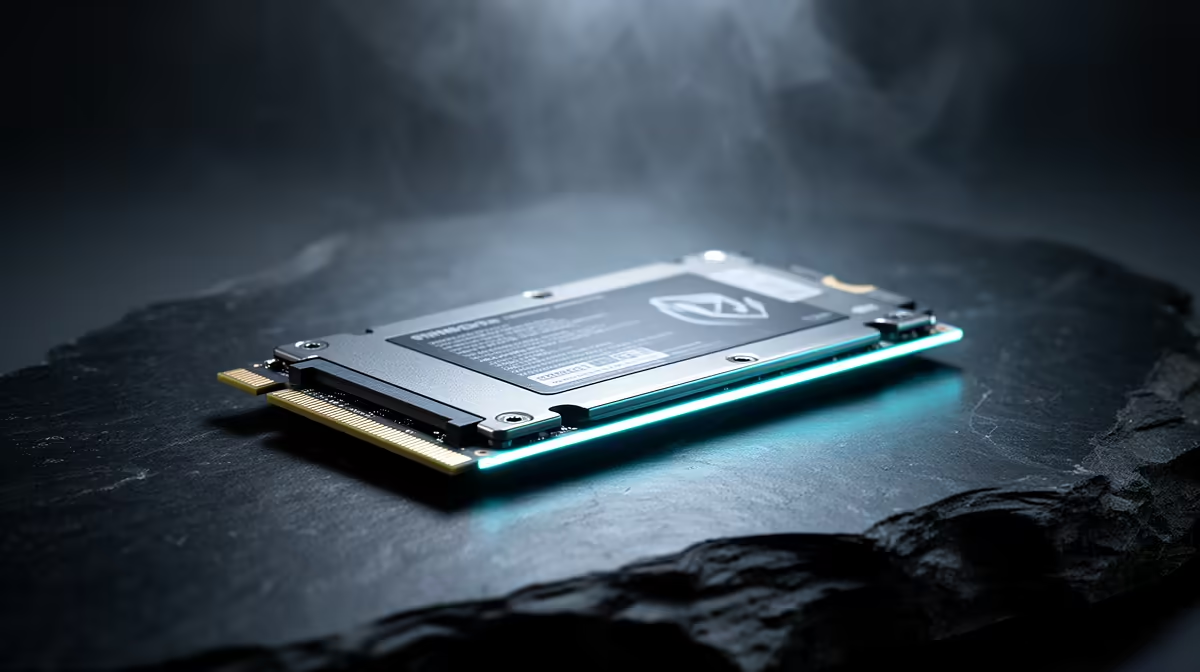
1TB Internal SSD Compatibility Checks for South African PC Buyers: the 70-second reality check
Buying a 1TB SSD in South Africa should feel simple… but compatibility issues can ruin your upgrade day. 🔧 Before you click “buy”, pause for four quick checks: your motherboard slot, the drive form factor (M.2 vs 2.5-inch), the interface generation, and how your current system will detect the new drive. If you’re building for gaming, streaming, or everyday multitasking, these details decide whether you get fast boot times… or a headache.
In this guide, we’ll walk you through practical 1TB internal SSD compatibility checks, using Evetech’s SSD catalog as your reference point.
Start with the right 1TB Internal SSD form factor (M.2 vs 2.5-inch) 🚀
Most modern “internal” SSD upgrades land in one of two camps:
- M.2 (common on newer desktops and many laptops)
- 2.5-inch SATA (common for older desktops and some budget systems)
If you buy the wrong form factor, it physically won’t fit. That’s why we recommend starting with Evetech’s SSD selection and then narrowing by form factor.
- Browse options here: Solid state drives for sale
- If you prefer a specific brand, check: ADATA SSDs
- Or go with another popular line: Kingston SSDs
- For strict fit checks, filter to your slot size: M.2 2280 SSD options
Measure your motherboard before you order
On an M.2 board, the “2280” label matters. It’s the length (22mm wide, 80mm long). If your board only supports 2260 or 2242, an 2280 drive may not be mountable. Quick win: look at the manual or the motherboard PCB markings.
Upgrade Planning Pro Tip ✨
On Windows, confirm your current storage setup by opening Device Manager → Disk drives and Task Manager → Performance → Disk. This helps you identify whether you’re currently on SATA (2.5-inch style) or already using an NVMe M.2 drive. Then you buy the correct compatibility match, not a “hope and pray” fit.
Match the SSD interface to your PCIe support ⚡
Form factor is only half the story. The other half is the interface generation. NVMe drives use PCIe lanes, and while newer drives often work in older slots (with reduced speeds), you still want a sensible match.
To sanity-check your options against what your PC can realistically run, use Evetech’s interface filters:
- Filter by interface generation here: Gen 5 (NVM… ) compatible SSD options
What gamers should care about
For gaming, the best upgrades aren’t always “maximum benchmark speed.” Storage affects:
- map load times
- texture streaming smoothness
- install and shader cache workflows
Even if your system tops out below the drive’s peak spec, a good NVMe still tends to feel better than older SATA drives for many daily tasks.
Avoid the common “it installed but it won’t boot” trap
A classic moment in SA households: the SSD is in… and BIOS sees it… but Windows doesn’t. That usually comes down to one of these:
- you’re adding the SSD for extra storage (not cloning)
- you forgot to clone your OS
- the new drive needs a partition format
- BIOS settings need attention after hardware changes
If you’re unsure, start small:
- Install the SSD.
- Check BIOS detection.
- In Windows, open Disk Management and initialise/format only if you’re adding storage, not replacing your boot drive.
1TB Internal SSD Compatibility Checks for South African PC Buyers: final decision checklist ✅
Before you buy your 1TB internal SSD, confirm:
- M.2 vs 2.5-inch
- M.2 length (like 2280)
- NVMe interface support (PCIe/Gen)
- whether you’re cloning or adding storage
Do that, and your upgrade feels clean, fast, and drama-free. 🎮
Ready to Find Your Perfect Match? The Mac vs Windows debate is complex, but for maximum power, choice, and value in South Africa, Windows is hard to beat. Explore our massive range of laptop specials and find the perfect machine to conquer your world.











