

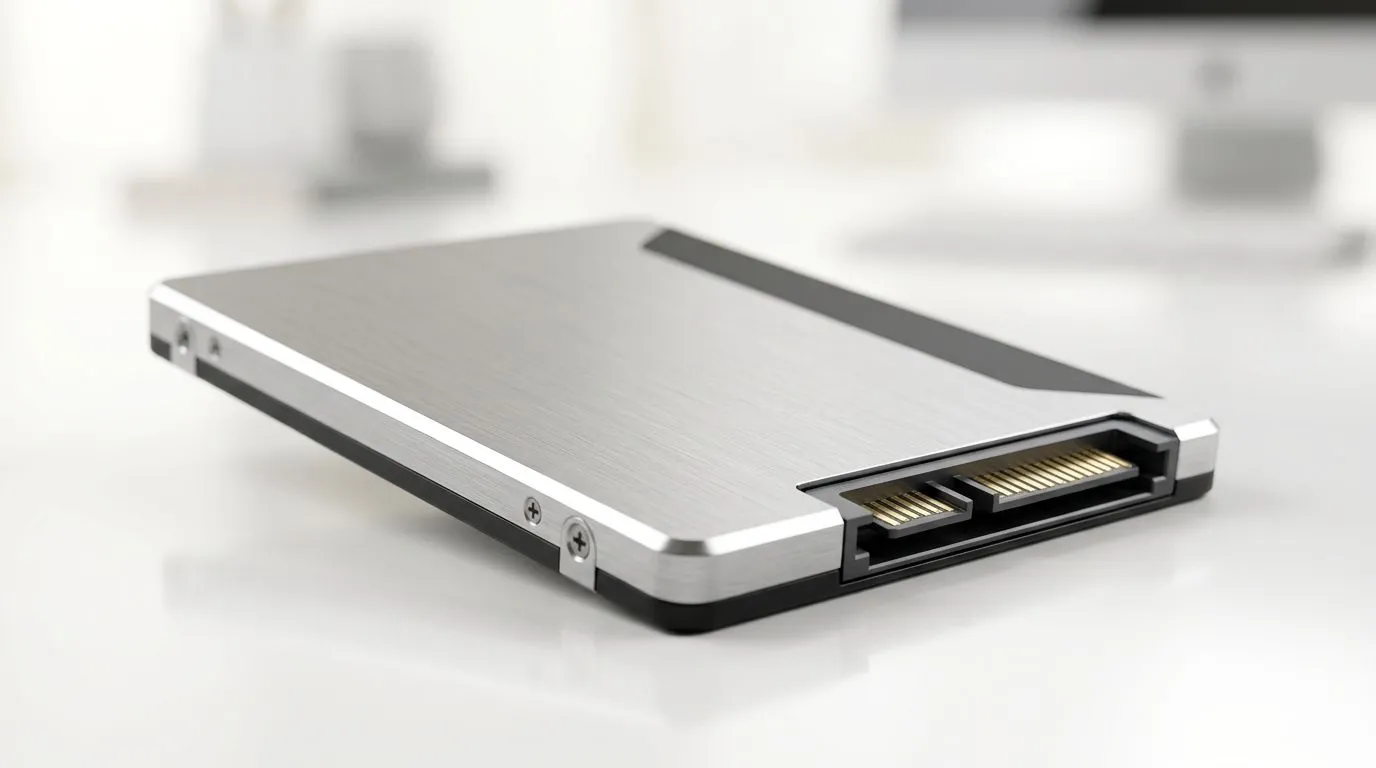
2.5 Inch SATA SSD Upgrade: Compatibility Without Issues
South African gamers and PC builders know the feeling… your PC is fast in-game, but Windows takes ages to boot. That’s often the drive. A 2.5 Inch SATA SSD Upgrade: Compatibility Without Issues is one of the simplest upgrades you can do without changing your whole setup. 🔧
The good news? Most desktops and older laptops still have a 2.5-inch SATA bay. Even better, the upgrade is usually plug-and-play from a hardware perspective. No weird BIOS wizardry. Just pick the right SSD, clone your system, and enjoy quicker loads.
Upgrade Path: What “2.5-inch SATA” actually means 🔧
A “2.5 inch SATA SSD” is a solid-state drive that uses the SATA interface and a 2.5-inch form factor. This matters because compatibility depends on two things:
- Form factor (2.5-inch): fits in the usual 2.5-inch drive bay.
- Interface (SATA): connects to SATA ports, not M.2 slots.
If your PC only has M.2, then a 2.5-inch SATA SSD won’t physically connect. But if it has a SATA port and space, you’re in the sweet spot for an easy upgrade path.
For sourcing options, browse Evetech’s SSD range here: Shop 2.5-inch SATA SSDs at Evetech
Avoid compatibility headaches: check these before you buy ⚡
Before you commit, do a quick checklist. It saves time and avoids returns.
1) Confirm you have a SATA connector
Most motherboards have SATA ports, and many laptops have a 2.5-inch bay. If you’re unsure, check your manual or model specs.
2) Measure the drive bay (and consider thickness)
Most 2.5-inch bays accept standard thickness. Still, it’s worth checking laptop drive thickness if you’re upgrading a slim machine.
3) Match brand and reliability to your routine
If you want trusted options, you can filter by brand on Evetech:
For many people, sticking with a known brand reduces “will it work?” stress, especially on older systems.
Productivity Pro Tip ⚡
On Windows, clone your OS before you open anything. Use a reputable cloning tool (or Evetech’s recommended process if you ask) so you keep your apps, settings, and game launchers. Then only swap drives once, reboot, and you avoid downtime surprises.
2.5 Inch SATA SSD Upgrade: When you should choose M.2 instead 🚀
If your system supports M.2, you may get higher speeds. But “faster” isn’t automatically “better” if your goal is compatibility without issues. Use M.2 only when your motherboard has the slot and support.
If you’re also shopping by form factor, Evetech makes it easy: Explore M.2 2280 SSD options
And if you’re comparing newer interfaces, you can filter by generation too. For example: Check Gen 5 (NVM… ) SSD listings
A quick mindset shift helps: if you just want Windows to feel snappier, a SATA SSD upgrade is often the best balance of cost and effort.
2.5 Inch SATA SSD Upgrade: Cloning and setup for South African builds ✨
Here’s what typically works smoothly:
- Clone or reinstall: cloning keeps your setup intact.
- BIOS boot order: make sure the SSD is the boot device.
- Update drivers: especially storage drivers on older boards.
- Game library locations: consider moving heavy libraries to the SSD for faster loading, while keeping backups elsewhere.
I’ve seen this play out in local gaming cafes and home builds. The moment Windows loads from an SSD, the whole “PC feels slow” complaint disappears… even when the GPU remains the same. It’s that noticeable.
CALLTOACTION
Ready to Find Your Perfect Match? If you want the safest upgrade path with less guessing, start by choosing the correct SSD format and interface for your PC. Explore our massive range of laptop specials and SSD-compatible upgrades, and get advice that fits your exact setup. Shop laptop specials and upgrade-ready tech at Evetech











