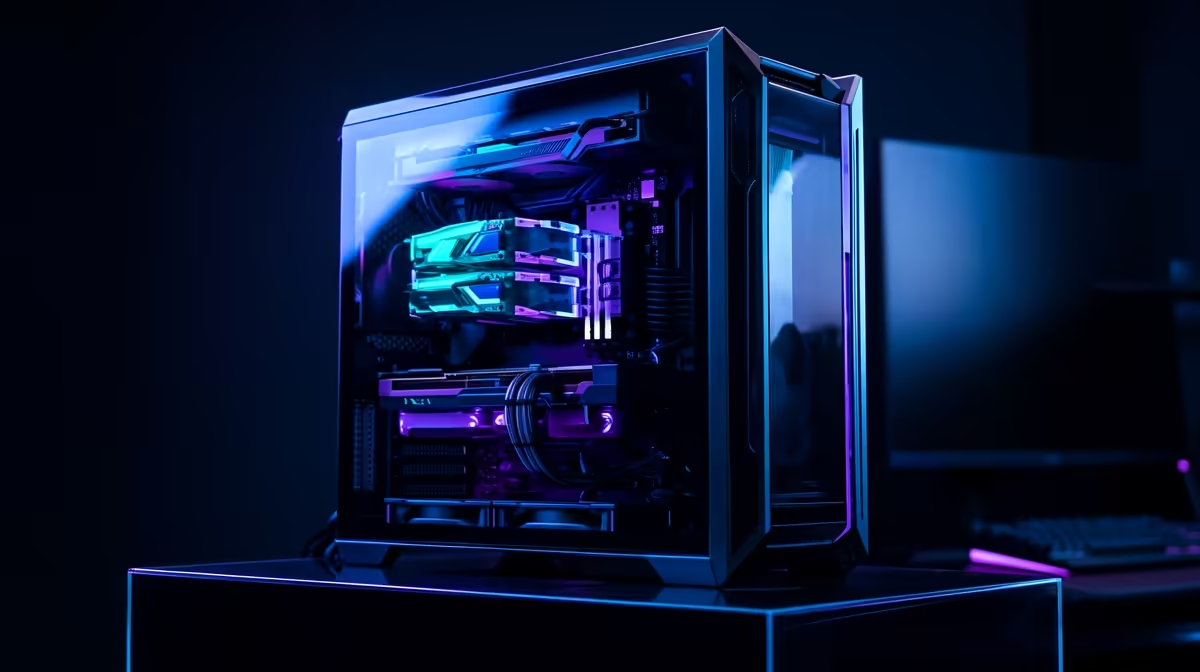
Is your gaming PC starting to feel a bit... meh? Are you seeing stutters instead of smooth frames, especially when the action gets hectic? We get it. In the world of PC gaming, standing still means falling behind. But the thought of a full overhaul can be daunting. This guide is your ultimate roadmap, showing you exactly how to upgrade your gaming PC step-by-step, turning your lagging rig into a high-performance beast. 🚀
First, What's Your Goal? Pinpointing the Bottleneck
Before you spend a single Rand, you need to play detective. The first step to a successful PC upgrade is figuring out which component is holding you back. This is called the "bottleneck." Is your graphics card struggling to render the neon-drenched streets in a visually intense game like a custom PC for Cyberpunk 2077, or is your CPU maxing out in frantic firefights?
Here’s a quick way to check:
- Fire up your most demanding game.
- Press
Ctrl+Shift+Esc to open the Windows Task Manager. - Click on the "Performance" tab.
- Look at the CPU, Memory (RAM), and GPU usage graphs.
If one of these is consistently hitting 95-100% while the others are chilling, you've found your bottleneck. That’s where you should focus your upgrade budget for the biggest performance boost.
The Big Three: GPU, CPU, and RAM Upgrades
Most performance gains come from upgrading one of three core components. Let's break down the priority list for anyone looking to upgrade their gaming PC.
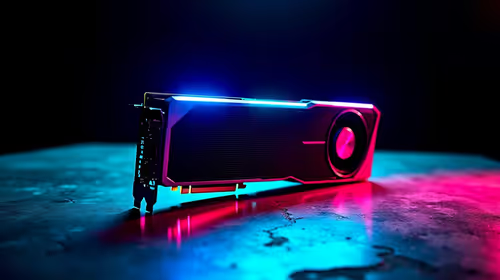
### 1. The Graphics Card (GPU): Your FPS King ⚡
For gamers, the GPU is almost always the most important upgrade. It’s responsible for rendering everything you see on screen. A new GPU means higher resolutions, smoother frame rates, and the ability to turn on stunning visual features like ray tracing. If you dream of soaring over a photorealistic Cape Town, a powerful GPU is essential for a game like Microsoft Flight Simulator. An upgrade here delivers the most noticeable "wow" factor.
### 2. The Processor (CPU): The Brains of the Operation
While the GPU handles the visuals, the CPU manages game logic, physics, and AI. A weak CPU can hold back even the most powerful GPU, especially in competitive titles where every frame counts. If you're chasing that 240Hz dream in games like Counter-Strike 2, a CPU upgrade can provide a much more stable and responsive experience. It's also crucial for streamers who are gaming and encoding video at the same time.
### 3. Memory (RAM): The Multitasking Master
Think of RAM as your PC's short-term memory. Not having enough can cause stuttering and long load times, as your system is forced to pull data from your slower storage drive. While 8GB was once acceptable, 16GB is the modern standard for a smooth experience in massive maps like those found on a Warzone 2.0 gaming PC. For heavy multitasking or future-proofing, 32GB is the new sweet spot.
Compatibility Check! 🔧
Before you buy anything, check for compatibility. A new CPU might require a new motherboard with a different socket, and a powerful GPU needs a power supply (PSU) with enough wattage and the right connectors. Use a tool like PCPartPicker to check if your chosen components will play nicely together. It can save you a massive headache... and a lot of money.
Beyond the Basics: Storage, PSU, and Cooling
Upgrading your gaming PC isn't just about the big three. These supporting components can make a huge difference to your overall experience.
A lightning-fast NVMe SSD is one of the best quality-of-life upgrades you can make. It slashes game loading times, meaning you spend less time staring at loading screens and more time exploring the vast world of a GTA V ready PC. The difference between an old hard drive and a modern SSD is night and day.
Your Power Supply Unit (PSU) is the unsung hero, delivering stable power to all your precious components. When you upgrade to a more powerful GPU or CPU, you must ensure your PSU can handle the extra load. Skimping on the PSU is a recipe for disaster.
Finally, better cooling means better performance. Components that run too hot will automatically slow down ("throttle") to protect themselves. An upgraded CPU cooler or better case fans can help your parts run at their peak speeds for longer, giving you a competitive edge in fast-paced games on an Overwatch 2 PC.
The Simple Step-by-Step Upgrade Process
Feeling ready to get your hands dirty? Here’s a simplified guide to the physical installation.
- Safety First: Unplug your PC from the wall. Press the power button a few times to discharge any remaining electricity. Work on a hard surface and consider using an anti-static wrist strap.
- Open Up: Remove the side panel of your PC case. Take a moment to familiarise yourself with the layout.
- Remove the Old: Carefully unplug any power or data cables connected to the component you're replacing. Then, undo the screws, latches, or clips holding it in place and gently remove it.
- Install the New: Slot the new component into the correct port. You should feel or hear a satisfying click. Secure it with the same screws or latches.
- Reconnect & Tidy: Plug in the necessary cables. Try to route them neatly for better airflow. Good cable management is key!
- Test It Out: Close up the case, plug everything back in, and boot up. You may need to install new drivers, especially for a GPU.
Once it's all running smoothly, you're ready to jump back into your favourite titles, whether that's getting a Victory Royale on a Fortnite gaming PC, surviving the battleground on a PUBG machine, or building your next masterpiece with a PC optimised for Minecraft. ✨