

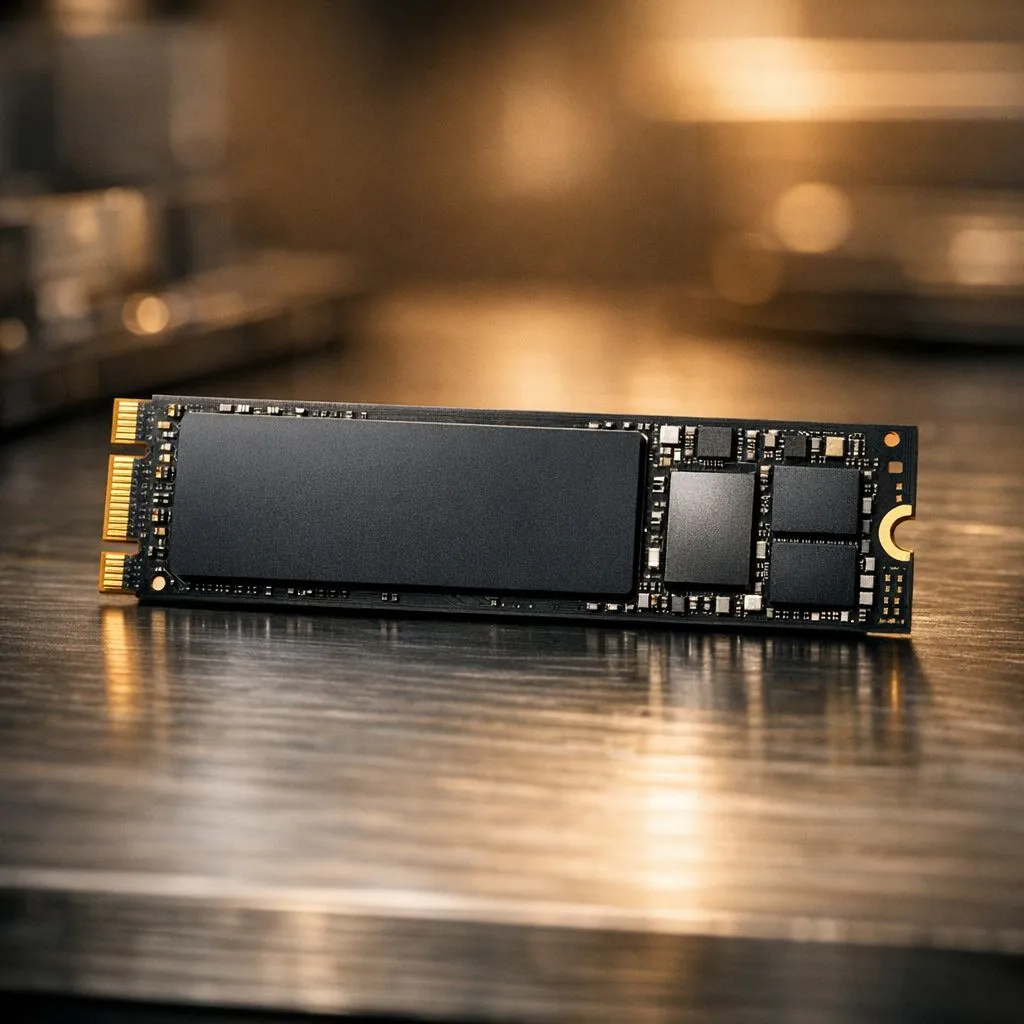
South African gamers and builders know the truth… storage isn’t just “space”. It’s how fast games load, how smoothly your system feels, and whether your laptop feels snappy after a few months. If you’re shopping for an upgrade, or you’re hunting for a deal before pay day, NVMe SSD laptop storage is one of the smartest places to spend. Here’s a clear, practical guide to NVMe SSD laptop storage: speed and capacity, so you can buy with confidence. 🚀
NVMe SSD Laptop Storage: Speed and Capacity Guide for Real-World Performance
NVMe SSDs use the PCIe interface, which means they can move data far faster than older SATA drives. In day-to-day terms, that usually shows up as quicker game launches, faster level streaming, and snappier installs.
But here’s the part many buyers miss: “speed” matters most when your laptop is doing lots of parallel reads and writes (think installs, patching, big game libraries). “Capacity” matters because you want to keep a healthy chunk of your library installed.
What “speed” actually means (and what it doesn’t)
You’ll often see vendor specs like “up to X GB/s”. Those are peak sequential numbers. Real gaming benefits come from:
- Faster game launch times (especially after updates)
- Faster copy/install and patching times
- Better responsiveness when your drive is busy (background downloads + launching games)
Sequential speeds can be impressive… but gaming is also about lots of smaller reads. That’s why you should look at NVMe as an overall responsiveness upgrade, not just a benchmark number.
How much capacity should you buy?
Most gamers end up juggling:
- OS and apps
- Launcher libraries (Steam/Epic, etc.)
- A few “main” games installed
- New downloads and patch sizes
A good rule of thumb:
- 512GB: fine for a smaller library, but expect management (uninstall/reinstall).
- 1TB: the sweet spot for many players.
- 2TB: ideal if you prefer installing first and worrying later.
If your laptop supports it, consider whether you can add a second NVMe later. That gives you room to grow without buying again soon.
Productivity Pro Tip ✨
On a new NVMe SSD laptop upgrade, use Steam’s storage management to keep your biggest games on the SSD first, and set your download location to that drive. It reduces “why is everything slow?” moments after you’ve moved installs between drives.
NVMe SSD Laptop Storage: Choosing the Right Drive for Your Laptop
Not every laptop supports every storage setup. Before you buy, check compatibility. Some laptops come with:
- One M.2 NVMe slot (add one later, if space allows)
- Two M.2 slots (more flexible upgrades)
- A combination of storage types (for example, NVMe + SATA)
If you’re shopping laptops that already fit a gaming workload, look for listings that clearly match performance needs and include the storage configuration you want.
If you’re currently comparing Intel-powered options, start with Evetech’s Intel laptop specials here: Explore Intel laptops on special
Prefer AMD for your build or gaming laptop needs? Check out: Shop Ryzen laptop deals
And if you want gaming-focused machines that tend to be the most “plug in and play” friendly for upgrades: Browse best gaming laptop deals
NVMe SSD Laptop Storage: Capacity Planning for Gaming & Work
Here’s a micro-scenario from the local grind. You buy a laptop for university and evenings. The first month feels perfect. Then you install 3 big titles, a couple of indie gems, and a heavy creator app… suddenly patches take ages and your laptop starts to feel busy.
That’s when capacity becomes part of your performance story. When the drive is almost full, free space shrinks and the SSD has to do more internal work to keep things smooth.
A simple checklist before you upgrade 🔧
Before you commit to a purchase:
- Decide your minimum capacity based on your library size.
- Confirm your laptop supports NVMe (M.2) and the correct physical size (often 2280).
- If the laptop only has one slot, avoid buying “just enough” unless you’re planning a follow-up upgrade.
- Consider your workload mix: gaming only vs gaming + content creation.
If your budget is tight, you can still get a great NVMe experience. Start with this budget-friendly selection: Buy gaming laptops under R20k
And if GPU power is your priority (which also affects your overall smoothness when gaming), explore: GeForce RTX gaming laptops on special
NVMe SSD Laptop Storage: Speed Tips That Actually Help
Want speed improvements without turning it into a project? Try these practical steps.
Keep your system tidy (seriously) ✨
- Run regular OS updates.
- Remove unused launchers and old game installs.
- If you stream media or record gameplay, keep temp folders managed.
Small maintenance wins because it keeps your SSD workload balanced. Your NVMe will still feel fast even as your library grows.
Avoid “mystery bottlenecks”
Sometimes the drive isn’t the issue. For example:
- Low RAM can cause stuttering during heavy loads.
- Thermal throttling can reduce performance.
- Wi-Fi quality can slow downloads, which can trick you into blaming storage.
If your laptop struggles under load, make sure cooling is healthy and settings are reasonable.
When it’s worth upgrading now vs later
Upgrade now if:
- Your current storage is SATA or nearly full.
- Games take too long to launch after patches.
- You create content and your workflow constantly hits “disk busy”.
Upgrade later if:
- You’re only playing one or two titles.
- Your laptop already has a roomy NVMe setup.
NVMe SSD Laptop Storage: Quick Buyer Summary Before You Click Buy 🚀
- Aim for 1TB if you want less juggling.
- Choose NVMe for responsiveness and faster installs/updates.
- Check laptop slot support so your upgrade plan doesn’t hit a wall.
- Plan capacity, because nearly-full SSDs feel slower over time.
Ready to stop guessing and start upgrading with a setup that matches how you actually play and work? That’s where the right deal makes all the difference.
Ready to Find Your Perfect Match? The Mac vs Windows debate is complex, but for maximum power, choice, and value in South Africa, Windows is hard to beat. Explore our massive range of laptop specials and find the perfect machine to conquer your world.











