

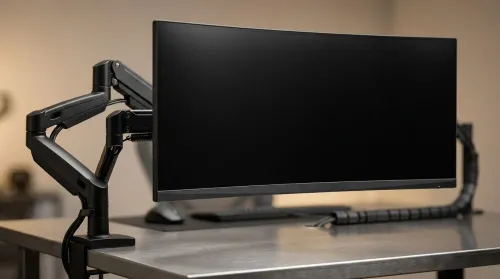
ZAR Budget for Upgrading to an Ultrawide 34-Inch Monitor
Build a smart ZAR budget for upgrading to an ultrawide 34-inch display plus a heavy-duty arm—covering monitor, arm, mounting, cables, and setup costs 💸🖥️
Read moreLearn how to set up a USB WiFi 6 adapter on Windows 11 with our simple step-by-step guide. Boost your connection speeds and upgrade your PC connectivity today! 🚀📶
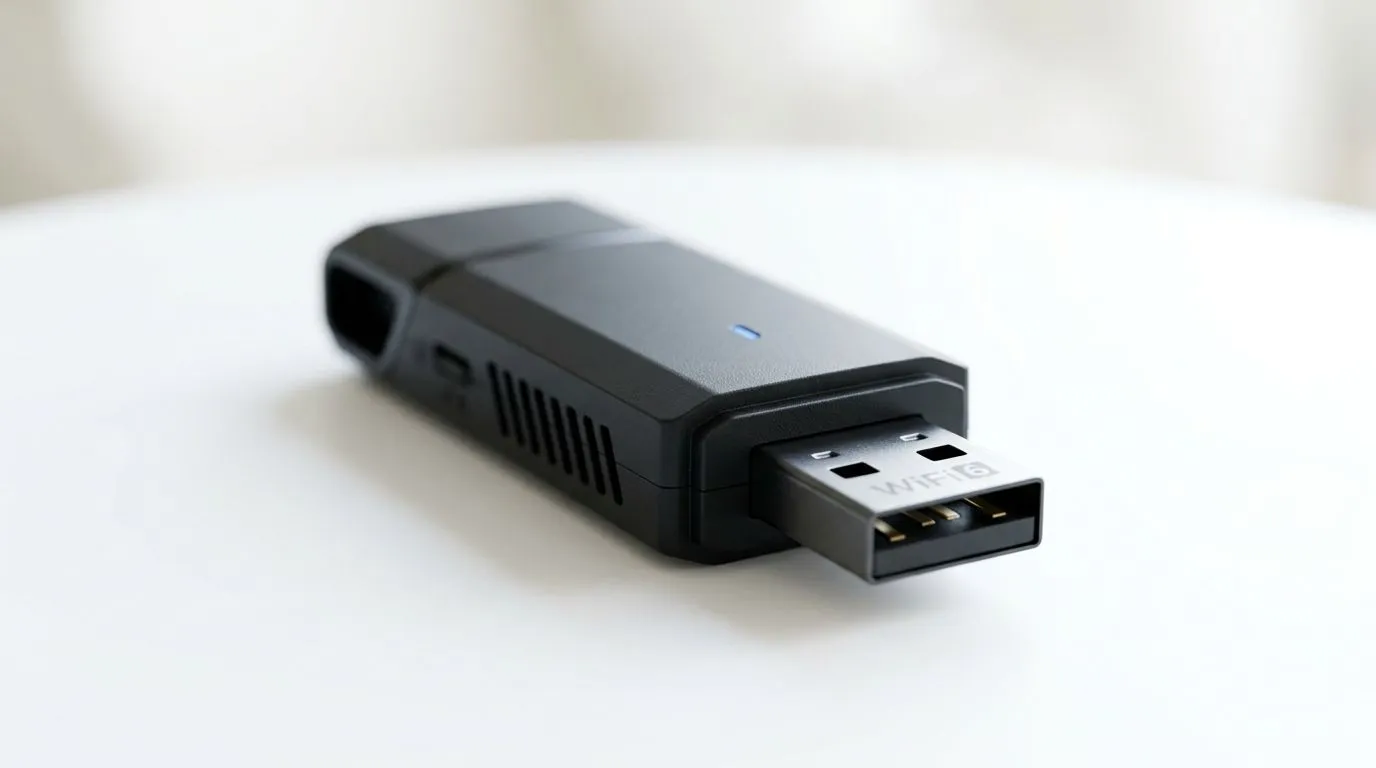
Is your ping spiking mid-match or your downloads crawling during peak hours? If you are still relying on an ageing integrated network card or a dusty old dongle, you are leaving performance on the table. Moving to a high-performance USB WiFi 6 adapter is one of the most cost-effective ways to stabilise your connection and maximise your fibre speeds. Whether you are gaming or streaming 4K content, upgrading your hardware is the first step toward a seamless online experience.
Before diving into the settings, you need the right gear for your rig. If you are looking to future-proof your desktop or laptop, browsing our full range of network adapters is the best place to start.
Once you have your adapter, the setup is straightforward. Simply plug the device into a USB 3.0 port—avoid USB 2.0 ports if possible, as they can bottleneck your speeds. Most modern adapters are plug-and-play, but for the best stability, you should always download the latest drivers from the manufacturer’s website. If you prefer reliable, globally recognised hardware, checking out our TP-Link network solutions often yields the best results for South African broadband setups. ⚡
After plugging in your new hardware, Windows 11 will usually detect it automatically. However, to ensure you are actually using the WiFi 6 (802.11ax) protocol, navigate to Settings > Network & internet > Advanced network settings. Here, you can view your hardware properties and confirm the link speed. If you are looking for high-performance options that won't break the bank, the Cudy range of adapters offers fantastic value for money in ZAR. 🔧
If you find your connection dropping, disable 'Allow the computer to turn off this device to save power' in the Device Manager under your adapter's Power Management tab. This prevents Windows from putting your WiFi card to sleep during intense gaming sessions.
Once configured, restart your machine to ensure all registry changes take effect. Keep your router firmware updated as well, as this is often the missing link in achieving those advertised gigabit speeds. With your new adapter installed, you are ready to dominate the leaderboard with a rock-solid connection. 🚀 ✨
Ready to Find Your Perfect Match? The network battle is won with the right hardware, but your PC is the engine that drives your success. For maximum power, choice, and value in South Africa, our component selection is hard to beat. Explore our massive range of network adapters and find the perfect upgrade to conquer your world.
While Windows 11 often installs generic drivers automatically, downloading the latest manufacturer drivers is recommended for full WiFi 6 performance.
Open Device Manager, expand Network adapters, and ensure your new WiFi 6 device is listed without any yellow warning icons.
It will work, but you will experience significant speed bottlenecks. Always use a USB 3.0 or higher port for optimal WiFi 6 throughput.
Ensure the adapter is plugged into a USB 3.0 port and check that you are connected to the 5GHz or 6GHz band of your router.
Most modern adapters are compatible with Windows 10 and 11, but check the manufacturer's website for specific driver support for older OS versions.
Yes, to utilize WiFi 6 speeds, both your USB adapter and your wireless router must support the 802.11ax protocol.
Build a smart ZAR budget for upgrading to an ultrawide 34-inch display plus a heavy-duty arm—covering monitor, arm, mounting, cables, and setup costs 💸🖥️
Read more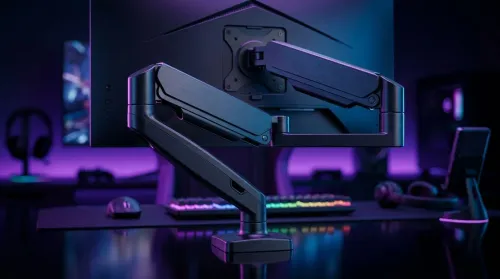
Gas spring monitor arms on a gaming desk budget in South Africa: fit options, mounting tips, and ZAR-friendly picks that boost comfort and setup ergonomics 🎮🛠️.
Read more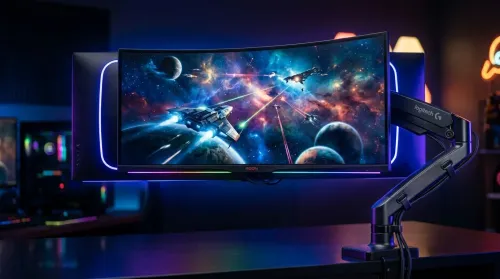
Choosing a 49-inch ultrawide curved monitor stand? Compare gas spring monitor arm vs fixed stand for stability, desk space, and comfort. ✅🖥️ Get the right setup fast.
Read more
Every spec on PCIe 5.0 explained in plain English. What matters for gaming and creator work in 2026, what's marketing fluff, and how each number translates to real-world performance.

A head-to-head look at WiFi 7: real-world performance, ZAR pricing and which option delivers better value for SA builders. The clear answer — no fluff.

Everything you need to set up and tune PCIe 5.0 properly: the prep work, the settings that actually matter, and the mistakes to skip. Written for SA builders in 2026.

Everything you need to set up and tune X870E Motherboard properly: the prep work, the settings that actually matter, and the mistakes to skip. Written for SA builders in 2026.

Wondering what a 512GB SSD capacity really holds? This guide breaks down how many games, photos, and documents fit on 512GB, with real-world ranges 📦💾

Every spec on vrm explained in plain English. What matters for gaming and creator work in 2026, what's marketing fluff, and how each number translates to real-world performance.

Every spec on motherboard explained in plain English. What matters for gaming and creator work in 2026, what's marketing fluff, and how each number translates to real-world performance.

Premium vs Midrange Motherboards in South Africa: real-world performance, SA pricing, power draw and which one delivers better value for your build for SA buyers. The clear answer — without the fluff.
Wondering what a 512GB SSD capacity really holds? This guide breaks down how many games, photos, and documents fit on 512GB, with real-world ranges 📦💾
Every spec on PCIe 5.0 explained in plain English. What matters for gaming and creator work in 2026, what's marketing fluff, and how each number translates to real-world performance.
A head-to-head look at WiFi 7: real-world performance, ZAR pricing and which option delivers better value for SA builders. The clear answer — no fluff.

Every spec on USB4 explained in plain English. What matters for gaming and creator work in 2026, what's marketing fluff, and how each number translates to real-world performance.