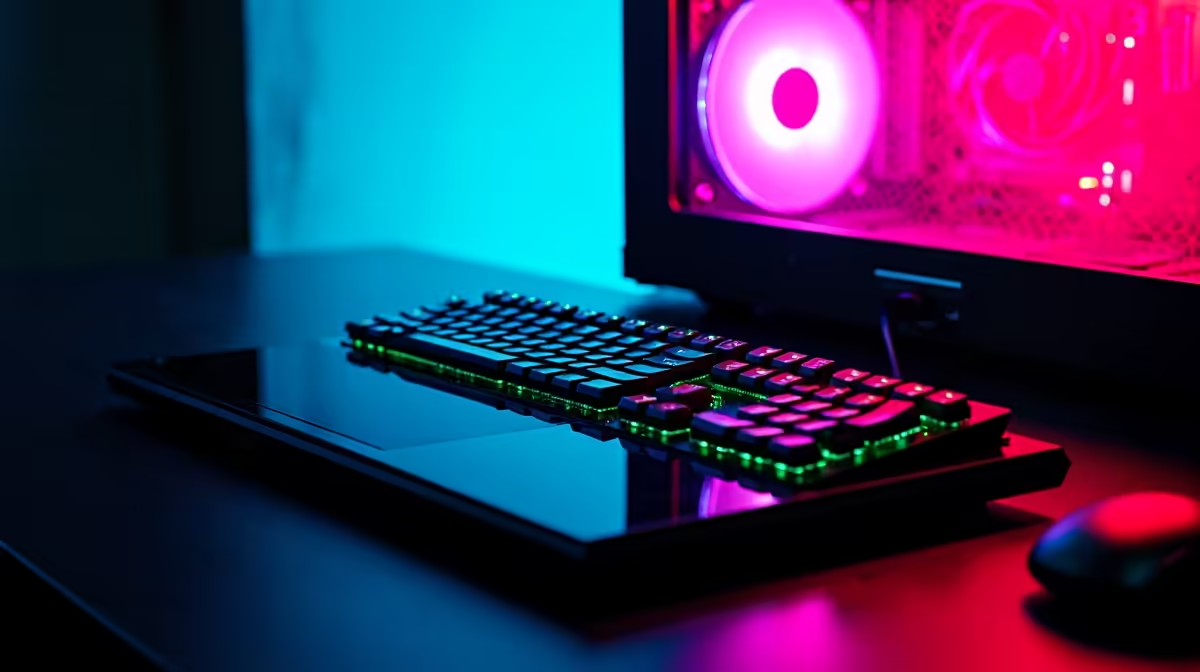
AI is here, and it’s not just in the cloud. Running powerful models like DeepSeek on your own machine is the next frontier for coders, creators, and curious minds across South Africa. But how do you get that lekker, lightning-fast performance? It’s all about the setup. We’ll show you exactly how to optimize your DeepSeek PC settings for maximum AI speed, turning your desktop from a simple gaming rig into a local AI powerhouse. 🚀
Why Bother Running AI Locally?
Before we dive into the settings, let's quickly cover why running AI on your own PC is such a big deal. When you use online services, you're often paying per query, dealing with potential latency, and sending your data to a third-party server.
Running models like DeepSeek locally gives you:
- Total Privacy: Your data never leaves your machine.
- No Costs: Once you have the hardware, you can experiment freely without worrying about API bills.
- Blazing Speed: Direct access to your hardware means instant responses, perfect for development and creative work.
A powerful local setup is the key, and many of the rigs found in our best gaming PC deals already have the core components you need.
The Hardware That Gives Your AI an Edge
Not all PC components are created equal when it comes to AI. To get maximum AI speed, you need to know what matters most. Your PC isn’t just one part; it's a team of components working together.
The GPU: Your AI Workhorse ⚡
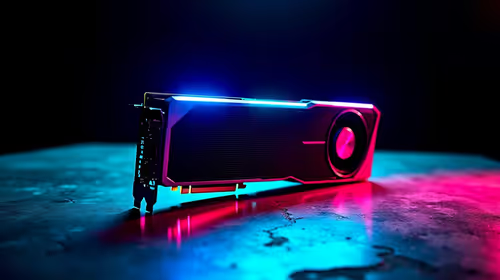
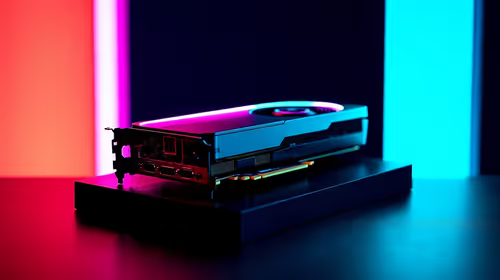
The Graphics Processing Unit (GPU) is, without a doubt, the most critical component for AI. Its thousands of small cores are perfect for the parallel processing that AI models thrive on.
- VRAM is King: The amount of video memory (VRAM) on your GPU determines the size and complexity of the AI models you can run. For serious work with models like DeepSeek, 12GB of VRAM is a great starting point, with 16GB or more being ideal.
- NVIDIA vs. AMD: NVIDIA has historically dominated the AI space with its CUDA platform, making their hardware a straightforward choice. You'll find a massive range of compatible software and community support with NVIDIA GeForce gaming PCs. However, AMD is catching up fast with its ROCm software stack, and their powerful AMD Radeon gaming PCs offer incredible performance-for-rand.
The CPU, RAM, and Storage Trio
While the GPU does the heavy lifting, the rest of your system plays a vital support role.
- CPU (Central Processing Unit): A strong CPU is needed to prepare data, manage the operating system, and keep everything running smoothly while the GPU is maxed out. Whether you're looking at the latest Intel PC deals or considering one of the powerful AMD Ryzen PCs, a modern multi-core processor will prevent bottlenecks.
- System RAM: You'll need enough system RAM to load the AI model before it's passed to the GPU's VRAM. 32GB is a comfortable minimum for serious AI tasks.
- Storage: A fast NVMe SSD is essential. It drastically cuts down the time it takes to load large models and datasets, getting you to work faster. Many of our pre-built PC deals come standard with speedy NVMe drives.
How to Optimize Your DeepSeek PC Settings
Got the right hardware? Awesome. Now let’s tweak the software to squeeze out every last drop of performance. Properly configured settings can make a huge difference in your AI speed.
1. Update Your Graphics Drivers
This is the simplest but most important step. Both NVIDIA and AMD regularly release driver updates that include performance optimisations for AI and machine learning workloads. Always install the latest "Game Ready" or "Adrenalin" drivers for the best results.
2. Use Model Quantization
This sounds technical, but the concept is simple. Quantization is a process that reduces the precision of the numbers within an AI model, making it smaller and faster. For many tasks, the tiny loss in accuracy is completely unnoticeable, but the speed boost is significant. Look for pre-quantized versions of DeepSeek (like GGUF formats) to get started easily, even on some budget gaming PCs.
Monitor Your VRAM Usage 🔧
When running AI models, your GPU's VRAM is its most precious resource. Use a tool like nvidia-smi (for NVIDIA cards) in your command line or the performance tab in Windows Task Manager (Ctrl+Shift+Esc) to watch your dedicated GPU memory usage in real-time. If you're constantly hitting your limit, it's a clear sign that it's time to consider a GPU upgrade for smoother, faster AI processing.
3. Tweak Your Batch Size
When you're feeding data to the model, the "batch size" determines how much data is processed at once. A larger batch size can increase throughput (more work done over time) but also uses more VRAM. Experiment with smaller and larger batch sizes to find the sweet spot for your specific hardware and task to achieve maximum AI speed.
Is Your Current Rig Ready for the AI Wave? ✨
Optimising your PC settings is a great way to boost performance, but there's no substitute for raw power. If you're finding that your machine is struggling to keep up, constantly running out of VRAM, or taking ages to process requests, it might be time for an upgrade.
For those getting serious about local AI, diving into code, or running complex creative workflows, our range of specialised workstation PCs are built with the high-core-count CPUs and massive VRAM needed for demanding tasks. Even emerging platforms like the latest Intel Arc gaming PCs are becoming viable options with dedicated AI acceleration features.
The world of local AI is just getting started, and having the right PC puts you at the forefront of this exciting technology.
Ready to Unleash True AI Power?
Don't let a slow PC hold back your creativity and innovation. To get the most out of models like DeepSeek, you need a machine built for the job. Explore our powerful range of AI-ready PCs and find the perfect rig to accelerate your journey.