


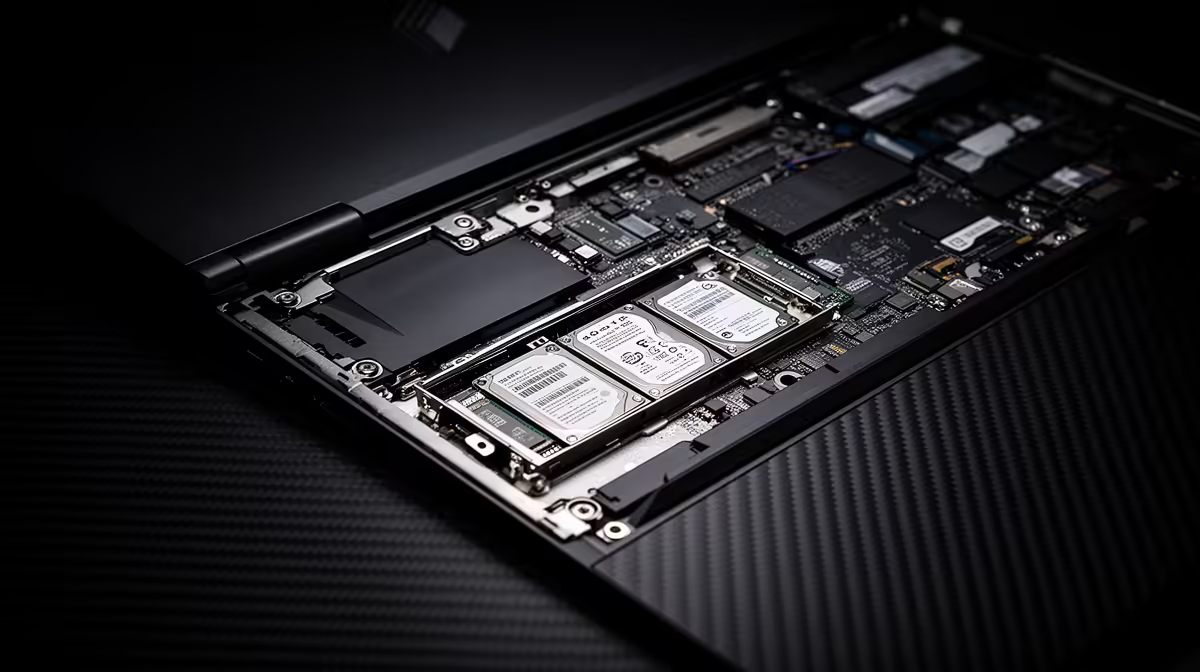
A spare-looking M.2 position inside a gaming laptop is not enough to choose an SSD. You need the slot's supported protocol, keying, module length, lane arrangement and mounting hardware. The service manual and exact model specification settle those questions before you buy a drive that fits the connector but cannot work.
Quick Answer
Find the laptop's product number and service manual. Confirm that the second M.2 socket is populated on your revision, supports PCIe NVMe rather than SATA-only storage, accepts the drive length you want and includes a standoff and screw. Check whether installing it disables another port or shares lanes. Then choose a compatible, efficient SSD that fits the available height.
Evetech's laptop best-seller list helps identify exact configurations. The gaming laptop deals let you compare storage capacity and expansion wording before the laptop reaches your desk.
Prove the Second Slot Exists
Marketing pages can describe a chassis family rather than every regional configuration. Read the service manual, parts diagram and specification for the full product code. Look for Storage, M.2 slots and supported module dimensions.
Windows cannot prove an empty physical slot exists. Hardware information tools can describe occupied controllers, but the manual or a careful inspection is still required for an unused connector.
A visible footprint may lack the socket, standoff or required thermal plate on a lower-cost board revision. Do not buy from a teardown of a similar model name alone.
Match Protocol and Keying
M.2 describes the physical card and connector family. It does not guarantee NVMe. A slot can carry PCIe NVMe, SATA or another device type depending on its wiring.
Modern laptop NVMe drives commonly use an M-key edge. SATA M.2 drives often use B+M keying, but the notches do not prove the protocol supported by the socket. Match the manual's storage interface.
A PCIe 4.0 drive can often negotiate with an older PCIe generation, but it will run at the supported link. Confirm compatibility rather than paying for a benchmark number the slot cannot reach.
Check Length and Component Height
The familiar 2280 label means 22mm wide and 80mm long. Compact laptops can use 2242 or 2230 positions, and some slots accept more than one length through movable standoffs.
Check whether the laptop fits single-sided or double-sided components. A tall desktop heatsink will not fit under a notebook cover. Use the maker's thermal pad, shield and plate arrangement.
Confirm the retaining screw is present. M.2 screws use small threads and vary; forcing a random screw can damage the standoff or board.
Prepare the Installation
Back up important files. Update the laptop's supported firmware before the hardware change only when the release notes make it relevant and the current system is stable.
Shut down, remove external power and follow the service manual to disconnect or disable the internal battery. Use plastic tools for the cover and keep screw locations labelled.
Insert the SSD into the socket at the documented angle, lower it to the standoff and fit the screw with light pressure. Apply only the thermal material specified for that bay. Reconnect the battery and inspect for pinched cables before closing.
Initialise and Format in Windows
After boot, check firmware or Device Manager if the drive is absent from File Explorer. A new blank SSD needs a partition table and volume in Disk Management before it receives a drive letter.
Choose GPT for a current Windows data drive. Create the volume, format with the file system your use requires and give it a clear label. Do not initialise or format the existing Windows disk by mistake; identify drives by capacity and model.
Install one game and run a sustained copy test. Check for errors, disconnects and temperature-related slowdowns before moving the whole library.
If the new drive will become the Windows disk, treat that as a separate migration project. Clone every required boot and recovery partition or use the laptop maker's recovery process. Keep the original SSD untouched until the replacement starts, updates, sleeps and recovers without error.
Understand Shared Resources
Some laptop designs share PCIe lanes or physical space with another device. Installing the second SSD can change a port's operation or link width. The manual should document the interaction.
The second slot may also run fewer lanes than the primary. That affects sequential benchmark speed more than many game-loading tasks. Reliability, capacity and thermal behaviour remain the useful priorities.
FAQ
Does every M.2 slot support NVMe?
No. M.2 is a form factor; the slot must be wired for PCIe NVMe, SATA or the device type specified by the laptop.
What drive length fits most gaming laptops?
M.2 2280 is common, but 2230 and 2242 appear in compact designs. Check the exact model's service manual.
Why does the new SSD not appear in File Explorer?
A blank drive may need initialising, partitioning and a drive letter. First confirm firmware and Windows can detect the hardware.
Confirm the second socket's protocol, length, standoff and lane rules from the exact service manual before choosing and installing the SSD.











