


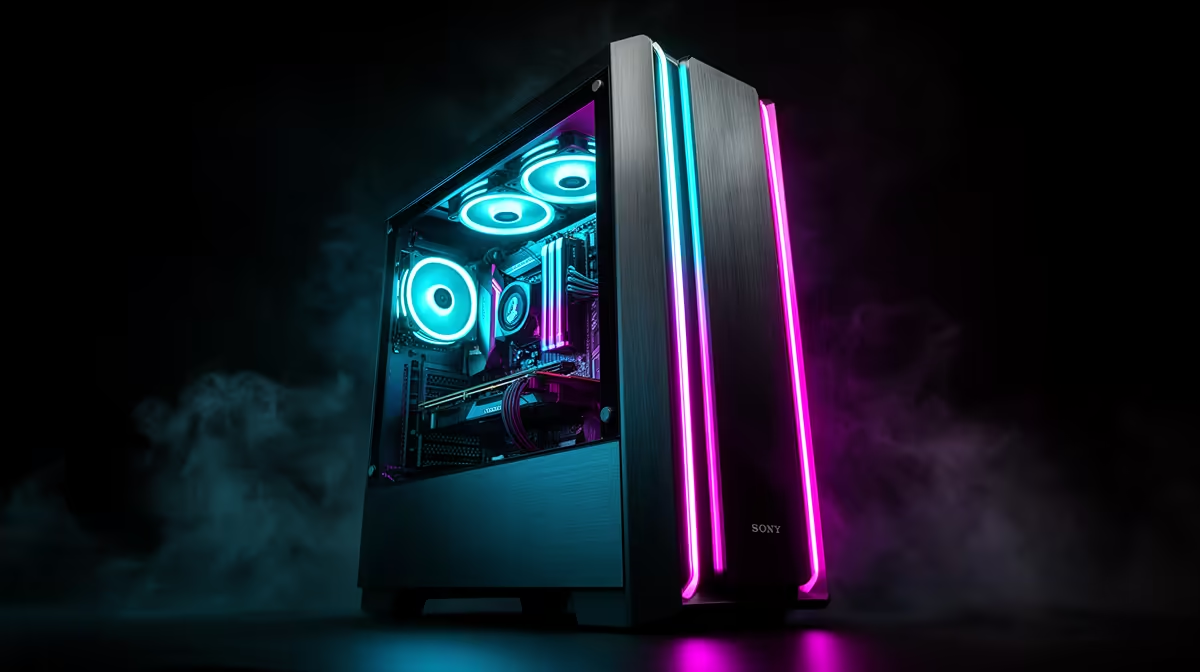
A shipped gaming PC has carried a heavy graphics card, cooler and glass panel through loading, vibration and several changes of direction. Most arrive ready to run. A calm inspection before power catches visible impact, loose hardware and internal packing while the evidence is still fresh.
Quick Answer
Photograph every side of the sealed carton and any crushed, wet or punctured area. Check the shock and orientation labels where present. Open according to the seller's instructions, keep all packaging and inspect the case exterior. Before connecting mains, remove documented internal support material and confirm the graphics card, cooler, memory and power cables remain seated.
Evetech's gaming PC deal range helps identify the expected case and component layout. The current PC best sellers provide configuration context when two towers share a similar exterior.
Record the Box Before Moving It Again
Take wide photos showing the shipping label and all carton faces, then close views of dents, tears, moisture and holes. Do not publish personal delivery details.
If glass fragments rattle or liquid has entered the carton, stop. Keep the package stable and contact the seller or courier through the documented process before opening further.
Lift the box with help when required. Do not roll it onto a side marked to stay upright merely to make opening easier.
Unbox Without Losing Evidence
Follow the printed orientation. Remove accessory boxes and note where each support piece sat. Keep foam, brackets, cable ties and the outer carton until the PC has passed its arrival tests and any return window.
Inspect the case feet, corners, front panel and glass edges. Look for paint scuffs that align with box damage, bent metal, shifted panels and a door that no longer closes square.
Lay a glass-panel case only on the surface and orientation approved by its manual. Tile or stone can damage tempered glass through a sharp local contact.
Open the Case Before Power
Disconnect all external power because none should be attached yet. Remove the side panel using the case instructions. Support glass with both hands and put it on a protected stable surface.
Find every piece of internal transport support. Foam can sit around the graphics card, below a tower cooler or between case structure. Cardboard and plastic brackets can restrain fans or cables. Remove only packaging, not installed filters, anti-vibration pads or component shrouds.
Check the accessory note or unboxing sheet. If an item is unclear, photograph it and ask before pulling.
Inspect Heavy Components
View the graphics card along the motherboard slot. Its rear bracket should sit flush, the retention area should look engaged and any support bracket should be in position. A slight cosmetic angle can differ by design; a card partly out of the slot is a no-power condition.
Check the CPU cooler is level and firmly mounted without applying force. A large air cooler that shifted can damage its mounting or motherboard. Inspect radiator screws and tubes in a liquid-cooled build for impact or leakage.
Confirm memory modules are upright with retaining clips in their expected position. Do not reseat parts unless you are authorised and know the correct procedure; document a visible fault first.
Trace Cables and Fans
Look for power plugs that have come free and cables resting inside a fan. Check front-panel connections, graphics power, motherboard power and storage leads visually. Do not pull every connector as a test.
Spin case fans by a small gentle movement only when the system is unpowered and the maker permits it. They should not be locked by packaging or a cable. Do not drive them at high speed with air.
Inspect loose screws at the bottom of the case. A metal screw can short a board, so the PC should remain off until its source is found.
Perform the First Start in Stages
Refit the side panel, place the tower upright with clear vents and connect monitor, keyboard, mouse and the supplied mains lead. Plug the monitor into the graphics card when the system includes one and that is the intended configuration.
Start the PC and watch every visible fan. Listen for scraping, repeated clicking or a loose object. Shut down if a fan is blocked, liquid appears or an electrical smell develops.
Allow first boot time for memory training. Once Windows loads, confirm hardware identity, temperatures and storage before installing games.
Report a Problem Clearly
Keep the carton, photographs, serial details and packaging layout. Describe what you saw before any reseating or repair attempt. Follow the seller's current damage-reporting and return instructions.
Do not straighten bent metal, remove a cooler or force a card into a damaged slot before support responds. The arrival evidence is part of resolving the problem.
FAQ
Should I open the case before first power-on?
Yes, when the seller's unboxing instructions permit it, so you can remove internal packing and spot loose or shifted parts.
Is a loose cable always transit damage?
No. Some unused power leads are parked for upgrades. A connector pulled from an installed part or cable in a fan needs attention.
What should make me stop before powering on?
Broken glass, liquid, loose metal, a partly unseated heavy component, damaged wiring or packaging still blocking a fan.
Photograph the carton, preserve every packing piece and complete the unpowered internal check before the shipped tower sees mains power.







