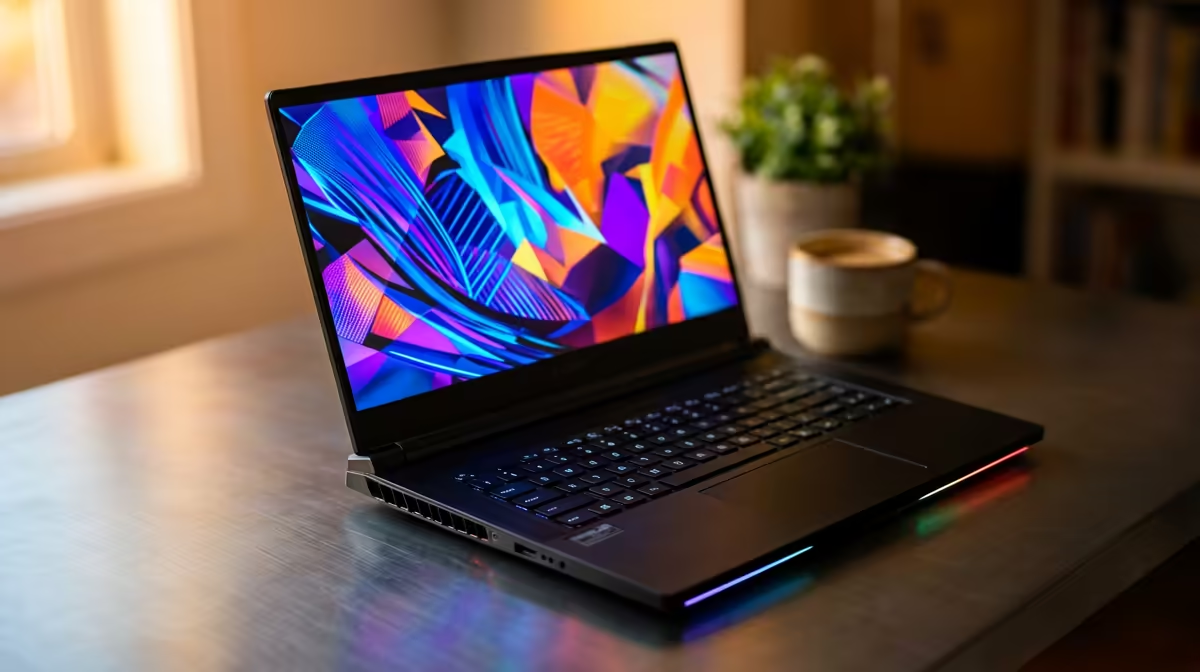
So, you’ve done it. The box is open, the plastic is peeled, and that new-tech smell is in the air. Your brand-new ASUS gaming laptop is sitting there, ready to dominate. But what’s next? A proper ASUS gaming laptop setup is the crucial first step between unboxing and unforgettable gaming sessions. This guide will walk you through the essential first-time optimisations to unlock your machine's true power, right here in South Africa.
Whether you've just snagged a great deal on one of the latest ASUS gaming laptops and notebooks or are planning your next upgrade, these steps are for you.
Your ASUS Gaming Laptop Setup Starts Here 🔧
Before you even think about installing Steam or Discord, there are a few non-negotiable first steps. Getting these right ensures your system is stable, secure, and ready for peak performance from the get-go.
1. Complete the Windows Setup
This is the easy part. Power on your laptop and follow the on-screen prompts from Windows. Connect to your Wi-Fi, sign in with your Microsoft account (or create one), and let it finish its initial configuration. Don’t rush this… let it do its thing.
2. Run All System & Driver Updates
This is the most critical part of any new ASUS gaming laptop setup.
- Windows Update: Go to
Settings > Update & Security > Windows Update and click "Check for updates". Install everything it finds, even the optional ones. You might need to restart a few times. Do it. These updates include vital security patches and performance improvements. - GPU Drivers: Your graphics card is the heart of your gaming experience. While Windows Update might install a basic driver, you want the latest version directly from the source for game-ready optimisations. Head to the NVIDIA GeForce Experience or AMD Software: Adrenalin Edition app (it should be pre-installed) and download the newest driver.
Optimise Performance with Armoury Crate
Armoury Crate is the command centre for your ASUS machine. It’s pre-installed and allows you to control everything from fan speeds to RGB lighting. Understanding it is key.
Open the app and familiarise yourself with the main dashboard. You’ll see your CPU and GPU stats right away. The most important feature for a first-time setup is the Operating Mode selector.
- Silent: For quiet operation when you're just browsing or working.
- Performance: A balanced mode for everyday use and most gaming.
- Turbo: Unleashes the full power of your hardware for maximum frames-per-second (FPS). The fans will get loud, but the performance boost is worth it. 🚀
This software is the secret sauce behind the incredible performance of the entire ASUS ROG laptops South Africa lineup, and it's just as crucial for getting the most out of the durable and value-packed ASUS TUF Gaming laptops. Take a moment to explore Aura Sync as well to customise the keyboard's RGB colour scheme.
Quick Performance Boost ⚡
Your laptop's screen is likely a high-refresh-rate panel (120Hz, 144Hz, or higher). Sometimes, Windows defaults to 60Hz. To fix this, right-click your desktop, go to Display settings > Advanced display settings, and select the highest refresh rate available from the dropdown menu. The difference in smoothness is massive!
Debloat Your System for Peak Performance
Laptops often come with pre-installed software, sometimes called "bloatware." While ASUS is generally good about this, removing any apps you don’t need can free up system resources and reduce background processes, giving you more power for gaming.
Go to Settings > Apps > Apps & features and scroll through the list. See a trial for an antivirus you won't use? Or a random utility app? If you know you won’t need it, click the three dots and select "Uninstall." Be careful not to remove essential system apps or ASUS software like Armoury Crate or MyASUS. A lean, clean system is especially beneficial for ultra-portable powerhouses found in the latest ASUS ROG Zephyrus gaming laptop deals, where every bit of efficiency counts.
Final Tweaks for Your ASUS Gaming Setup ✨
With the core setup complete, a few final touches can make all the difference.
- Check Your Power Plan: Go to
Control Panel > Hardware and Sound > Power Options. Make sure you're on a "Balanced" or "High Performance" plan to ensure your CPU isn't being unnecessarily throttled. - Install Your Games: Now for the fun part! Install your preferred game launchers (Steam, Epic Games Store, etc.) and start downloading your library.
- Enjoy: You've done it! Your ASUS gaming laptop is now fully optimised and ready to deliver the incredible experience you paid for.
This initial setup process might take an hour or so, but the rewards in performance, stability, and smoothness are well worth the effort. Happy gaming!
Ready to Find Your Perfect Match?
A proper setup unlocks your laptop's true potential. But if you're still on the hunt for the ultimate machine, the journey starts here. Explore our massive range of laptop specials and find the perfect rig to conquer your world.