Most of us charge everything the same way: grab the nearest phone charger, plug it into the wall and walk away. The S102 PRO asks for something different. AULA is explicit that this keyboard should be charged from a computer's USB port, and that USB wall adapters are not supported. It is an unusual instruction, but an easy one to follow once it becomes part of your routine. Here is a practical guide to charging a wireless keyboard from a computer the way AULA intends for this board.
Quick Answer
Charge the AULA S102 PRO from a computer's USB port, not a wall plug; AULA states that USB wall adapters are not supported. Run the supplied lead from the computer's rectangular USB-A socket to the USB-C port on the keyboard, and watch the battery percentage on its screen to time the top-up. Its 1 Year Local Warranty runs through Evetech, which sells the keyboard for R299.
🔌 The rule, and the cable
AULA's specification for the S102 PRO lists charging "from a computer USB port" and notes that USB wall adapters are not supported. The product page does not go further than that, so the sensible approach is simply to follow it as written: charge from a computer, and keep the keyboard away from wall chargers, phone bricks and multi-port charging stations.
The cable you need comes in the box. It has a USB-A plug at one end, the traditional rectangular connector found on most desktop PCs and many laptops, and USB-C at the other, which goes into the keyboard.
Which computer ports work
- A USB-A port on the back of a desktop PC is ideal, since the keyboard can stay plugged in while you work.
- A USB-A port on a laptop works just as well.
- A laptop with nothing but USB-C sockets needs a small adapter so the lead's USB-A plug has somewhere to go.
AULA's wording names a computer's USB port. It gives no guidance on power banks, monitor USB ports or other sources, so the safe course is to stick to what AULA describes.
📊 Using the screen to time a charge
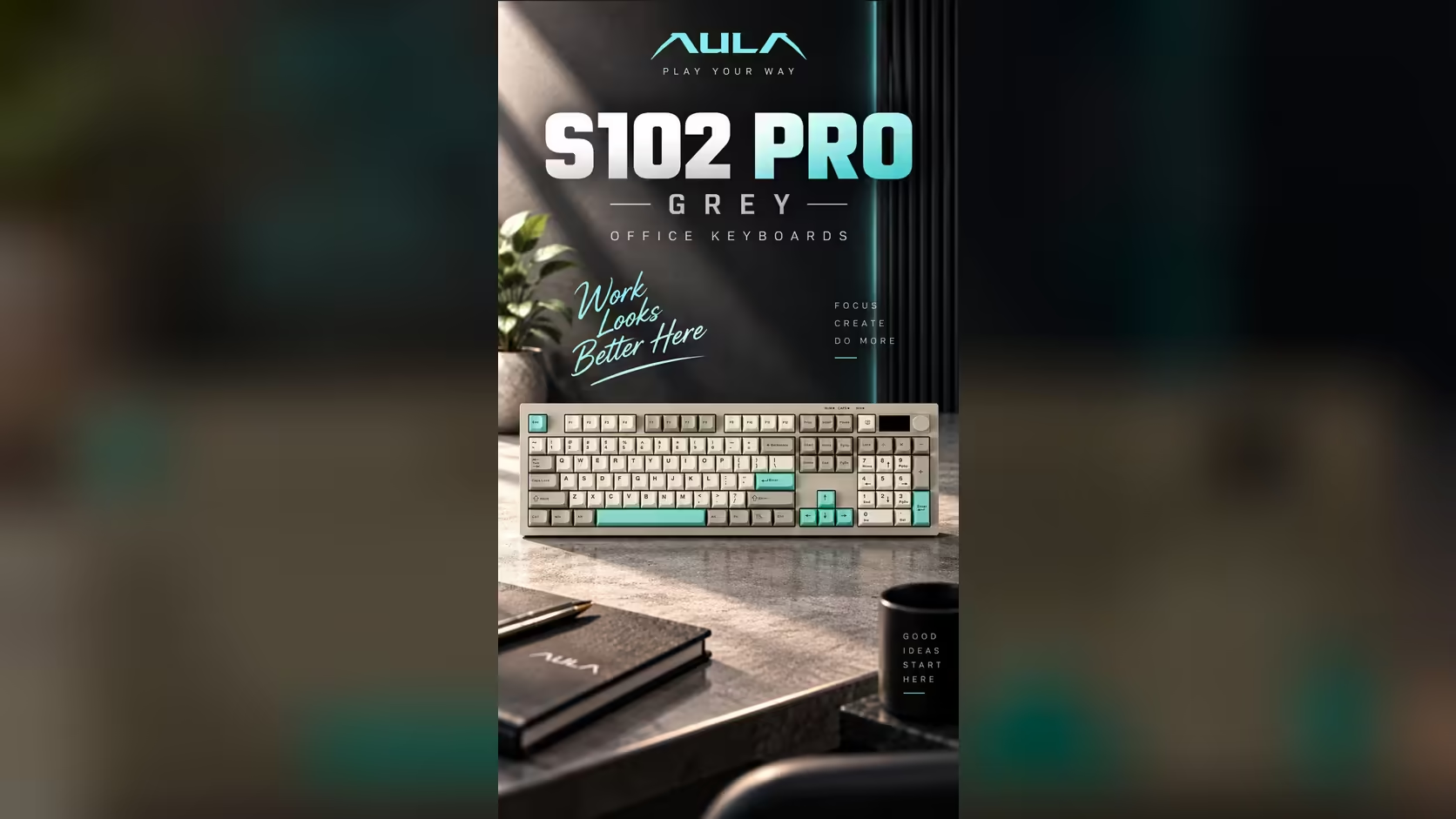
The S102 PRO has a small TFT screen that shows connection status and the battery percentage. That number is your charging guide.
A practical routine:
- Check the percentage when you sit down in the morning.
- If it looks too low to last the day, plug the cable into your computer.
- Keep working, then unplug once the percentage is back where you want it.
Because it is a percentage rather than a single warning light, you can judge whether a top-up is needed today or can wait until tomorrow. No capacity or runtime figure appears on AULA's page, so give it a week or two and you will know your own drain rate.
⌨️ Working while it charges
The cable is also one of the S102 PRO's three connection methods, alongside 2.4GHz wireless and Bluetooth for two devices. So plugging it in does not mean putting the keyboard aside. After you connect the cable, glance at the status screen: it shows which link the board is using, so you can confirm whether it is now on the cable or still on its wireless connection before you carry on typing.
Stretching each charge
The RGB backlight is the obvious variable under your control. Fn combinations step its brightness down, and lower brightness is the easy lever if each charge needs to stretch. The rest of the board, a quiet silicone membrane, a volume knob and three typing angles, does not change how you charge.
🧳 Travelling without a computer nearby
The one situation that needs planning is travel. If you take the S102 PRO somewhere without a computer, you cannot fall back on a wall charger, because AULA does not support that. Two simple habits cover it:
- Top the keyboard up from your computer before you leave, using the percentage on the screen as your check.
- Pack the cable anyway. At your destination, plugging into the computer you are using both charges the board and gives you a direct connection.
For a keyboard that stays on one desk, none of this is an issue: it can sit on the cable whenever the percentage drops.
The S102 PRO is listed in Evetech's office keyboards category. Teams equipping several desks with a matched keyboard and mouse can also look at Evetech's keyboard and mouse bundles. The price is on the product page.
Frequently Asked Questions
Can I use a phone charger?
No. AULA states that USB wall adapters are not supported, so charge from a computer's USB port instead.
Which cable do I need?
The lead in the box: its flat USB-A plug goes to the PC, the small USB-C plug to the keyboard.
Can I keep typing while it charges?
The cable is also a connection method, so check the status screen to see which link is active and carry on working.
When should I unplug it?
Once the percentage on the little TFT screen reaches the level you are happy with.
Is a laptop's USB port fine?
Yes. It is a computer's USB port, which is exactly what AULA specifies. Use an adapter if the laptop only has USB-C.
What if I am travelling without a computer?
Charge it before you leave and take the cable, so you can top up from the next computer you use.
Want a keyboard that keeps you posted on its battery?
Explore Evetech's office keyboard range and see the S102 PRO with its battery percentage screen.