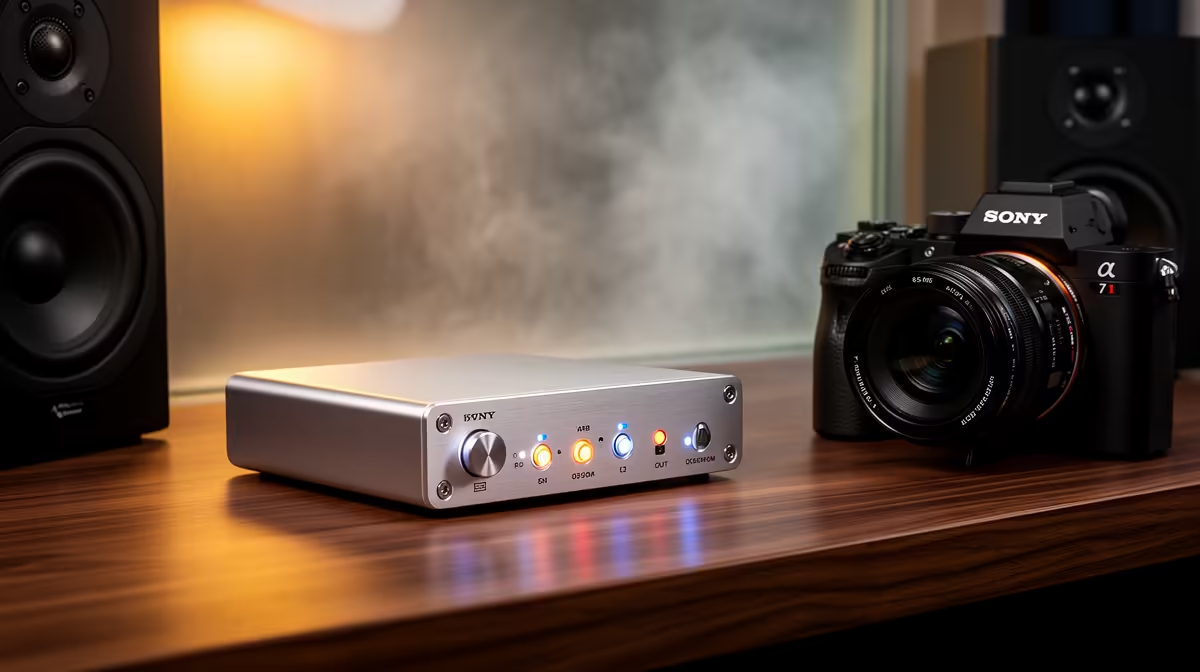
Audio-interface problems often come from the wrong input device, unsupported driver, mismatched sample rate or an unstable USB path. Start with one microphone and one monitoring output. Adding plugins and adapters before the basic signal works makes the fault harder to isolate.
Follow the signal from input to app
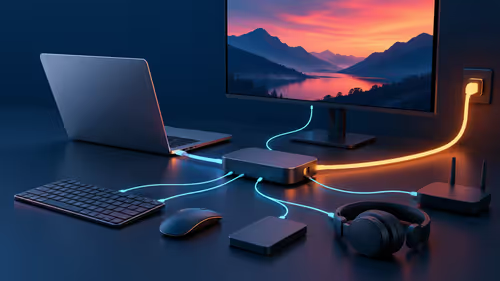
Confirm that the operating system sees the interface and that the chosen audio app uses the same input and output. Select a supported sample rate in both places. Use the manufacturer driver where required, restart the app after changes and test with a direct USB port. Remove an unpowered hub from the path during diagnosis.
Crackles can point to a small audio buffer, high processor load, cable trouble or driver conflict. Increase the buffer for editing, close heavy background tasks and try a known-good cable. Delay during live monitoring may improve with direct-monitor controls if the interface provides them. Keep phantom power off unless the connected microphone needs it.
Check available microphone paths
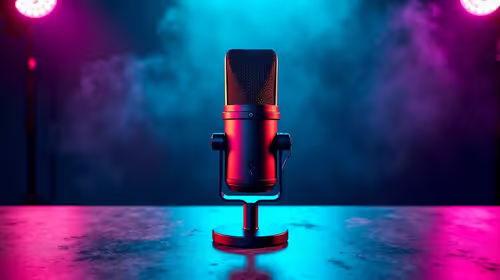
The factpacks contain no verified audio-interface SKU or price. The NearStream AM10X-P USB/XLR microphone costs a verified R730 and can connect through USB without an interface or use XLR in a suitable chain. The HyperX SoloCast 2 USB microphone costs a verified R690 for a direct USB path.
Record a dry voice sample before loading effects. Label the working driver, sample rate and buffer in the project notes. Persistent disconnects across ports and cables warrant manufacturer support or technician inspection.
Troubleshooting recording audio? > Ask Evetech to compare USB and USB/XLR microphone options.