


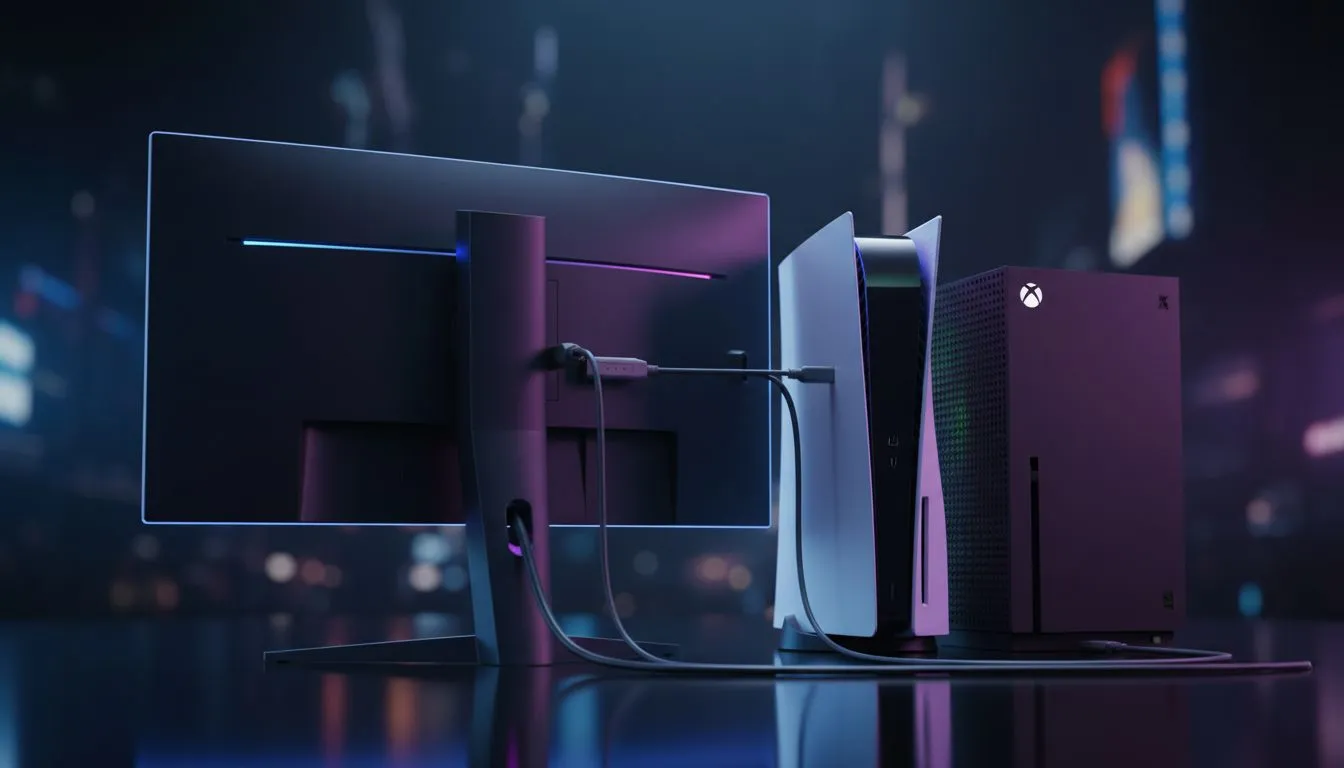
So, you’ve scored a PlayStation 5 or Xbox Series X. Awesome! But plugging it into your old TV means you're leaving performance on the table. To truly unlock next-gen speed and responsiveness, you need a proper gaming monitor. It's the best upgrade for any console warrior. This guide will show you exactly how to connect a gaming monitor to your PS5 and Xbox Series X and optimise your settings for that sweet, competitive edge. 🚀
Why a Gaming Monitor is a Must-Have for Your Console
A TV is for watching Showmax; a gaming monitor is for winning. The key differences are response time and refresh rate. Most TVs lag… literally. A gaming monitor offers near-instantaneous response times, meaning less motion blur and ghosting. More importantly, they support high refresh rates like 120Hz, which your PS5 and Xbox Series X can actually deliver. This makes gameplay incredibly smooth and gives you a split-second advantage. The difference is night and day, and the vast world of PC monitors offers options for every budget.
How to Connect Your Monitor for Peak Performance
Getting everything hooked up is easy, but optimising it is what counts. Here’s the step-by-step process to properly connect your gaming monitor to your console and get the best picture.
Step 1: Use the Right Cable
This is non-negotiable. To get 4K resolution at 120Hz, you must use an Ultra High-Speed HDMI 2.1 cable. Your PS5 and Xbox Series X both come with one in the box, so use it! Using an older HDMI cable will limit your resolution or refresh rate, bottlenecking your entire setup.
Step 2: Configure Your PS5 Settings 🔧
Once connected, dive into the PlayStation's settings to unleash its power.
- Go to Settings > Screen and Video > Video Output.
- Set Enable 120Hz Output to Automatic.
- Set VRR (Variable Refresh Rate) to Automatic. This prevents screen tearing and is a massive feature for smooth gameplay.
- Under the Resolution tab, select your monitor's native resolution. If you've invested in one of the many stunning 4K monitors available, this is where you lock in that incredible detail.
Step 3: Optimise Your Xbox Series X|S Settings
The process is just as simple on Team Green.
- Press the Xbox button and navigate to Profile & system > Settings > General > TV & display options.
- Under Display, set your Resolution (e.g., 4K UHD).
- Set the Refresh rate to 120Hz. The console will test if your monitor supports it.
- Go to Video modes and tick Allow variable refresh rate. This is the Xbox equivalent of VRR.
Game-Specific Settings ✨
to enable 'Performance Mode' inside your games! In titles like Call of Duty: Warzone, Fortnite, or Apex Legends, you often have to manually select the 120Hz mode in the game's own graphics settings. Just changing the console settings isn't always enough to get those high frame rates.
Choosing the Perfect Console Gaming Monitor
If you're still looking for the right screen, keep these three things in mind: Resolution, Refresh Rate, and Response Time. For consoles, a 120Hz (or higher) refresh rate is the main feature you want. For resolution, 1440p offers a fantastic sweet spot of clarity and performance, while 4K is for those who demand the absolute best visual fidelity. When it comes to finding the perfect match, browsing through a curated list of dedicated gaming monitors is the best place to start.
For an even more cinematic experience, many South African gamers are choosing immersive curved monitors to get lost in the worlds of their favourite games. And if you're a gamer who travels or has a compact setup, even versatile portable monitors now offer high refresh rates. Keep an eye on the best PC monitor deals in SA to snag a great price.
Don't Forget the Finishing Touches 🎮
Your setup isn't complete without the right gear. A quality VESA mount or monitor arm can free up desk space and give you perfect ergonomic positioning for those long gaming sessions. Ensuring you have high-quality cables and perhaps a surge protector can also protect your investment. You can find all these little extras in a good selection of monitor accessories.
Ready to Unleash Your Console's True Power? Stop letting your TV bottleneck your PS5 or Xbox Series X. A dedicated gaming monitor is the upgrade you need for smoother, faster, and more responsive gameplay. Explore our massive range of monitor deals and find the perfect screen to dominate the competition.











