


Stuck Pixel Checks for a Mechanical Keyboard Setup
Stuck pixel on a Mechanical Keyboard is likely a display symptom around that setup, not the part itself. Check the monitor, cable, GPU output, drivers, and warranty path first.
Read moreMaster your gaming monitor setup with our expert guide. We'll walk you through everything from physical placement and cable management to calibrating colors and optimizing refresh rates for a flawless visual experience. Stop guessing and start winning! 🚀🖥️
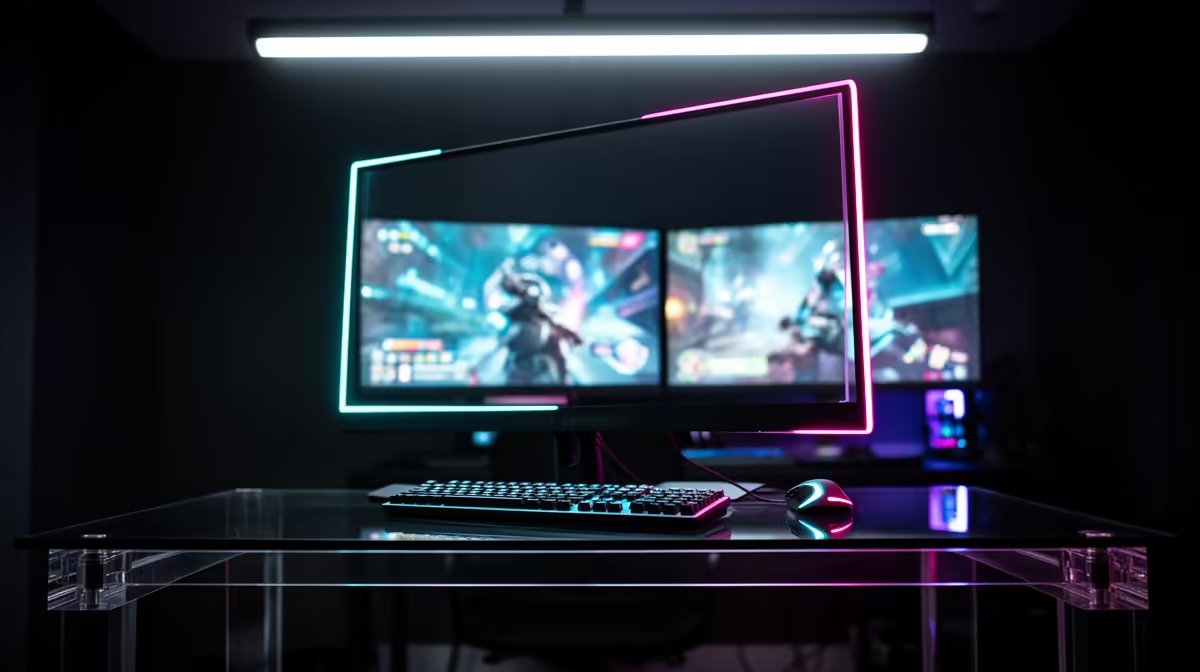
So, you’ve finally unboxed that glorious new display you’ve been dreaming of. You plug it in, fire up your favourite game, and… it looks good, but not amazing. That buttery-smooth, ultra-responsive experience you saw in the reviews feels just out of reach. What gives? Often, the missing ingredient is a proper gaming monitor setup. Unlocking your screen’s true potential goes beyond just plugging it in. Let’s get your display dialled in for peak performance.
Before you even touch a software setting, your physical gaming monitor setup is crucial for both comfort and performance. Staring at a poorly positioned screen for hours is a fast track to neck strain and fatigue, which definitely won't help your K/D ratio.
Your goal is simple: the top bezel of the monitor should be at or slightly below your eye level. You shouldn't have to tilt your head up or crane your neck down to see the action. Your eyes should be about an arm's length away from the screen. This ergonomic foundation is key. If your included stand doesn't offer enough adjustment, investing in a VESA mount or monitor arm from our range of quality monitor accessories can make a world of difference.
Here’s where the real magic happens. Your monitor has powerful features that are often disabled by default. A few clicks in the right places can completely transform your gaming experience. This is the core of a peak performance monitor setup for gaming.
This is the single most important setting. Many high-refresh-rate monitors default to a sluggish 60Hz out of the box. You paid for 144Hz, 240Hz, or even more… so make sure you’re using it!
You'll feel the difference instantly in how smooth everything from mouse movement to in-game action feels.
Not sure if your settings stuck? The easiest way to verify your monitor's refresh rate is to visit a test website like Blur Busters' UFO Test. It's a simple, browser-based tool that instantly shows your screen's current refresh rate. It's the perfect way to confirm your gaming monitor setup is running at full speed.
For the sharpest, clearest image, always run your monitor at its native resolution. If you have one of the latest, crisp 4K monitors, running it at 1080p will result in a soft, blurry picture. The pixels are designed to work best at one specific resolution. Always set the resolution in both Windows and your game settings to match your monitor's native spec.
With the fundamentals sorted, a few advanced settings can give you that final polish for a pro-level gaming monitor setup.
Screen tearing is that ugly horizontal line that appears when your monitor’s refresh rate and your GPU’s frame rate are out of sync. Adaptive Sync technology solves this, creating a perfectly smooth image. Ensure it’s enabled on your monitor’s on-screen display (OSD) and in your Nvidia or AMD control panel. It’s a must-have feature for modern gaming.
A multi-monitor setup can be incredible for both productivity and gaming. You can keep Discord or a guide open on a second screen while you play. Many gamers find that immersive curved monitors are perfect for the main display, wrapping the action around their peripheral vision. You can even add one of the surprisingly handy portable monitors as a dedicated screen for streaming software or system stats. The possibilities for a custom setup are endless when you browse all gaming monitors available.
A great display is the window to your digital world. Taking just 15 minutes to optimise your gaming monitor setup ensures you’re getting every bit of performance you paid for. The right PC monitor is the foundation, but these tips are the final polish that makes it shine. ✨
Ready to Upgrade Your View? A perfect setup starts with the perfect screen. Whether you're after blistering refresh rates, stunning 4K visuals, or an immersive curve, we've got the display to level up your rig. Explore our massive range of gaming monitors and find the perfect centerpiece for your battle station.
For optimal ergonomics, position your gaming monitor one arm's length away, with the top of the screen at or slightly below eye level to reduce neck and eye strain.
Start by selecting your monitor's 'Game' or 'FPS' preset. Then, use online calibration tools to fine-tune brightness, contrast, and gamma for your specific environment.
DisplayPort is generally preferred for PC gaming as it supports higher refresh rates and resolutions, and is required for technologies like NVIDIA G-Sync and AMD FreeSync.
In Windows, right-click the desktop, go to Display settings > Advanced display settings. Under the Monitor tab, select the highest available refresh rate from the dropdown menu.
Ghosting is a trail seen behind moving objects. You can often reduce it by increasing your monitor's 'Overdrive' or 'Response Time' setting in its on-screen display menu.
No, you must enable G-Sync or FreeSync in your monitor's on-screen menu and within your GPU's control panel (NVIDIA Control Panel or AMD Radeon Software).
Stuck pixel on a Mechanical Keyboard is likely a display symptom around that setup, not the part itself. Check the monitor, cable, GPU output, drivers, and warranty path first.
Read more
How to fix stuck pixel Windows 11 USB DAC issues starts with display-only tests. Check HDR, scaling, monitor input, USB cable movement, and safe South African support options before connecting the pixel issue to audio hardware.
Read more
Windows 11 Steam Deck monitor issues often start with display mode, USB-C output, drivers, or dock power. Use this how to fix monitor not detected windows 11 steam deck checklist for SA handheld PC setups.
Read more
Stalker 2 Heart of Chornobyl PC build planning at R100,000 should stay cautious about parts and settings. Balance GPU, CPU, RAM, storage, cooling, and upgrade room before picking a South African gaming PC.
Read more
RX 9070 XT build stuttering needs a step-by-step check before replacing parts. Review drivers, settings, thermals, power, background apps, display limits, cables, and game options before changing hardware.
Read more
GTA 6 on R15,000 needs careful part balance. This SA build guide frames CPU, GPU, RAM, SSD, cooling, and upgrade trade-offs without promising live prices, stock, or exact FPS.
Read more
NVIDIA lists 550W required system power for the RTX 5060 reference specification, based on a high-end test system. A quality 550W unit can be enough, but CPU draw, transient load, connectors and ageing decide real headroom.

80+ Gold vs 80+ Platinum for couch co-op gaming is about PSU efficiency, heat, fan behaviour, quality, and wattage headroom, not direct FPS. SA buyers should compare the whole build.

Upgrade your setup with the best USB-C hubs for creators. Discover why high-capacity card readers and dual 4K output are essential for professional South African content production. 🚀💻

B850 motherboard FPS drops needs a methodical troubleshooting pass. Review drivers, thermals, power settings, background apps, cables and game settings before replacing parts in an SA gaming setup.
NVIDIA lists 550W required system power for the RTX 5060 reference specification, based on a high-end test system. A quality 550W unit can be enough, but CPU draw, transient load, connectors and ageing decide real headroom.

OpenRGB's master branch now carries changes labelled for 1.0 final, including translation and platform work, but the official tags page still lists 1.0rc3.1 as the newest packaged release. Stable users should wait for the signed release channel.

A motherboard can remain useful for many years when power, cooling and connectors stay healthy. Replace it for confirmed faults, damaged power delivery or a blocked platform need, not simply because the calendar reaches a fixed age.

The VAIO T combines a 13.3-inch display with a multi-flip mechanism for laptop, tablet and outward-facing viewing modes. Orders begin in Japan on 18 September; South African availability is unconfirmed.

The smallest ATX case 2026 buyers should choose is the smallest chassis that still fits their exact graphics card, cooler, power supply and airflow plan. ATX support alone does not prove a case has the smallest footprint or volume.

In a 6 bit + FRC vs 8 bit comparison, native 8-bit panels can produce 256 levels per colour channel directly, while 6-bit plus FRC rapidly alternates nearby values to approximate the wider palette. Panel quality still depends on more than bit depth.

The UGREEN LinkStation Pro eGPU dock combines Thunderbolt 5 and OCuLink connections with an integrated 850W ATX 3.1 power supply and up to 140W laptop charging. South African availability is unconfirmed.

Windows 11 KB5124008 can leave some USB Audio Class 1.0 devices with no sound, Code 10 or failed multichannel output. Microsoft confirms the issue and says switching to two-channel stereo can restore audio for some users.