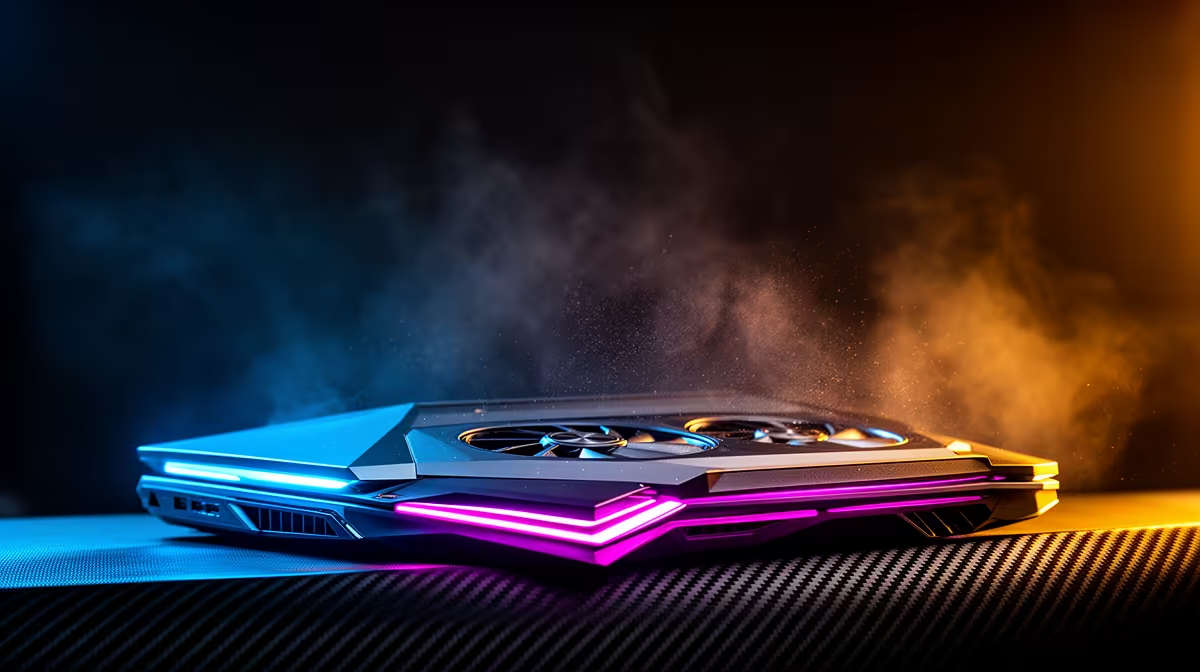
Fans spinning at the Windows desktop are responding to heat, power or a control instruction. A background process is the first suspect, though dust, a charging battery, a discrete GPU held awake or stale firmware can produce the same sound. Find the source before forcing a quieter fan curve.
Quick Answer
Leave the laptop at the desktop for five minutes, then open Task Manager and sort Processes by CPU. Check GPU, disk and network activity as well. Pause updates and close the busy application. If load falls but fans stay loud after the heatsink cools, inspect performance mode, discrete-GPU activity, vents, BIOS and supported chipset software.
Evetech's laptop best sellers help compare cooling designs and processor classes. The gaming laptop deal range gives model context when the noise is part of deciding whether to service or replace an older system.
Establish a Real Idle State
Restart and wait after sign-in. Windows Update, search indexing, antivirus scanning and launcher updates can keep the CPU busy for several minutes. Let expected work finish before calling the machine idle.
In Task Manager, sort by CPU and watch rather than taking one snapshot. A process that spikes every few seconds can sustain temperature. Sort by disk and network to catch installers and cloud sync.
End a task only when you recognise it and have saved its work. Do not kill Windows services at random.
Check Which GPU Is Awake
A browser, external monitor, hardware monitor or overlay can keep the discrete GPU active. Add GPU engine and power-usage columns in Task Manager, or use the maker's monitor.
Close applications one at a time. Hybrid mode should allow the dGPU to sleep during light work when the display route permits it. A monitor connected to a dGPU-wired port may keep that GPU awake by design.
Inspect Power and Fan Modes
Restore the vendor Balanced profile and the normal Windows power mode. A manual Turbo curve or Best performance setting can hold clocks and fans above the quiet baseline.
Fans do not stop the moment load ends. Wait for the cooling system to clear stored heat. Compare temperature and fan behaviour after ten minutes.
Update the laptop's supported BIOS, embedded-controller, chipset and control software when release notes address fan or power behaviour. Do not use a generic driver updater.
Check Airflow and Dust
Put the laptop on a hard desk and clear every vent. Dust raises the fan speed needed for the same cooling. Listen for grinding, clicking or one fan cycling while the other remains still.
Use the service path approved for the model. Blowing a fan beyond its designed speed or pushing dust deeper into the heatsink can make matters worse.
Find Persistent Startup Load
Open Task Manager's Startup apps page. Disable launchers and utilities you recognise but do not need at sign-in. Keep device-control, hotkey, graphics and audio components until their role is confirmed.
Restart after a small group and retest controls. A cleaner startup is useful only when the laptop still switches modes and cools as designed.
Separate Charging Heat From Idle Heat
A low battery can make the charging circuit and power brick warm even when Windows is quiet. Note the battery percentage and whether fast charging is active. Let the laptop reach its normal charge threshold, then compare fan behaviour without changing anything else.
If the fans calm once charging current falls, the response may be expected for that model. A damaged adapter, loose connector or battery warning needs the manufacturer's diagnostics. Do not test with a random charger that happens to fit.
Use a Clean Boot as a Diagnostic
When Task Manager shows no obvious culprit, use Microsoft's supported clean-boot process to start Windows with non-essential third-party services disabled. Record the original configuration before changing it.
If the fan settles, re-enable services in small groups until the load returns. This identifies the software family instead of leaving the laptop in a stripped diagnostic state. Restore normal startup when the test ends.
Keep the vendor hotkey, fan and platform services available for the final confirmation. A quiet result created by disabling the controller that reports temperature is not a fix.
Decide When Hardware Service Is Due
Fan noise with low reported temperature can come from a worn bearing or damaged blade. Grinding, scraping and repeated failed starts are mechanical clues. Back up important data and arrange service before the fan stops under a game load.
If one side of the chassis heats while its fan remains still, shut down the demanding workload. A blocked heatsink, failed fan or poor thermal contact needs inspection. Keep a short recording of the sound and a screenshot of the sensor state for the technician.
FAQ
How do I find a CPU spike at idle?
Sort Task Manager by CPU and watch for several minutes. Also check disk, network and GPU activity for update or sync work.
Can chipset or firmware problems affect idle fans?
Yes. Power-state and fan-control fixes can arrive through supported BIOS, controller and chipset updates for the exact model.
Does dust cause idle fan noise?
It can. Restricted airflow requires more fan speed to remove the same small amount of heat.
Prove the laptop is idle in Task Manager, let stored heat clear and trace the remaining noise through GPU state, power mode and airflow.